
Web Security Notifications
The Web Security Notifications tab controls the notification pages (block and detect pages) that end users see when they browse the internet.
Customizing Web Security Notifications
-
Access the SASE Administrator Portal and click Settings > General.
The General Settings page appears.
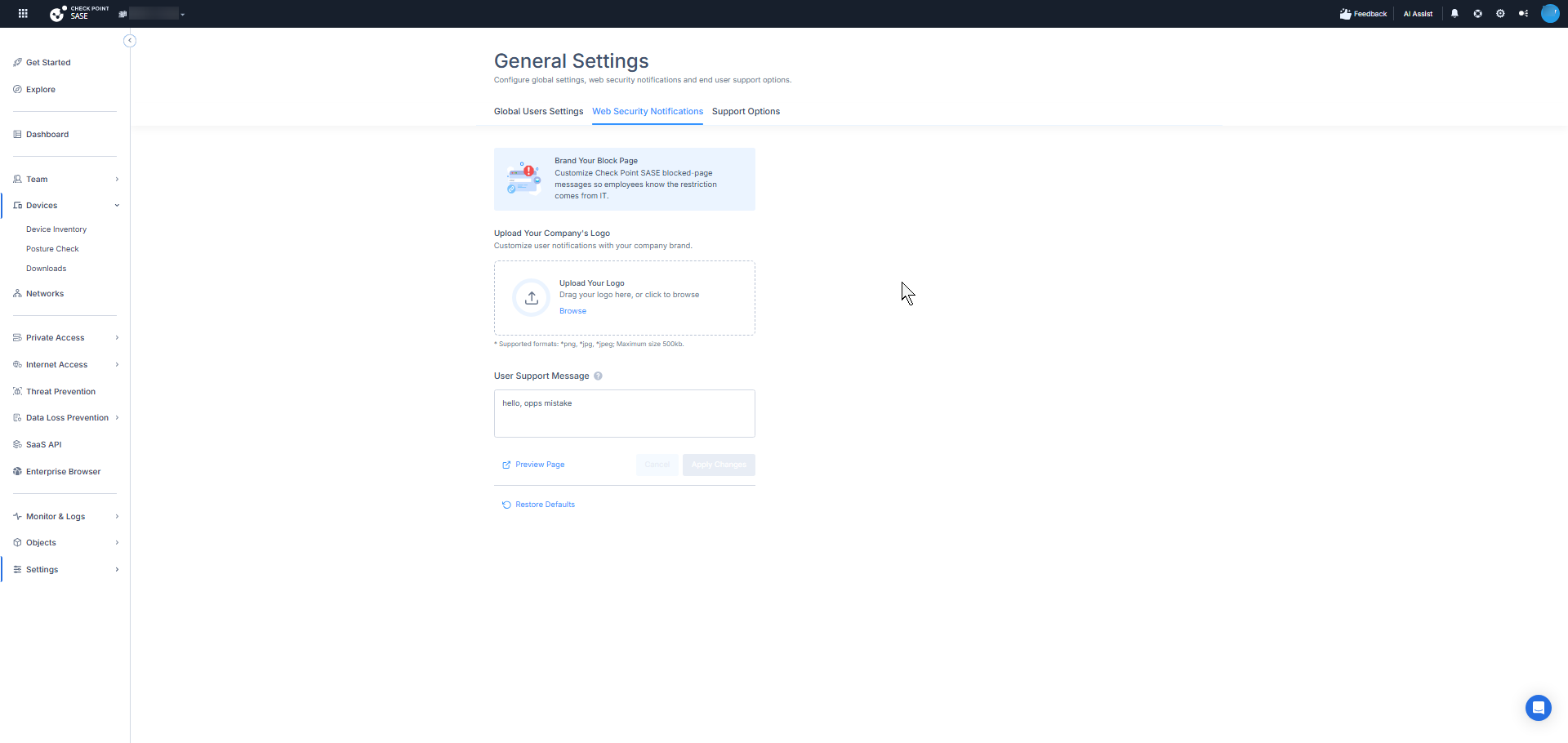
Click the Web Security Notifications tab.
-
To upload your company logo, in the Upload Your Company's Logo section, upload the image file. You can crop, resize, and rotate the image.
Supported formats: PNG, JPG, JPEG. Maximum file size: 500 KB. SVG is not supported.
-
In the User Support Message field, enter the message displayed to users when they encounter a blocked website or page.
-
To show your company support email on the notification pages, turn on the Show Company Support Email toggle.
-
To see how the page appears to end users, click Preview Page. The blocked page opens in a new tab. If you uploaded a logo, the preview shows your logo. Otherwise, it shows the default logo.
-
Click Apply.
Restoring the Default Notification Pages
-
Click Restore to Defaults.
A confirmation message appears. This action deletes your customized logo and restores the system defaults.
-
Click Restore Defaults to confirm, or Cancel.