
Renewing a Central CA Certificate Across Policies
This section describes the CA certificate renewal procedure if you are using a centralized CA certificate across policies.
-
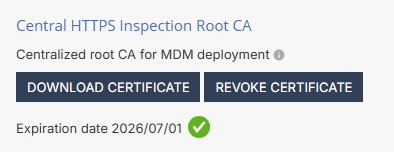
In the Central HTTPS Inspection Root CA section, click Revoke Certificate.
-
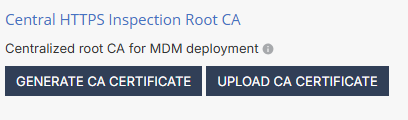
To generate a new central CA certificate, do one of these:
-
To generate a CA certificate issued by Check Point, click Generate CA Certificate.
The system generates a certificate valid for one year from the generation date, as shown in Expiration date.
-
To use a self-signed or a third-party CA certificate, click Upload CA Certificate.
-
In the pop-up window, upload the certificate.
Note:For the Transport Layer Security (TLS) certificate to be valid:
-
The certificate must have a lifecycle of at least 30 days and not longer than 390 days.
-
The certificate must be valid for more than 30 days from the time it is uploaded to the Mobile Security Administrator Portal.
-
-
Enter the certificate password.
-
Click Verify.
-
If there are no errors, click Add.
-
-