
Custom Dashboard
The Custom Dashboard allows you to create personalized dashboards with widgets of your preference and specify whether the dashboard should be private or public. Private dashboards are available only for you to view whereas, Public dashboards are available for all the users with access to the Overview page. However, only the owner of the dashboard can edit it.
Blank dashboard allows you to create a new dashboard with available widgets. Unified template allows you to customize the Unified Dashboard.
Creating a Custom Dashboard
-
Go to Overview and click
 next to Custom Dashboard.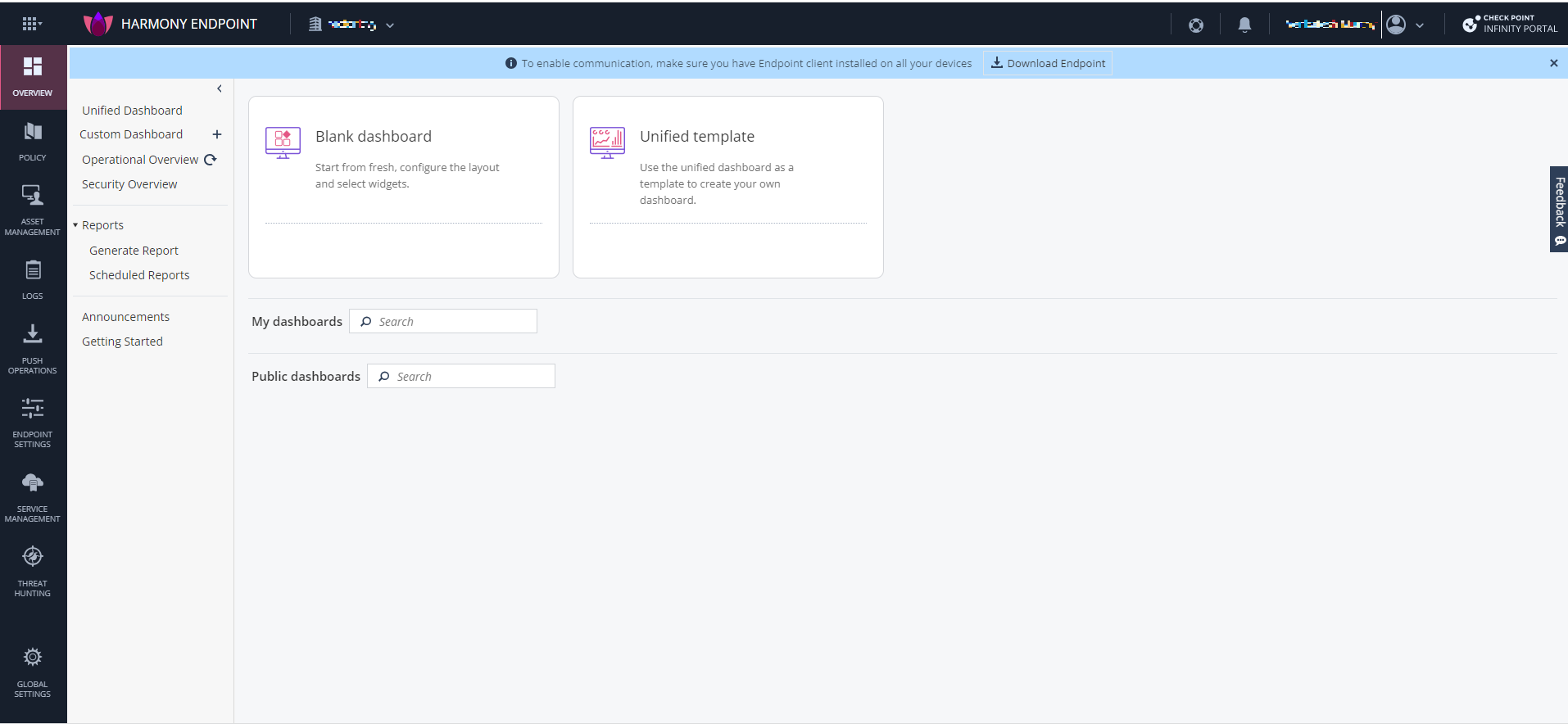
-
To create a new custom dashboard from scratch:
-
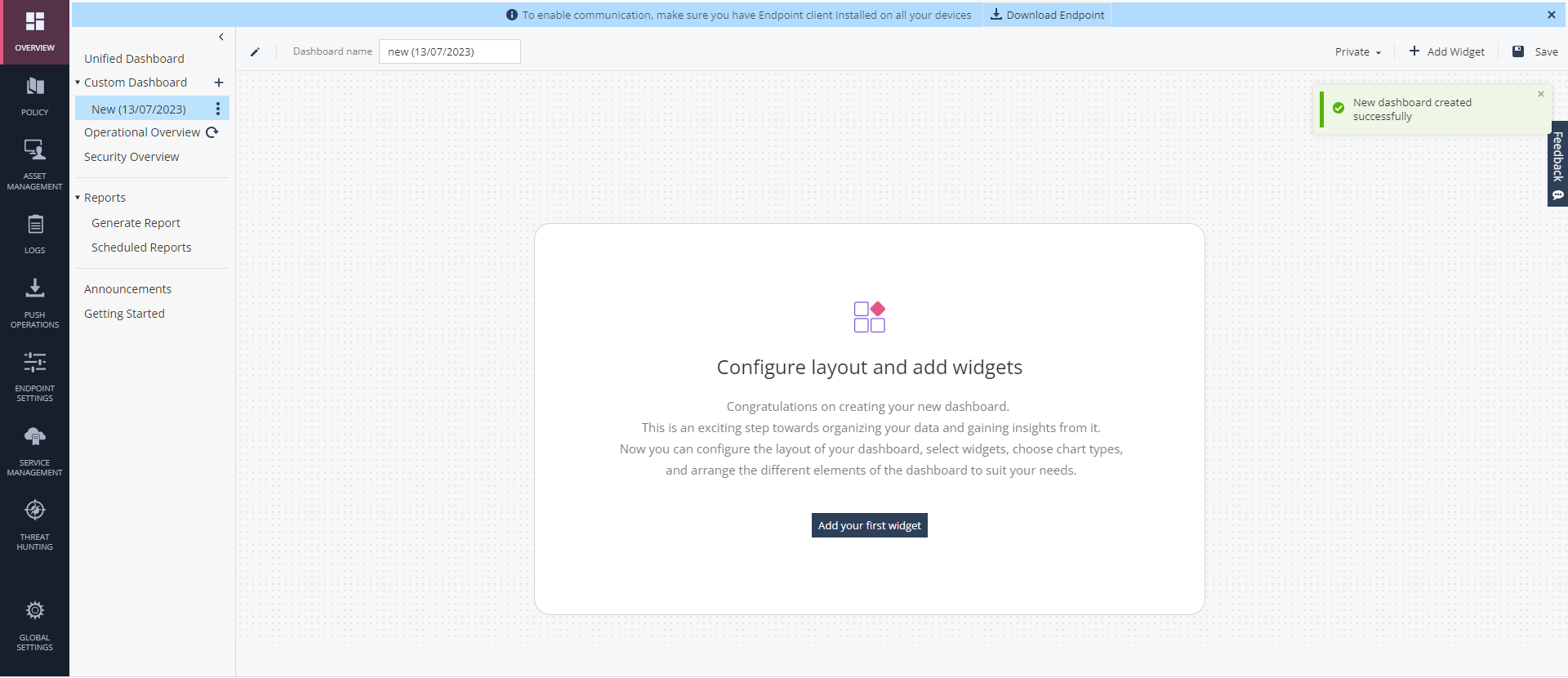
Hover over the Blank dashboard widget and click Add.
-
In the Dashboard name field, enter a name.
-
Click Add Your First Widget.
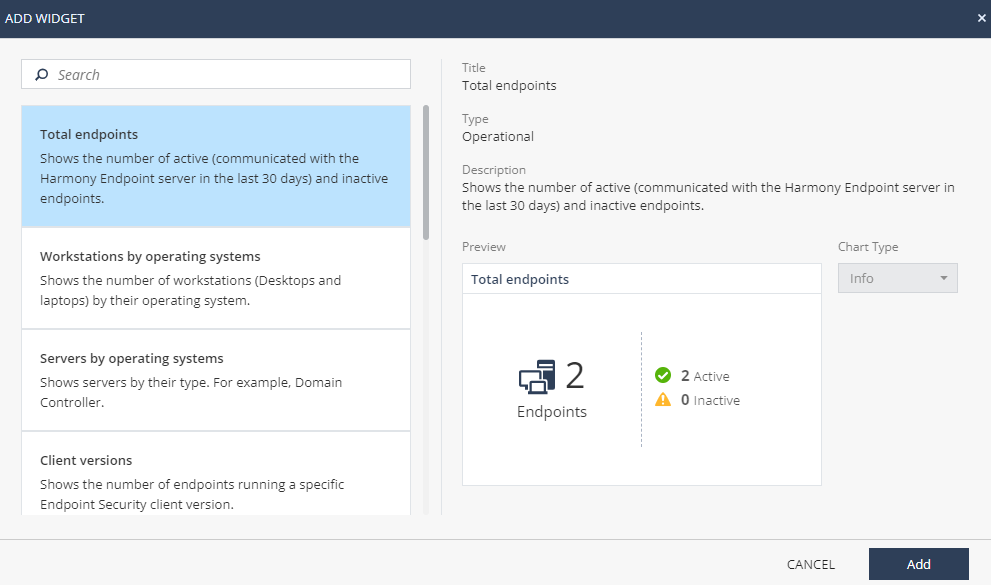
The Add Widget window appears.
-
-
To create a custom Unified Dashboard:
-
Hover over the Unified template widget and click Duplicate.
-
In the Dashboard name field, enter a name.
-
Click Add Widget.
The Add Widget window appears.
-
-
From the left pane, select the widget and click Add.
 Note:
Note:The Add button is disabled if the widget is already added to the dashboard.
-
To add more widgets, click Add Widget and repeat step 4.
-
To delete a widget, on the widget, click
 and click Delete.
 -
To make the custom dashboard public, from the Private list on the upper-right corner, click Public.
The system adds the dashboard under Public dashboards for other users.
-
Click Save.
The dashboard appears under Custom Dashboard on the left navigation pane, and it is also listed under My dashboards in the Custom Dashboard page.
Managing a Custom Dashboard
-
Click Overview.
-
To edit a dashboard:
-
Expand Custom Dashboard.
-
Click
for the dashboard you want to edit and click Edit. -
Make the necessary changes and click Save.
Note:You cannot edit dashboards created by other users.
-
-
To delete a dashboard, expand Custom Dashboard, click
for the dashboard you want to delete and click Delete.Note:You cannot delete dashboards created by other users.
-
To hide a dashboard, expand Custom Dashboard, click
for the dashboard you want to hide and click Hide. The dashboard is removed from the list under Custom Dashboard on the left navigation pane. -
To unhide a dashboard, click
, hover over the dashboard you want to unhide and click Add. The dashboard is added to the list under Custom Dashboard on the left navigation pane. -
To duplicate a dashboard, click
, hover over the dashboard and click Duplicate.