Extending Trial Period
- Log in to the Check Point User Center
- If you do not have a User Center account, go to My Check Point > My accounts and create a new User Center account.
- Go to My Check Point > Product Center.
- In the Product Center, go to the Evaluations tab.
-
Select Other Evaluation Option and click Select a product.
The Other Evaluation Options window opens.
-
Select CP-HAR-EP-COMPLETE-EVAL or CP-HAR-EP-ADVANCED-EVAL from the drop-down list and click Select.
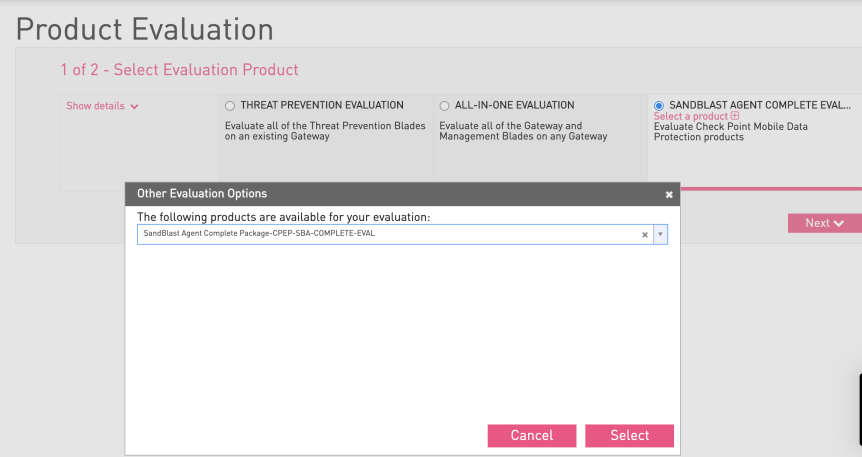
- Click Next
-
In the Provide Evaluation Info section that opens, fill in these details:
User Center Account
Email Address
Evaluation Product will be used by
Purpose of Evaluation
-
Click Get Evaluation.
A confirmation notice is received that the product was successfully added to your User Center account.
Click the link in the confirmation notice to view the license in the Product Center.
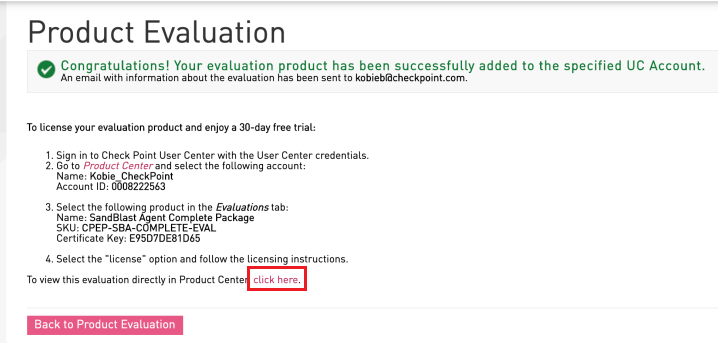
- In the Product Center, go to Selected Account and select the account to which the license was added.
- Select the license and click the License button above the list of the licenses.
-
Under License Information, select the License for Cloud Management checkbox.
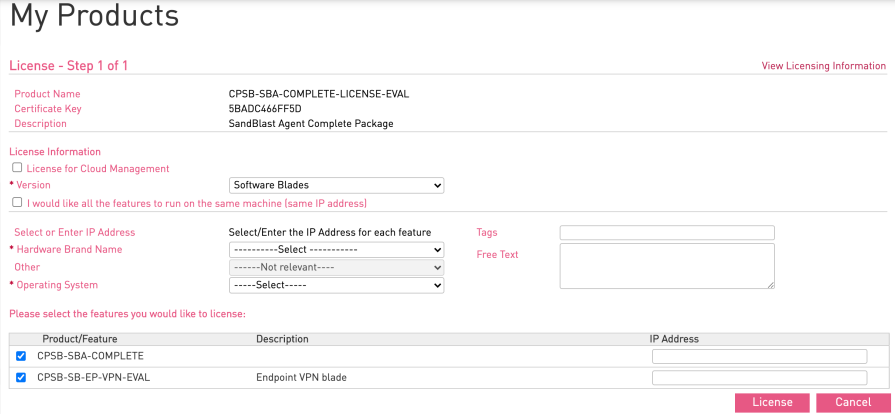
- If you have not subscribed to the VPN feature (Check Point Firewalls are not used for client VPN), then click License.
-
If you have subscribed to the VPN feature that uses Check Point Firewalls for client VPN, then in the IP Address field for CPSB-SB-EP-VPN, replace
164.100.1.8with the IP address of the Security Management Server and then click License.