
Searching and Viewing Archived Emails
Advanced Search
From the Archiving Search screen, administrators can search and filter all the archived emails (whether they were archived automatically or imported from an external source).
Archiving introduces an advanced search that lets you refine results using these criteria:
| Search Criteria | Description |
|---|---|
| Date | Select a predefined range (for example, Last 12 months) or define a custom date range. |
| Contact | Search by the name of the contact for both sender and recipient. |
| Subject | Search by words in the email subject. |
| Email content | Search by the content of the email body. |
| Keywords | Search for keywords in the email body, subject, and within the attachments. |
| Attachment content | Search by the content of the attachments. |
| Attachment type | Search by the attachment file type. |
| Attachment name | Search by the attachment file name. |
| Domain | Search by the sender or recipient domain. |
The limit of attachment content is 100 MB.
-
Go to Archiving > Search.
-
In the Archiving Search page, select the required search criteria, enter the search values, and click Search.
-
Review the search results.
Previewing Archived Emails
Administrators can preview an archived email directly from the Check Point Portal, without exporting it first.
To preview an email:
-
Go to Archiving > Search.
-
In the Archiving Search page, select the required search criteria, enter the search values, and click Search.
-
Click on the search results.
The email content opens in the preview pane.
-
Click Show Email Content in the preview pane.
-
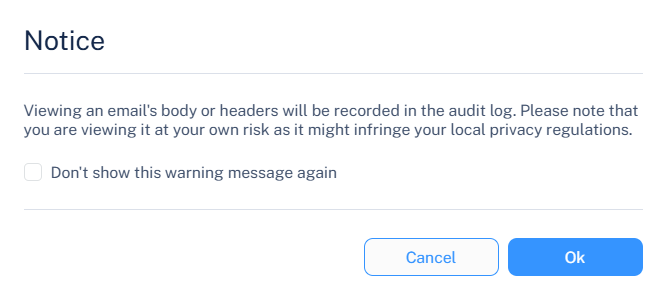
In the Notice pop-up that appears, click OK.
 Note:
Note:Every email preview action is audited and added to the System Logs. When you preview an email, a notification informs you that the action is audited. To hide this notification for future previews, select the Don't show this warning message again checkbox to not show it again.
Emails are archived before they are scanned and may contain malware or phishing content. Use caution when you preview an archived email.
Downloading an Email Directly
Administrators can download a single email directly, without using the full export flow.
-
Go to Archiving > Search.
-
In the Archiving Search page, select the required search criteria, enter the search values, and click Search.
-
Select the checkbox for the required email to download.
-
Click Group Actions > Export.
-
In the Archive Export confirmation pop-up, click OK.
The selected email is downloaded directly to your computer.
Direct download is available only when you select a single email. If you select more than one email, the download is handled by the export solution instead. See Exporting Emails from Archive.