
Sending Email Notifications to End Users
Avanan allows to send email notifications to end users for these actions:
Rejected quarantine restore requests
Approved phishing reports
Rejected phishing reports
To enable Avanan to send email notifications to end users:
-
To send email notifications for declined restore requests:
-
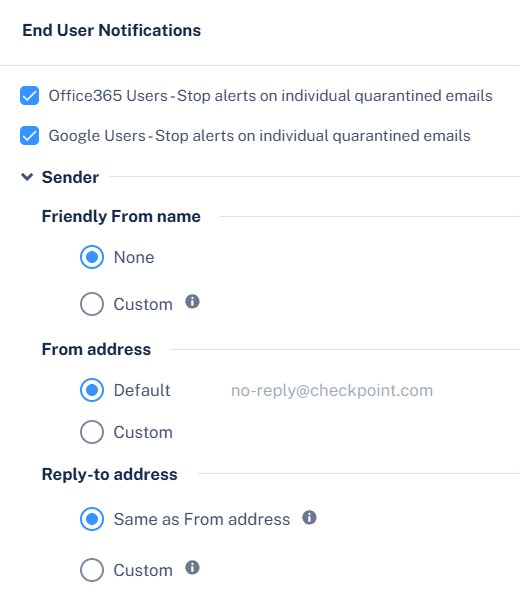
In the End User Notifications section, configure the required notifications.
-
In the End User Notifications section, configure the required notifications.
-
To send email notifications for approved and declined phishing reports:
-
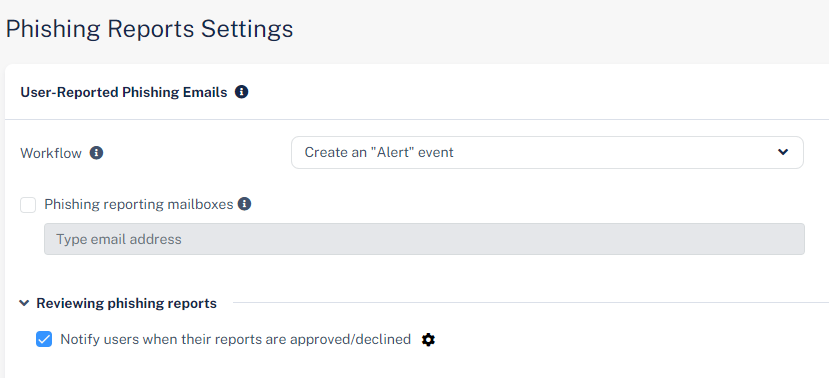
In the Reviewing phishing reports section, select the Notify users when their reports are approved/declined checkbox.
-
To change the notification message, click the
 icon next to the checkbox and make the required changes.
-
In the Reviewing phishing reports section, select the Notify users when their reports are approved/declined checkbox.