
Step 4: Adding SMTP Relay Host
-
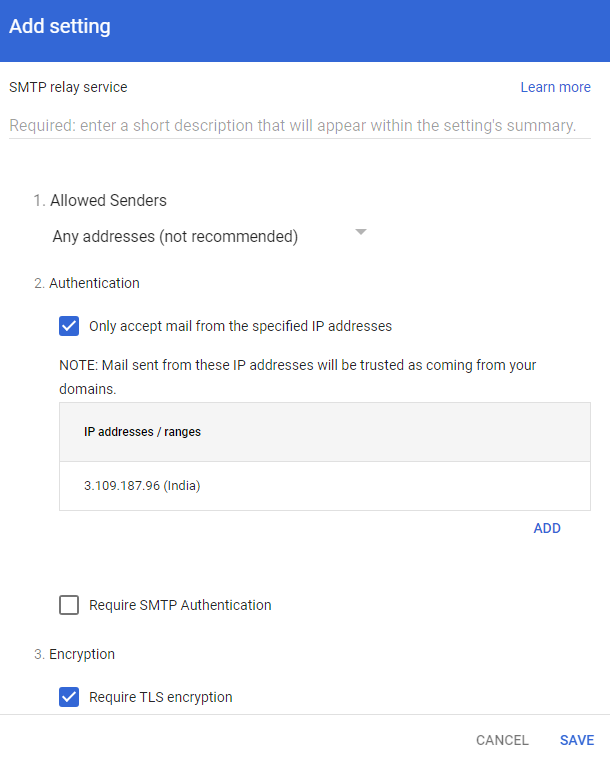
Enter CLOUD-SEC-AV Service for description.
-
In the Authentication section, do these:
-
Add all the IP addresses relevant to your Avanan tenant (account) region.
For the list of supported IP addresses, see IP Addresses Supported Per Region.
To add an IP address:
- Click Add.
- In the Description field, enter CLOUD-SEC-AV NAT for the IP address.
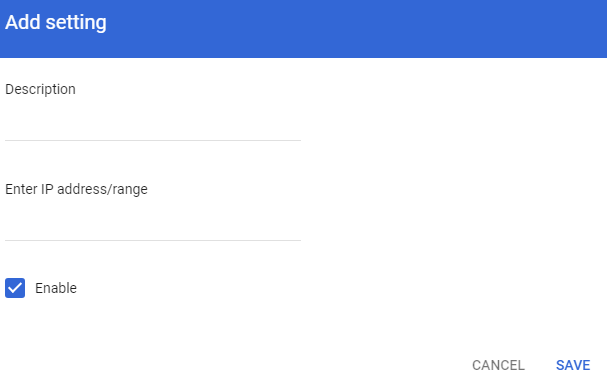
- Enter the IP addresses relevant to your Avanan tenant (account) region.
For the list of supported IP addresses, see IP Addresses Supported Per Region.
- Select the Enable checkbox.
- Click Save.
-
Add all the IP addresses relevant to your Avanan tenant (account) region.