
Encrypting Outgoing Emails using Avanan Email Encryption
Avanan Email Encryption allows you to send emails containing sensitive information in a secured manner so that the external recipient can see the email in a secured portal, while the email and its content are stored only in the Avanan's tenant.
Activating Avanan Email Encryption
-
Create or edit an existing Office 365 Mail DLP policy. For more information, see DLP Policy for Outgoing Emails.
-
Set the policy protection mode as Prevent (Inline).
-
Under Scope, select Direction as Outbound.
-
Select a DLP workflow for Avanan Email Encryption as required. For the supported workflows, see DLP Workflows for Outgoing Emails.
-
Click Save.
By default, the Avanan logo appears on the Avanan Email Encryption web pages and email notifications. To customize the logo, see Adding a Custom Logo.
Accessing Avanan Email Encryption Encrypted Emails
Validating the Identity of the External Recipient
When an external recipient receives a secured email notification from Avanan Email Encryption, the recipient must validate to view the email.
-
Click the link in the email notification to access the secured portal.
By default, the link is valid only for 10 hours.
-
Click Authenticate to receive the one-time authentication code.
The recipient receives the authentication code through email. By default, the authentication code is valid only for 10 minutes.
-
Enter the code and click Submit.
-
After successful authentication, the recipient can view and respond to the email.
Also, Avanan adds a cookie to the browser. By default, it remains valid for 30 days, and the recipient is not required to authenticate again from the same browser.
After the cookie expires, the recipient must authenticate again.
To configure the default time and validity of the cookie, see Configuring Avanan Email Encryption Parameters.
External Recipients Interacting with Emails Vaulted by Avanan Email Encryption
After successful authentication, the email opens in a secured portal and allows the recipient to:
-
Read the email
-
Download the attachments (if any)
-
Reply to the sender.
Storage of Emails by Avanan Email Encryption
Avanan stores the secured emails by Avanan Email Encryption only in the Avanan servers associated with the data residency region of your Avanan tenant. The email and its attachments are stored encrypted by SSE-S3 encryption.
By default, these emails will be available only for 14 days, and you cannot access them later. To change the number of days they are available, see Configuring Avanan Email Encryption Parameters.
Configuring Avanan Email Encryption Parameters
You can configure the security and retention parameters of the Avanan Email Encryption security engine. To do that:
-
Click Security Settings > Security Engines.
-
Click Configure for Avanan Email Encryption.
-
In the Subject field, enter the email's subject in the Avanan Email Encryption email notification.
-
In the Body field, enter the required information in the email notification.
-
In the Email lifetime in days field, enter the number of days before the emails expire. By default, Avanan Email Encryption emails expire after 14 days.
-
In the Code expiration in minutes field, enter the expiration time for the authentication code. By default, the code expires in 10 minutes.
-
In the Cookie expiration in days field, enter the expiration for the cookie. By default, the cookie expires after 30 days. After this period, the recipient must authenticate again.
-
In the Link expiration in hours field, enter when the secured link in the email notification expires.
By default, the link is valid only for 10 hours. After this period, the recipient cannot access the vaulted email using the encrypted link. However, the recipient can request a new link from the old encrypted link.
-
Click Save.
Emails Encrypted by Avanan Email Encryption - End User (External Recipient) Experience
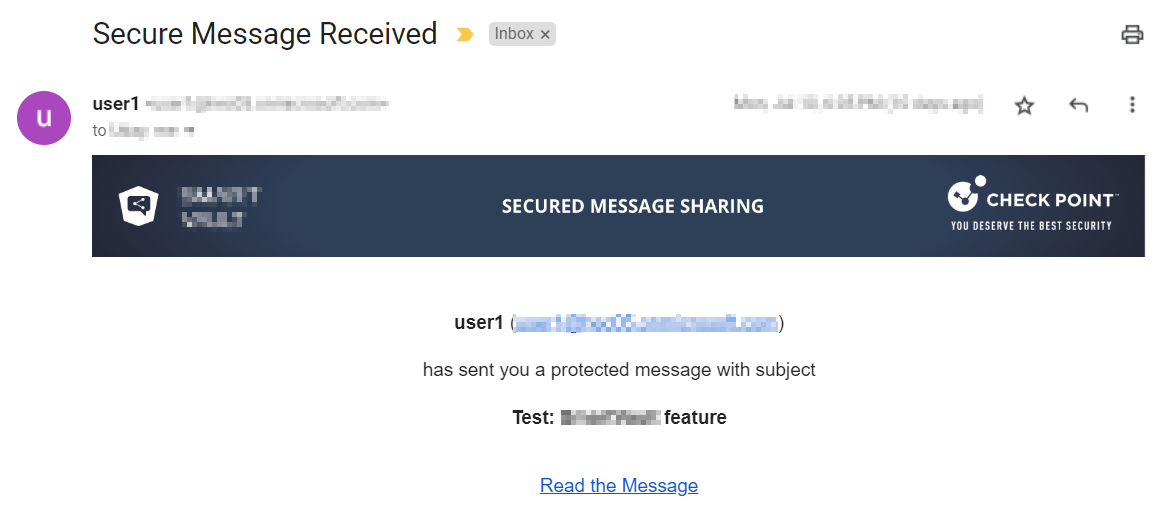
When Avanan detects sensitive information in an email, the email is vaulted, and the recipient receives an email notification from Avanan Email Encryption.
To view the secured email, the external recipient must do these
-
Click the secured link in the email notification.
 Note:
Note:By default, the secured link is valid only for 10 hours. After it expires, you must request a new link. To do that, click Send link from the Encrypted Link Expired page.

You will receive an email with the new secured link.
-
To read the email, click Read the Message.
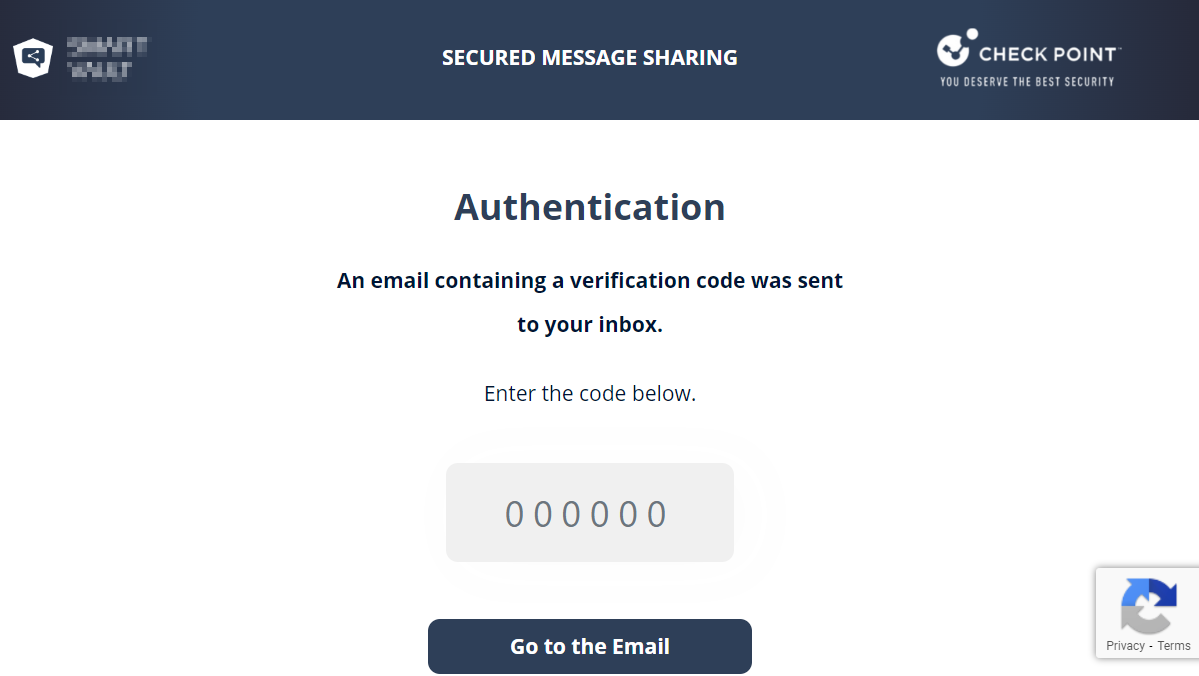
The secured portal opens and requests for authentication.
-
Click Get Authentication Code.
The recipient receives an authentication code through an email.

-
Enter the authentication code in the secured portal and click Go to the Email.
After successful authentication, the original email appears.
-
To reply to the email, click Reply to Sender.

-
Enter the required information and click Send.

The response is sent as an email to the original sender and the secured portal shows the email delivery status.
