Creating the Endpoint Security Client Windows App in Microsoft Intune

  1. Log in to Microsoft Intune or Microsoft Endpoint Manager admin center.
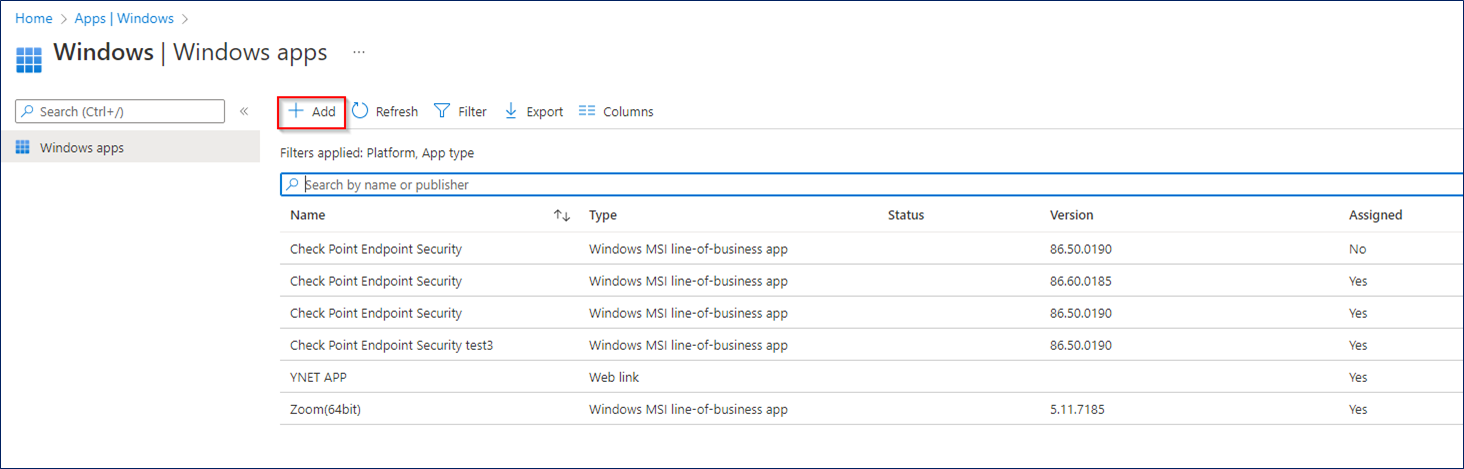
  2. Go to Apps. In the section By Platforms, select Windows.

    The Windows apps page opens.

  3. Click Add.
  4. In the Select app type pane, select Line-of-business app, and click Select at the bottom.
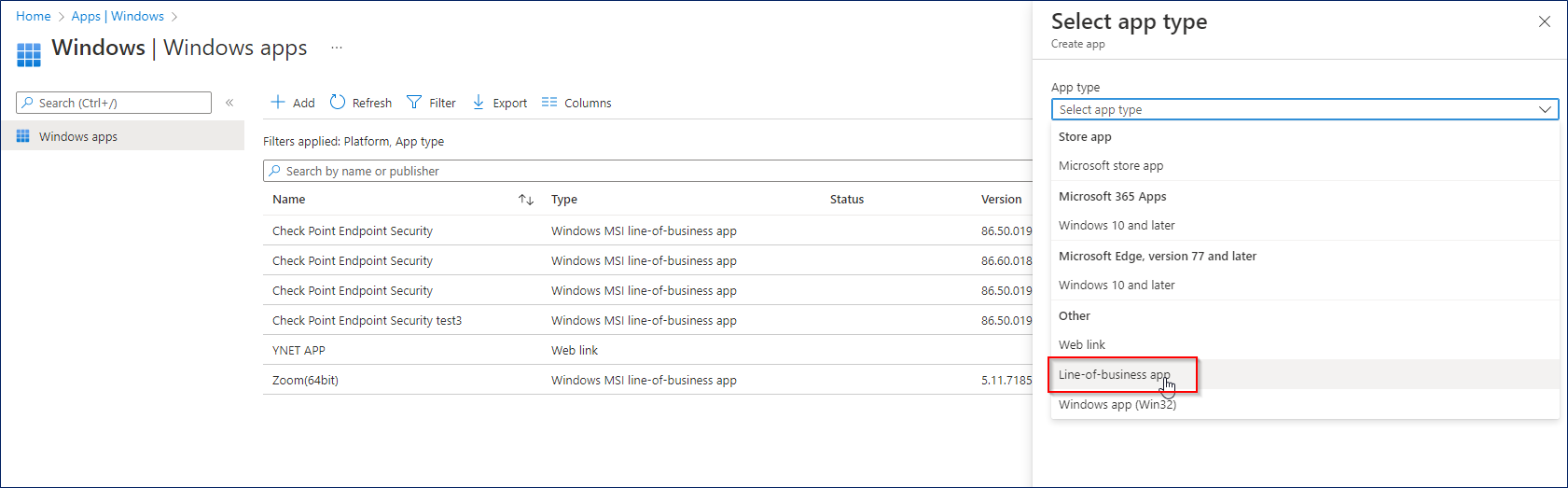
    The Add app page appears.

  5. Under the App information, click Select app package file.
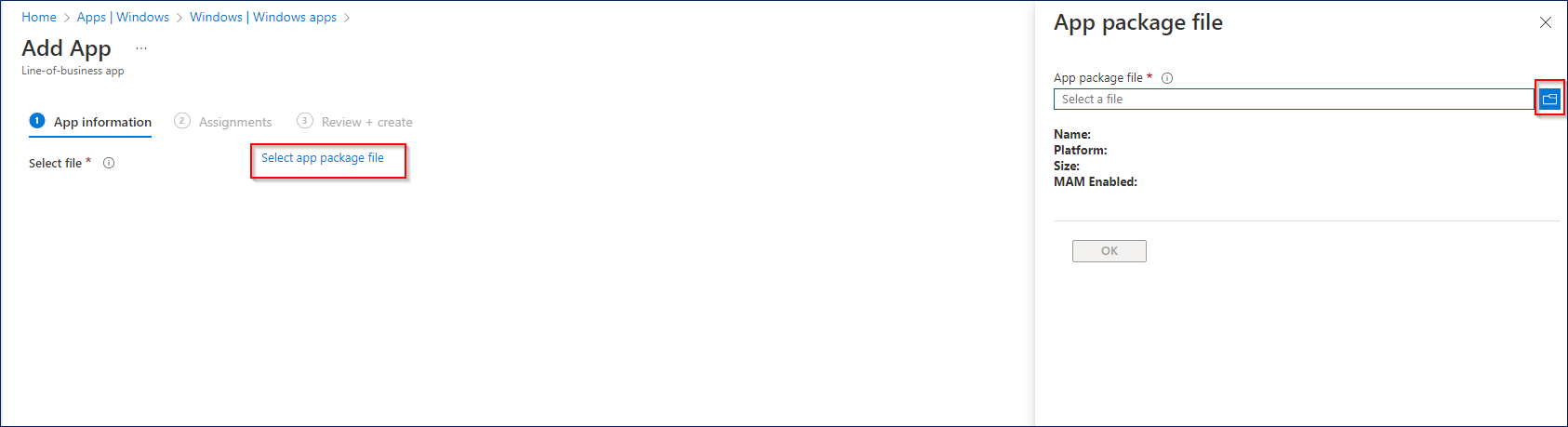
  6. In the App package file pane, upload the EPS.msi file you created in Preparing the Endpoint Security Client Windows Package for Deployment and click OK.
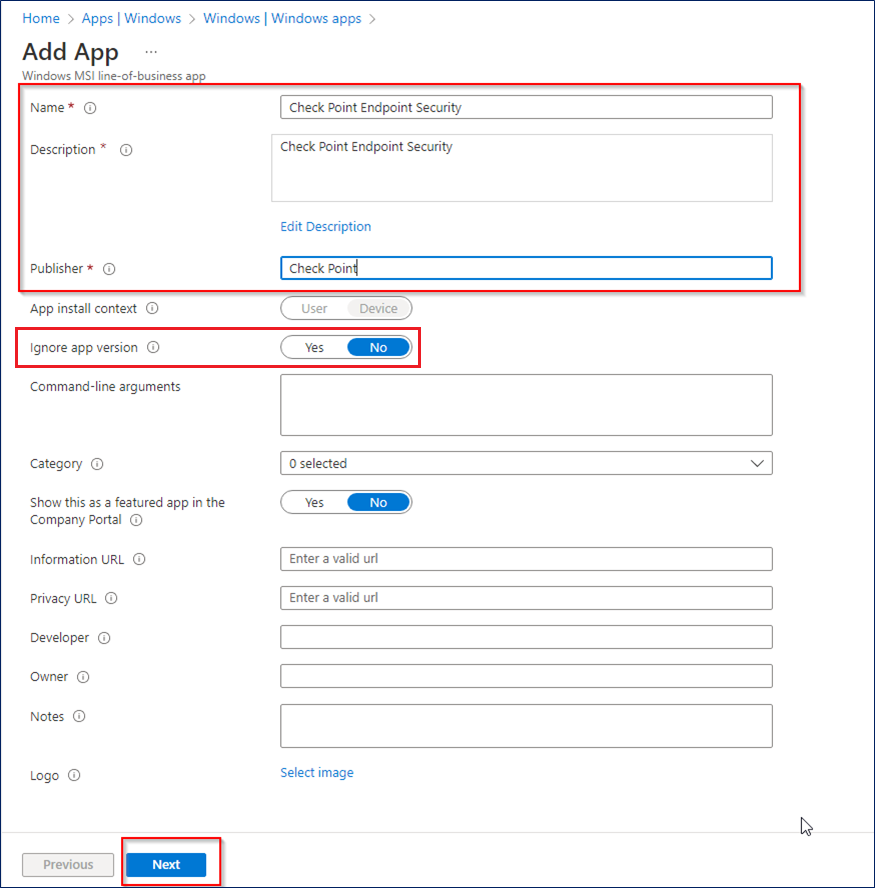
  7. Enter the Name, Description, and Publisher information.
  8. Select Yes for Ignore app version and click Next.
  9. Go to Assignments tab and assign the app to the groups that you want to deploy Endpoint Security Client. For more information, see Assign apps to groups with Microsoft Intune.
  10. In the Assignments tab, under Required, click Add group.
  11. In the Select groups pane, select the relevant group and click Select.
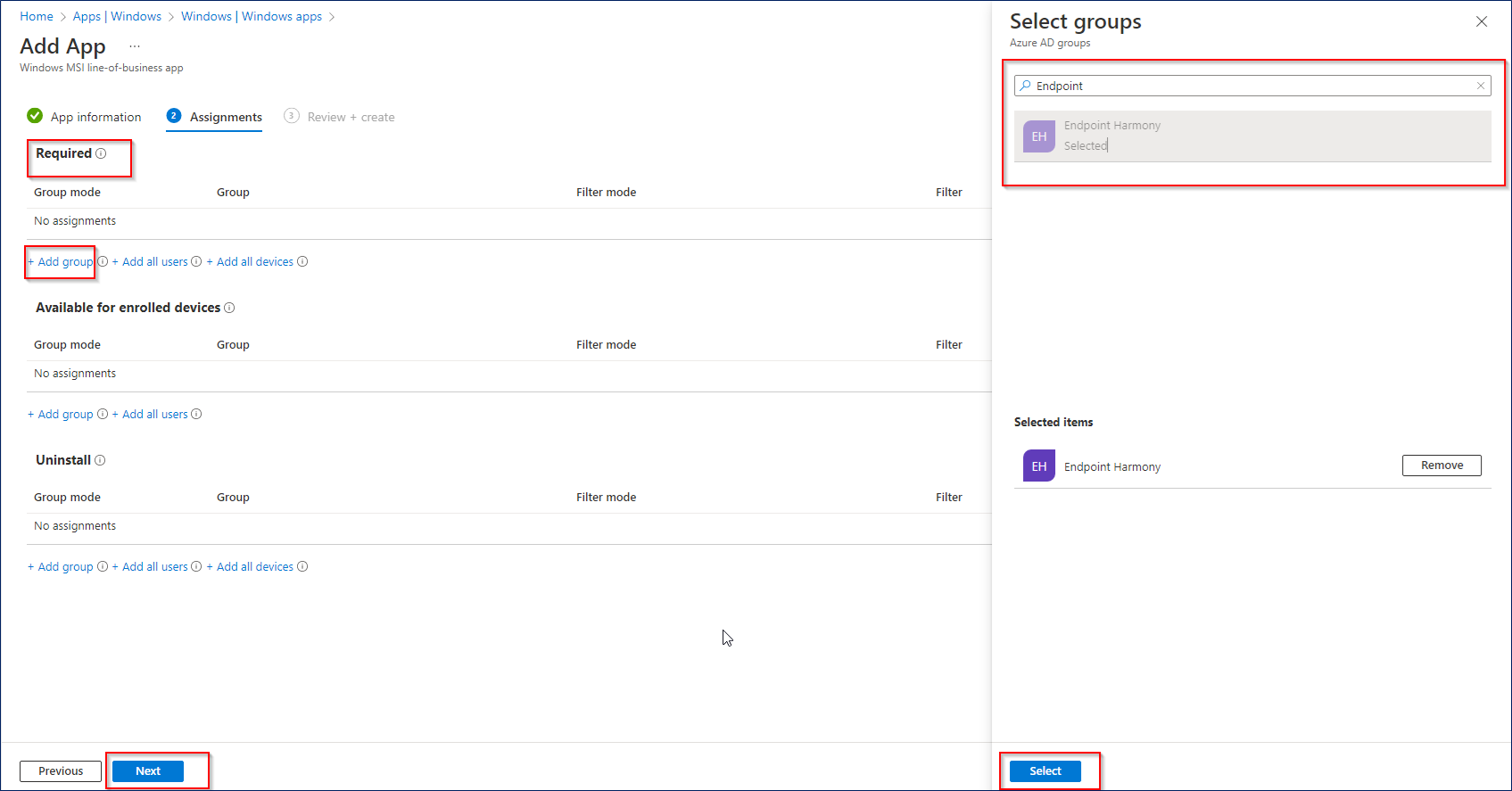
  12. In the Add app page, click Next.
  13. Review the information and click Create.
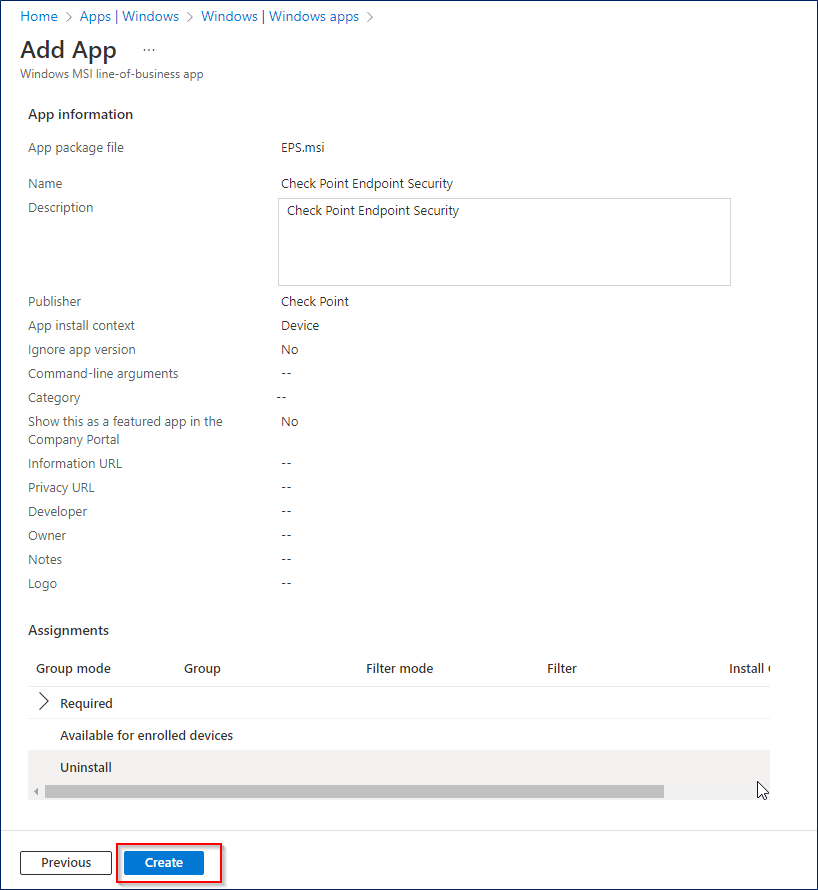
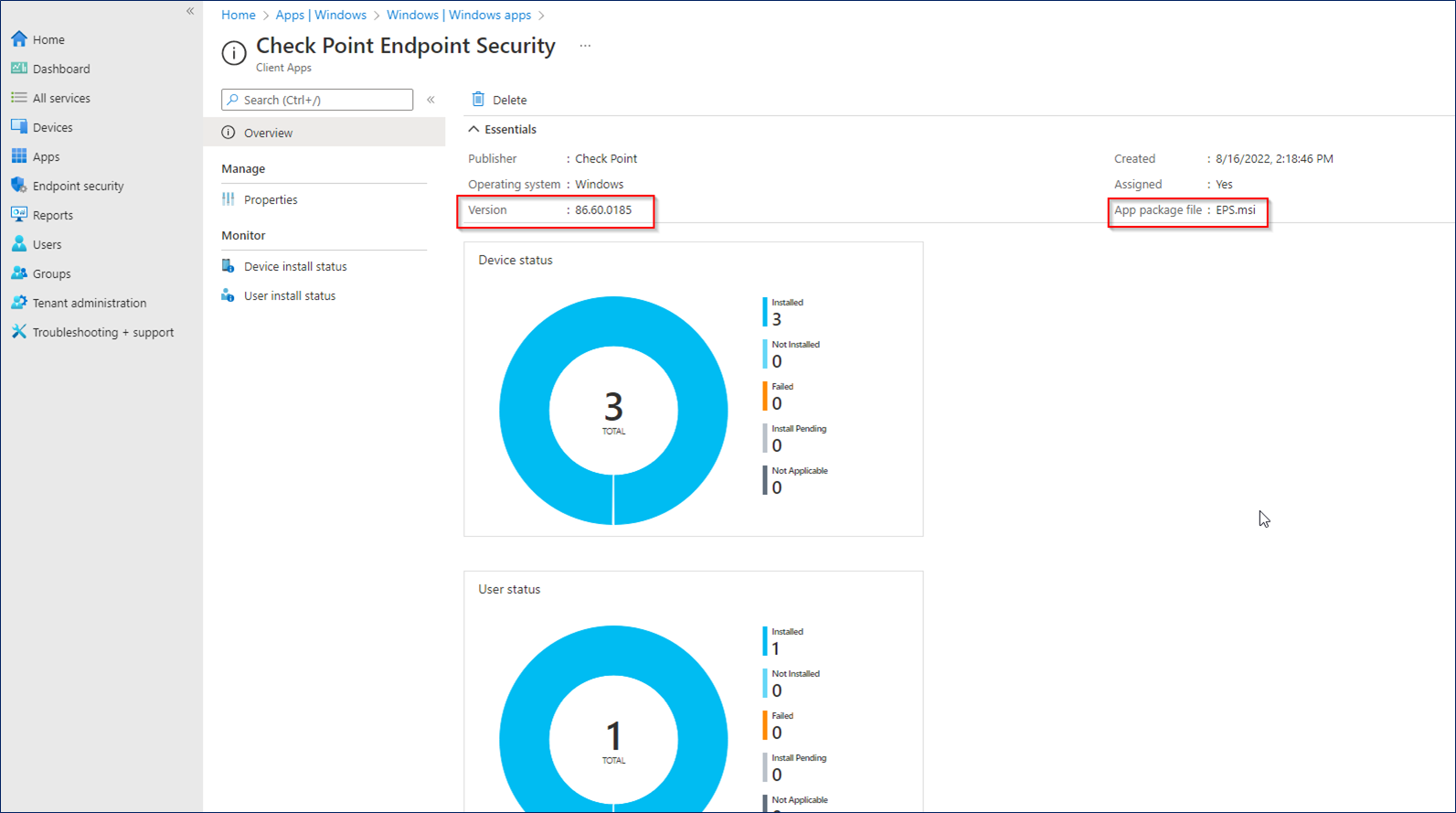
    After the EPS.msi file is uploaded, you can see information about the newly created app.