
Agent Upgrades
Use Agent Upgrades to control how the Check Point SASE Agent upgrades when new versions are released, and which version it upgrades to.
- Update Type - Specifies whether and how the agent upgrades.
- Update Track - Specifies which agent version to use. Available for Windows and macOS only.
These settings apply to the agents of all group members assigned to the user profile.
Update Type
| Update Type | Description |
|---|---|
| Automatic Silent | Automatically upgrades the agent when a new version is available. |
| Notify Users | Notifies users when a new version is available. |
| Disabled | Does not upgrade the agent. |
To require users to upgrade the agent before they connect to a network, turn on the Users must upgrade their agents before connecting to a network toggle button. When this option is on, users cannot connect to a network until the agent is upgraded.
Update Track
| Update Track | Description |
|---|---|
| Latest (default) | Uses the newest released agent version (early availability). Select this track to get new capabilities and fixes first. |
| Latest-1 | Uses the version immediately before the newest release. This version is the most recent general availability (GA) version. |
| Latest-2 | Uses the version two releases before the newest release. |
- Update Track is available for Windows and macOS only. Linux agents upgrade to the latest version.
- By default, all user profiles use the Latest track. Existing profiles keep their current upgrade behavior until you change the track.
- Each track shows its current agent version, for example, Latest (13.3.0.21244). The list shows only tracks that have an available version.
How Update Type and Update Track Work Together
Update Type and Update Track work together to determine the agent upgrade behavior.
| Update Type | What happens |
|---|---|
| Automatic Silent | The agent automatically upgrades to the version in the selected track. |
| Notify Users | The agent notifies users that the version in the selected track is available. |
| Disabled | The agent do not upgrade, and the Update Track list is unavailable. |
Configuring Agent Upgrades
- In the Check Point SASE Administrator Portal, go to Team > User Profiles.
- Open a user profile with the required group of members, or create a new one. See User Configuration Profiles.
- Go to Agent Configuration > Agent
Upgrades.
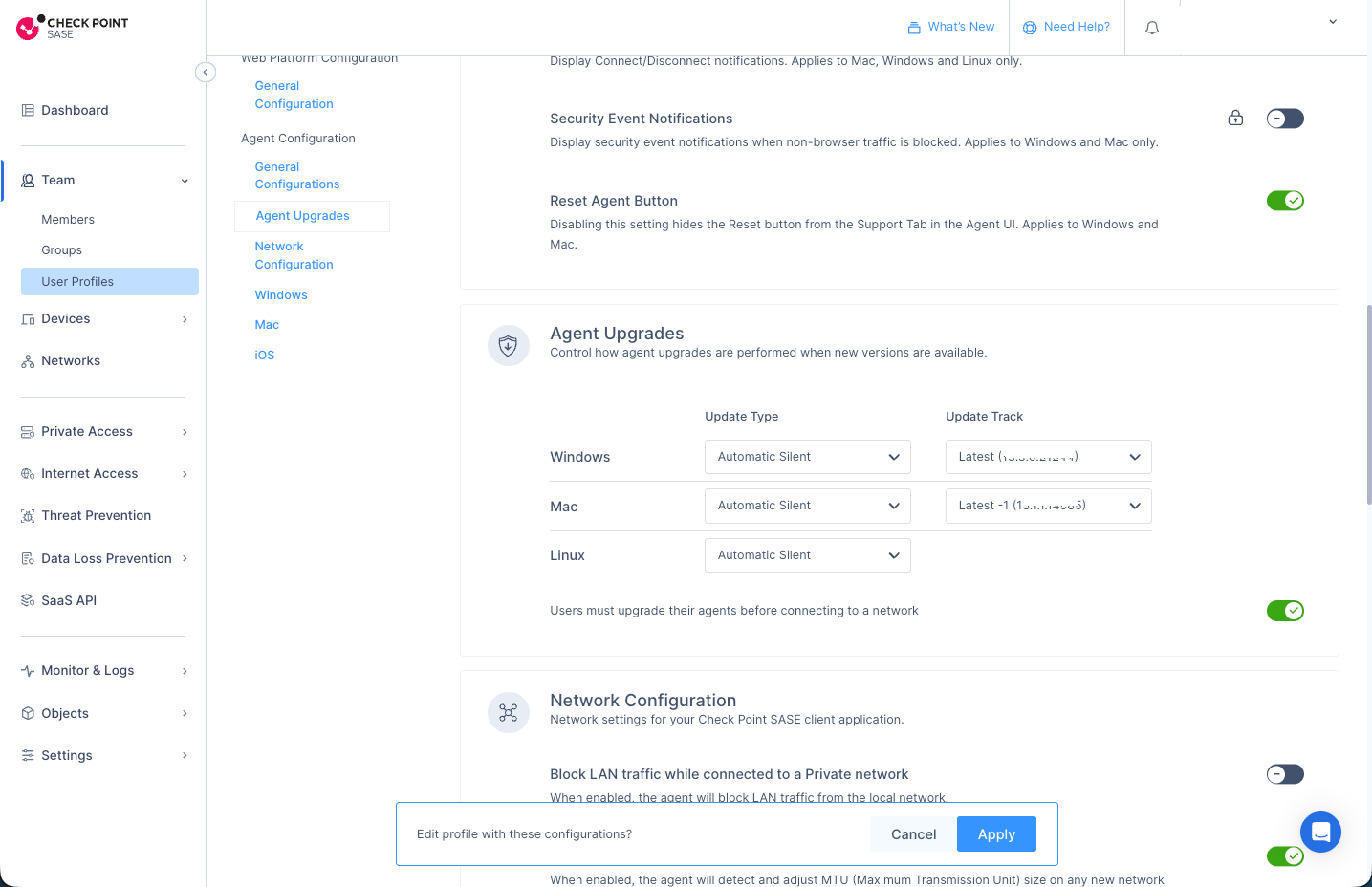
- For Windows, Mac, and
Linux, from the Update
Type list, select one of these:
- Automatic Silent
- Notify Users
- Disabled
- For Windows and Mac, from the
Update Track list, select one of these:
- Latest
- Latest-1
- Latest-2Note:If Update Type is disabled, the Update Track list is grayed out. To change the track, from the Update Type list, select Automatic Silent or Notify Users.
- Optional. Turn on the Users must upgrade their agents before connecting to a network toggle button to make upgrades mandatory.
- Click Apply.
Switching to a Lower Track
When you switch a user profile from a higher track to a lower track, for example, from Latest to Latest-1, the portal prompts you to confirm the agent downgrade.
In the Confirm Agent Downgrade window, review the current and new agent versions, and click Downgrade anyway.
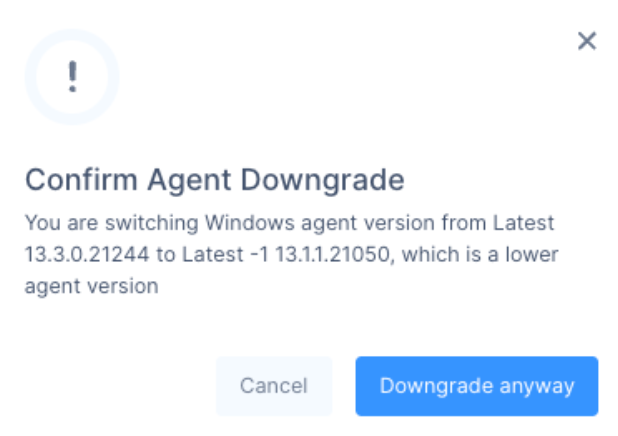
After you apply the change, the affected agents receive a rollback command and automatically roll back to the version associated with the selected track.