
Connecting Spark Firewall Appliances to Spark Management
Prerequisites
See Getting Started with Spark Management.
Connecting a Gateway
There are two ways to connect a Gateway:
-
Zero Touch - See Configuring Zero Touch.
-
Creating a manual object - See "Creating a manual gateway object" in the Adding a New Gateway Object page.
 To manually activate using the activation key (manual object only):
|
|
Note - When using Zero Touch, you do not need an activation key. |
Part 1 - Getting the activation key from Spark Management
-
In Spark Management, in the left navigation panel, click the Gateways view.
-
In the top search field, search for the Gateway object for this gateway.
-
Option 1: When the Gateway status is Pending Activation
Hover over the icon and click the copy icon when it appears:

Option 2: When the Gateway status is Connected or Disconnected
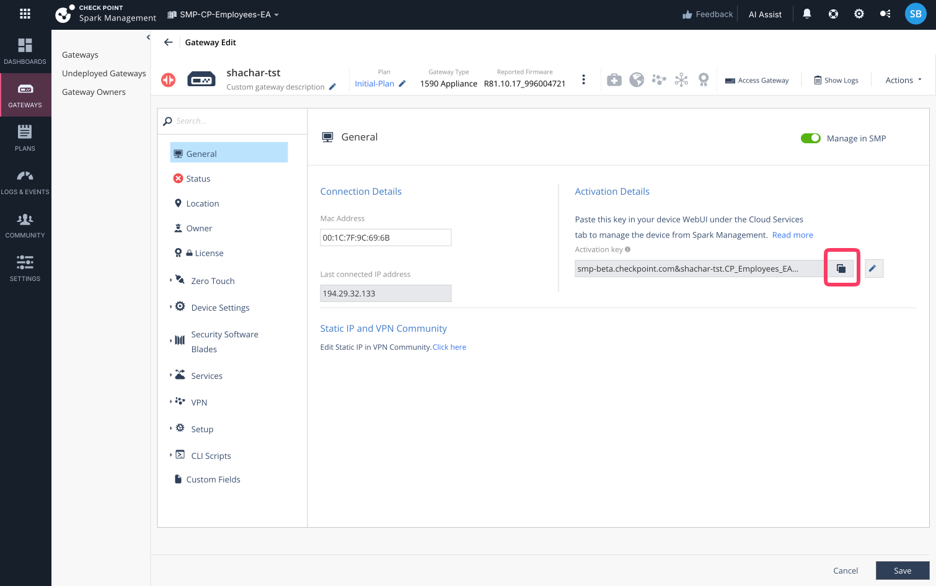
Open the Gateway object.
-
In the left panel, click the General page.
-
In the Activation Details section, in the field Activation key, click the copy icon.
To monitor the Activation process through the appliance WebUI, see the R81.10.X Spark Firewall Locally Managed Administration Guide for 1500, 1600, 1800, 1900, 2000 Appliances Section "Configuring Cloud Services" or the R82.00.X Spark Firewall Appliances Locally Managed Administration Guide Section "Configuring Cloud Services."
To troubleshoot activation through Zero Touch, see Troubleshooting Zero Touch.
Part 2 - Connecting the Appliance
See the R81.10.X Spark Firewall Locally Managed Administration Guide for 1500, 1600, 1800, 1900, 2000 Appliances or the R82.00.X Spark Firewall Appliances Locally Managed Administration Guide topic "Configuring Cloud Services."
-
In a web browser, connect to WebUI on your gateway.
-
In the left navigation tree, click Home.
-
In the Overview section, click Cloud Services.
-
In the Cloud Services section, click Configure.
-
In the Activation key field, paste the key from Part 1 above and click Save.
-
Wait for Cloud Services to connect.
This is a three-step procedure.
Monitoring the Appliance Connection
|
|
Note - An Appliance appears connected until it misses two consecutive heartbeat checks. Each Appliance pings the system every five minutes, meaning it remains marked as connected for 10 minutes after losing connection. The system then waits an additional two minutes before updating the status, resulting in a total delay of approximately 12 minutes before marking the Appliance as disconnected. |
-
In Spark Management, in the left navigation panel, click the Gateways view.
-
Click the Gateways page.
-
In the top search field, search for the Gateway object for this gateway.
-
Monitor the Status column - it must show the green icon with the tooltip Connected.
The Gateway status is one of these:
-
Pending Activation - The initial status after the Gateway was created (from the inventory or manually).
-
If you used Zero Touch, see Visibility and Monitoring in Zero Touch "Pending Activator Indicator."
-
For a manually created object, this is the Gateway status while waiting for device activation. See Adding a New Gateway Object section "In the Spark Firewall Appliance WebUI."
-
-
Connected - The Gateway is connected for 12 or fewer minutes.
-
Disconnected - The Gateway was connected (status changed from Pending Activation to Connected) but then disconnected.
-
Disabled - Relevant only for VPN central gateways that are not managed with Spark Management.
You can click the Refresh button on the top toolbar.


Note - Hovering over the Connection Status icon shows the time of the last Gateway update from Spark Management.
-