
Updating the Locations of Security Gateways
|
|
Important - Make sure you imported the "Infinity" plugin. See "Infinity" Plugin for Grafana and "Mapgl" Plugin for Grafana. |
-
On the Map widgets both in the "Underlay" and "Ovarlay", in the top right corner, click the
 icon and select Edit.
-
Below the map, click the Queries tab.
-
In Location, select the Infinity Data Source.

-
After selecting the data source your query data will be changed.
-
Scroll down and add the locations of your Security Gateways.
You can add the location data in these ways:
-
In the Data field, manually enter the locations in the CSV format.
Keep the current column names (
host_name,Longitude,Latitude).Enter the corresponding data on separate rows for each Security Gateway.
-
In the Import data field, import the CSV file.
Example:
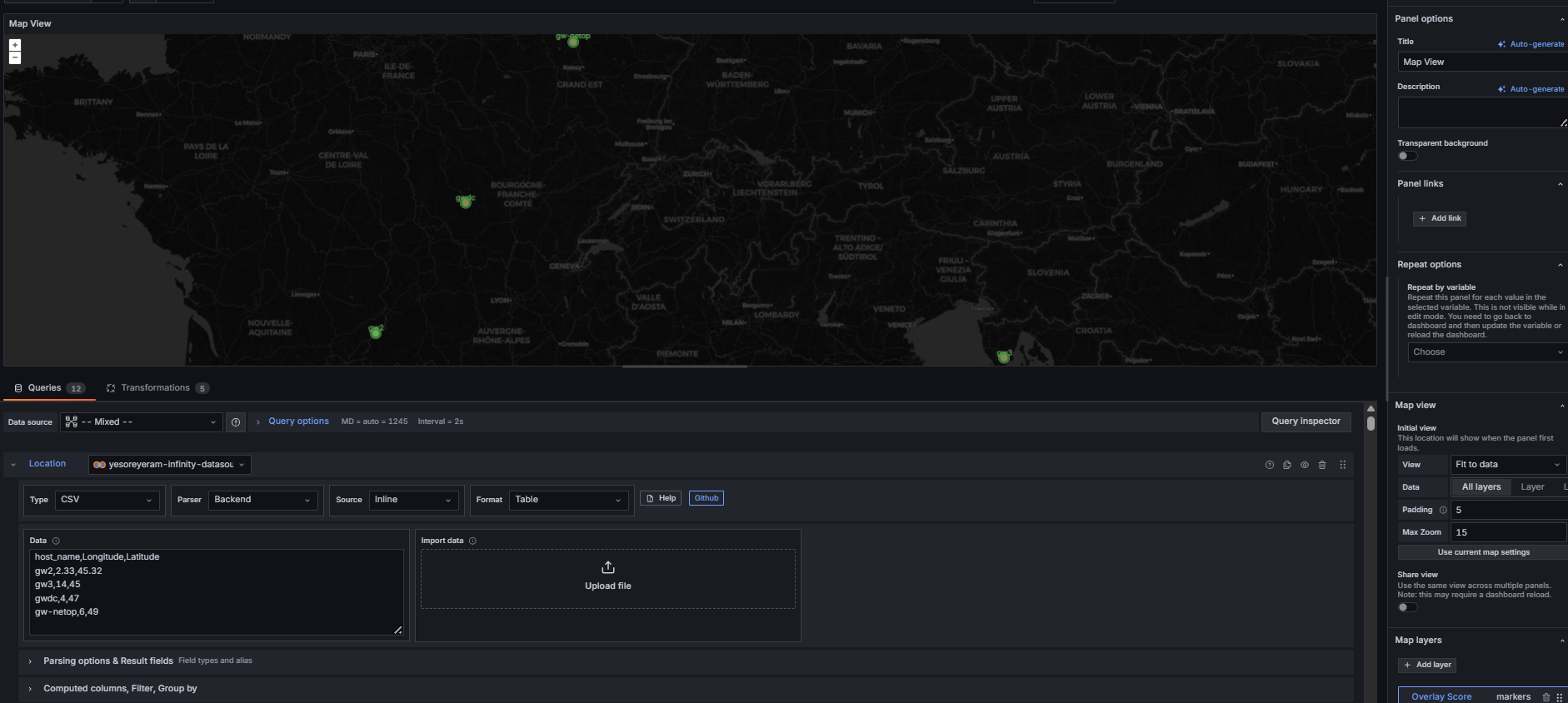
Example CSV Syntax / CSV File:
host_name,Longitude,Latitude
gw2,2.33,45.32
gw3,14,45
gwdc,4,47
where:
Column
Description
host_nameThe name of the Security Gateway object as it appears in SmartConsole / Grafana Dashboard.

Important - The name of the Security Gateway must be the same as returned by Skyline.
LongitudeThe longitude coordinate.
LatitudeThe latitude coordinate.
-
Next Step:
Follow Importing the SD-WAN Dashboards.