
Policy Profiles
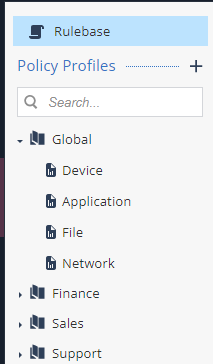
Every policy profile that you create includes a pre-configured set of items to which the profiles apply:
-
Device. See Device Policies.
-
Application. See Application Policies.
-
File. See File Policies.
-
Network Policies. See Network Policies.
Global policy profile is the default policy for all devices.
Creating a New Policy Profile
-
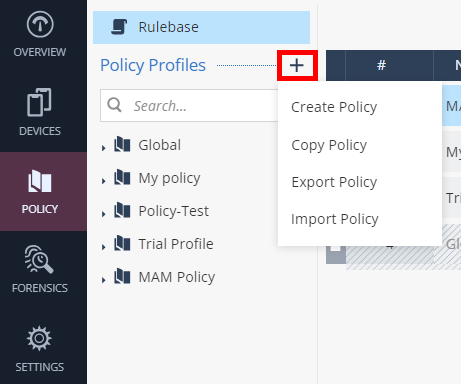
Go to Policy and click the + icon next to Policy Profiles.
-
Click Create Policy.
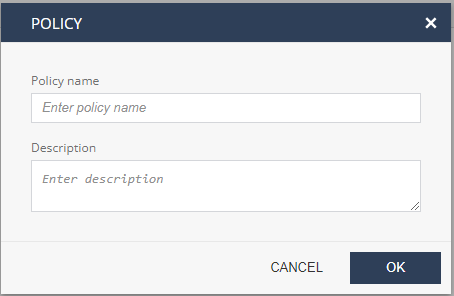
The Policy window appears.
-
Enter a unique name and a description for the new policy.
-
Click OK.
The new policy is listed under Policy Profiles.
Copying an Existing Policy
-
Go to Policy and click the + icon next to Policy Profiles.
-
Click Copy Policy. Optionally, you can hover over the policy name and click the
 icon.
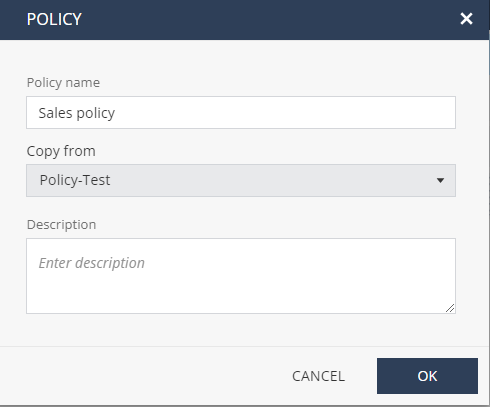
icon.The Policy window appears.
-
Enter a name for the new policy.
-
From the Copy from list, select the policy that you want to copy.
-
Enter a description.
-
Click OK.
You can edit the policy in the profile editing view, or edit it at any time on the Policy Profiles list.
To activate the policy, see Rulebase.
Exporting and Importing a Policy
You can export a policy from one tenant and import it to another tenant, regardless of their data residency regions.
Use Cases
-
You are a Managed Security Service Provider (MSSP) with multiple customers/tenants and want to use the same policy for all of them. You can configure the policy in one tenant, export it, customize (if required) and then import it to other tenants.
-
Your organization has tenants in different data residency regions and wants to use the same policy for all of them.
Exporting a Policy
-
Go to Policy and click the + icon next to Policy Profiles.
-
Click Export Policy.
The Export Policy window appears.

-
In the Policy name field, enter a name to save the exported policy.

Note - This is the name of the policy when it is imported to another tenant.
-
From the Select policy list, select the policy that you want to export.
-
In the Description field, enter a description to identify the policy.
-
Click Export.
The system exports the policy and saves it as a JSON file on your computer.
Importing a Policy
-
Go to Policy and click the + icon next to Policy Profiles.
-
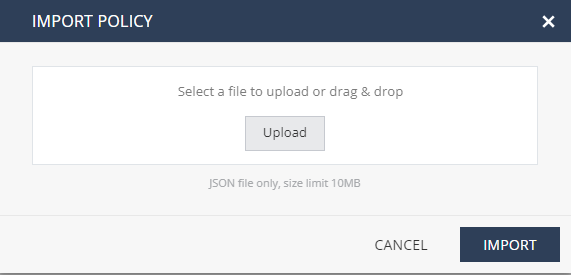
Click Import Policy.
The Import Policy window appears.
-
Click Upload and select the policy file. Optionally, you can drag and drop the file from its location.
Notes:
-
The only supported file type is JSON, with maximum size of 10 MB.
-
If the same policy name exists in your tenant, the imported policy overrides it.

To override the existing policy, select the Override checkbox.
-
-
Click Import.
The system imports the policy to your tenant and lists it in the Policy Profiles section.
Policy Header

The policy header contains:
-
Policy Name
-
Policy Description
-
Network Protection - Allows to configure On-device Network Protection configurations
-
Changes - Display unsaved changes
-
Save - Saves all the new configurations the admin made