
File Policies
File policy settings:
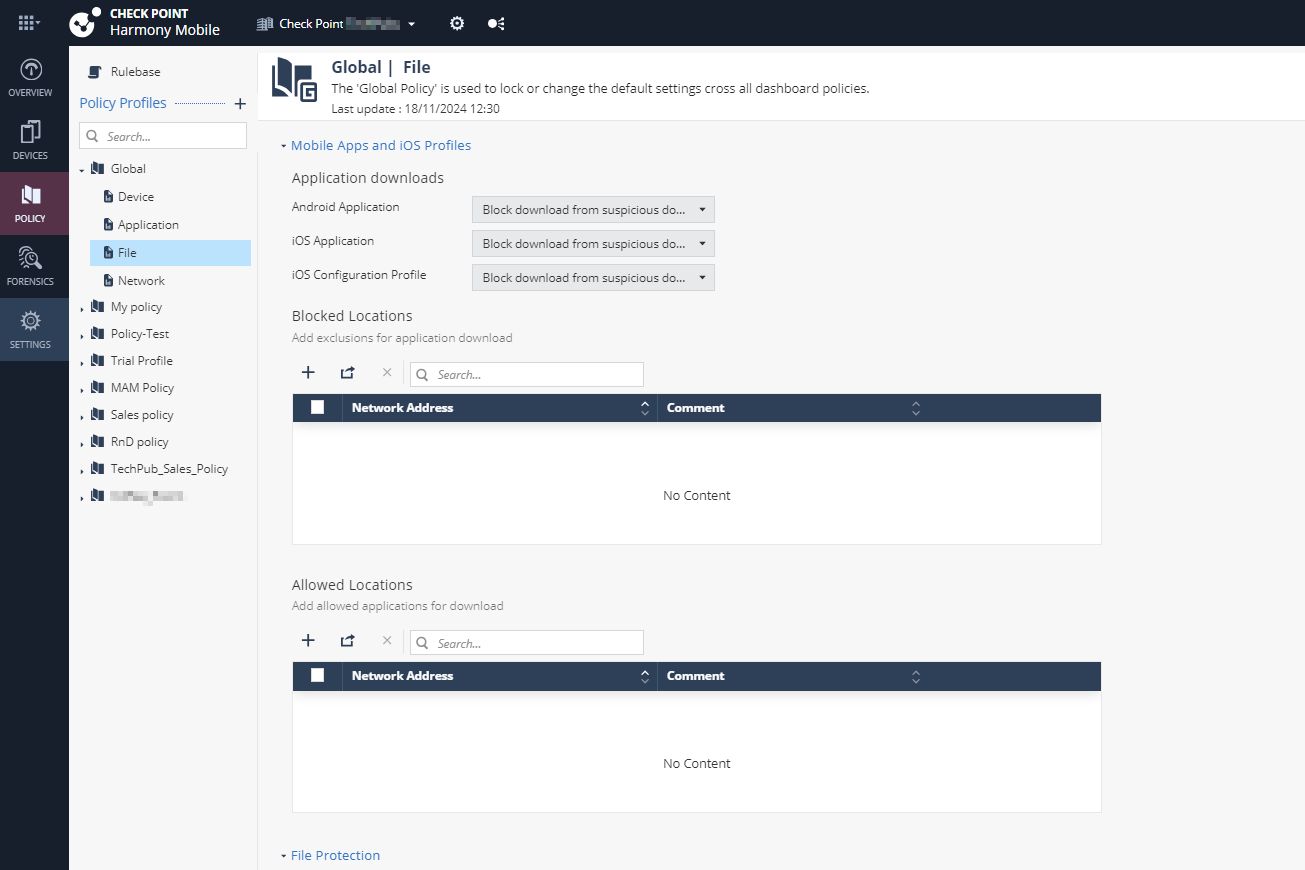
Mobile Apps and iOS Profiles
Application Downloads
Prevents unauthorized download of applications on Android and iOS devices.
|
|
Important - To enable download protection, you must enable ONP. See Network Protection. |

To enable download protection for applications:
-
Go to Policy and select a policy profile.
-
Click File > Mobile Apps and iOS Profiles.
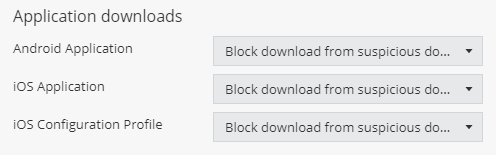
Under Application downloads, set these values:
Item
Description
Value
Android Application
Prevents download of unauthorized and malicious Android applications on Android devices based on domain reputation from ThreatCloud.
- Allow all
-
Block download from suspicious domains (Default)
-
Allow only from trusted domains
iOS Application
Prevents download of unauthorized and malicious iOS applications on iOS devices based on domain reputation from ThreatCloud.
iOS Configuration Profile
Prevents download of unauthorized and malicious profiles on iOS devices based on domain reputation from ThreatCloud.

Note - To view the full list of profiles installed on the mobile devices in your organization, go to Forensics > iOS Profiles.
-
To save the policy changes, click Save.
Files - Blocked / Allowed Locations
In this section, you can configure network locations that mobile devices use to download apps or iOS management profiles.
|
|
Note - You can add up to 100 entries to the Blocked/Allowed Locations list. |
To block a network location:
-
Go to Policy and select a policy profile.
-
Click File > Mobile Apps and iOS Profiles > Blocked Locations.
-
Click Add.
The Blocked Locations table appears.
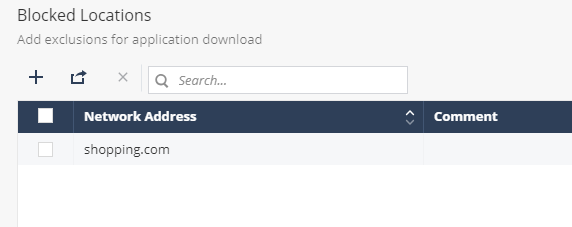
Note - To allow a network location, select Policy Profile > File > Allowed Locations, and click Add.
-
In the Location field, enter the network location to block in one of these formats: IPv4
 Internet Protocol Version 4 IP address. A 32-bit number - 4 sets of numbers, each set can be from 0 - 255., IPv6 Internet Protocol Version 6 IP address. 128-bit number - 8 sets of hexadecimal numbers, each set can be from 0 - ffff., Domain Name (DN), DN/URL, + Wildcards.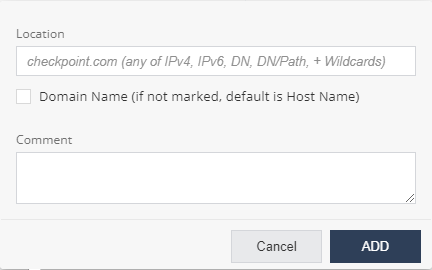
- Click Add.
-
To import a list of locations, click Import and upload the .CSV file with a list of locations and comments.
-
To remove a network location from the list, select it and click Delete.
-
To save the policy changes, click Save.
|
|
Note - To allow or block device access to specific network locations, configure your Network policy. For more information, see Networks - Blocked Locations and Networks - Allowed Locations. |
File Protection
File Downloads
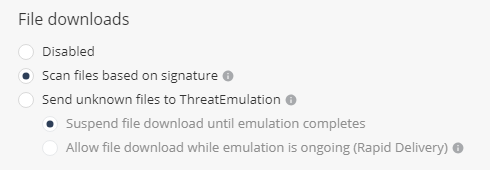
Prevents the download of malicious files on Android and iOS devices. It checks the file reputation against the ThreatCloud before it is downloaded on the mobile device. When the file emulation option is enabled, if the file is unknown, it is sent for file emulation to ThreatCloud that provides a verdict whether the file is safe or not.
To enable download protection for files:
-
Go to Policy and select a policy profile.
-
Click File > File Protection > File downloads.
-
Select the file download method:
-
Disabled - File download is disabled.
-
Scan files based on signature - ThreatCloud assesses the file reputation based on the signature of the file.
-
Send unknown files to ThreatEmulation - Files unknown to ThreatCloud are uploaded for file emulation.
-
Suspend file download until emulation completes - Suspends download of unknown files until a verdict is available after emulation.
-
Allow file download while emulation is ongoing (Rapid Delivery) - Allows download of unknown files even if the verdict is not available.
-
-
-
To save the policy changes, click Save.
Android Storage Scanning
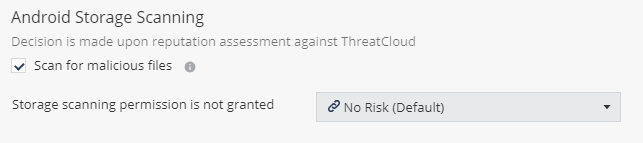
To scan the files stored on an Android device:
-
Go to Policy and select a policy profile.
-
Click File > File Protection > Android Storage Scanning.
-
Select the Scan for malicious files checkbox.
-
Select the risk level if storage scanning permission is not granted.
-
To save the policy changes, click Save.
File Exceptions
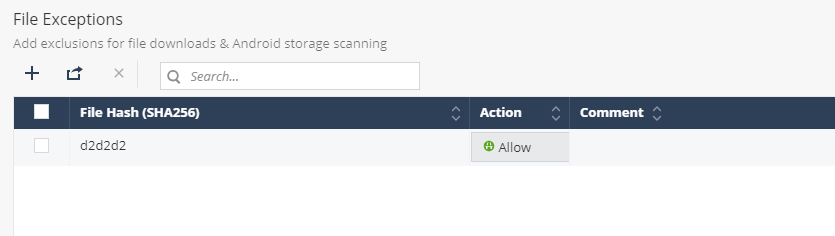
You can create an exception to allow or block a hash or a file that was analyzed with a specific risk level.
|
|
Notes:
|
To add a file exception:
-
Go to Policy and select a policy profile.
-
Click File > File Protection > File Exceptions.
-
Click Add.
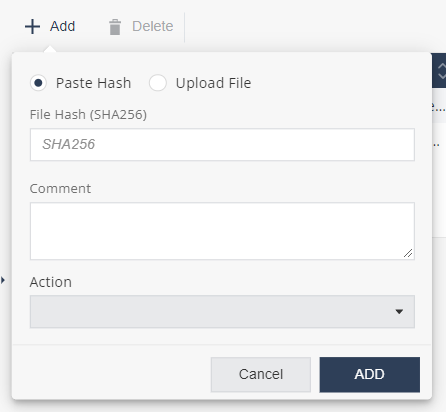
A pop-up window appears.
-
Do one of these:
-
To add a file hash exception:
-
Click Paste Hash.
-
In the File Hash field, enter the file hash name. For example, SHA256.
-
To add a file exception:
-
Click Upload File.
-
Click Upload to upload the file.
-
-
-
(Optional) In the Comment field, add your comments.
-
From the Action drop-down list, select one of these:
-
Block - To block the file or file hash.
-
Allow - To allow the file or file hash.
-
- To save the policy changes, click Save.
|
|
Note - You can also allow or block a file from the Forensics > Events & Alerts page.
Select any one of these:
|
