
Network Protection
You can define the On-device Network Protection (ONP) policy settings to manage traffic routing policies and decide whether to route traffic through the On-device Protection or through a configured VPN.
Network protection settings are configured on policy profile level. One policy profile may have ONP enabled and another one may be configured without ONP.
|
|
Note - ONP cannot work when a proxy server is configured on the mobile device. |
General Settings
To set general settings for network protection:
-
Go to Policy and expand a policy profile.
-
Click any one of these:
-
Device
-
Application
-
File
-
Network
-
-
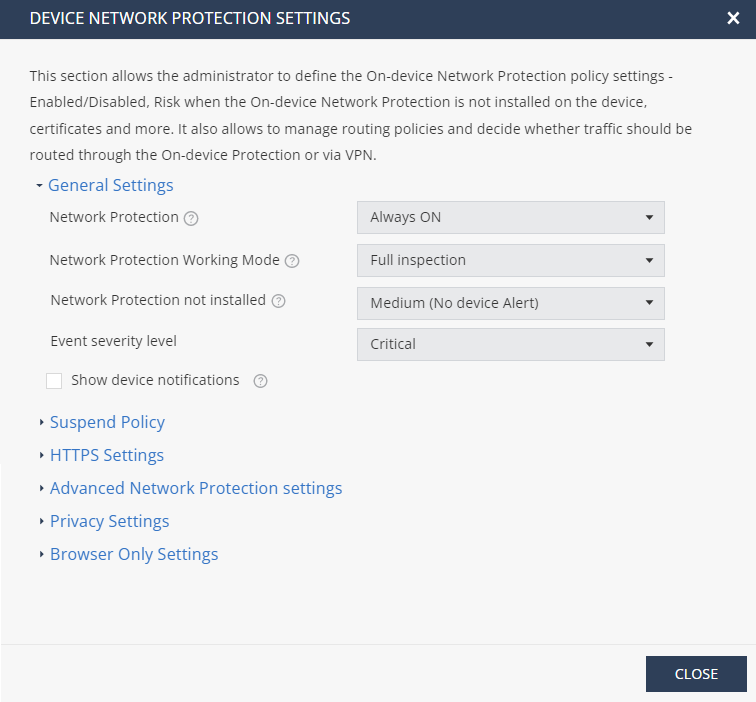
Click Network Protection > General Settings and set these parameters:
Item
Description
Value
Network Protection
Enable or disable On-device Network Protection (ONP) through VPN.
-
OFF - Disables ONP.
-
Always ON - Enables ONP by default. To configure this behavior, go to Configure > Advanced Configuration.
-
Turn ON when a device is at High risk - Enables ONP automatically when the device's risk level changes to High. It is turned off automatically when the device's risk level is lowered to Medium or Low.
Network Protection Working Mode
Set the ONP working mode.
This setting is active only if the Network Protection is set to Always ON or Turn ON when a device is at High risk.
-
Full inspection (Default) - Enables ONP for the entire device network traffic.
-
Browser only - Enables ONP for specific browsers only.
To select the browsers, go to Browser Only Settings.
-
Detect mode - Evaluates ONP before you enable it on the user device. Monitors the device traffic and does not block malicious traffic. If malicious traffic is detected, it is logged in Forensics > Events & Alerts.
Detect Mode is not supported for Zero-day Phishing Detection and File Protection.
-
Proxy mode - Enables ONP for web traffic (example, HTTP and HTTPS).
 Best Practice - We recommend to use Detect mode for a certain period to only monitor traffic and identify malicious content. After this period, you must use the Full inspection or Browser only mode to block malicious traffic automatically.
Network Protection not installed
Set the device risk status when ONP is not installed.
-
Medium (Device Alert) (Default)
-
High (Device Alert)
-
Medium (Device Alert)
-
Medium (No Device Alert)
-
Medium (Dismissive Device Alert)
-
Low
-
No Risk
Event severity level
Set the risk level for ONP generated events.
-
Information (Default)
-
Critical
-
Warning
-
Information
Show device notifications
Indicates whether to show device notification if a network resource is blocked.
N/A
Use next generation ONP
Enables the next generation ONP for iOS. For more information on the new ONP, see sk183634.
When you enable this option, the next generation ONP replaces the legacy ONP.
The table below lists the features available for the configured Network Protection Working Mode:
Feature
Network Protection Working Mode
Full inspection
Browser only
Yes
No
Phishing
Yes
Yes
Zero phishing
Yes
Yes
File download prevention
Yes
Yes (except Safari extension)
MiTM detection
Yes
Yes
Safe DNS
 Domain Name System. A hierarchical distributed naming system for computers, services, or resources connected to the internet or a private network. Used to translate names into IP addresses.
(aka Protected DNS)
Domain Name System. A hierarchical distributed naming system for computers, services, or resources connected to the internet or a private network. Used to translate names into IP addresses.
(aka Protected DNS)Yes
No
Block app traffic (on Android)
Yes
No
Content filtering (aka URLF)
Yes
Yes
Port scan detection
Yes
No
Zero-Touch support
Yes
Yes (except Safari extension)
Network Protection snooze by user
Yes
No
Conditional access
Yes
Applicable only to web traffic.
-
Suspend Policy
You can allow end-users to temporarily suspend ONP from the Harmony Mobile Protect app on their device for different periods of time. The options are 5 minutes, 30 minutes or 2 hours.
To allow users to suspend ONP:
-
Go to Policy and select a policy profile.
-
Click any one of these:
-
Device
-
Application
-
File
-
Network
-
-
Click Network Protection > Suspend Policy and set these parameters:
Item
Description
Value
Suspend severity level
Set the device risk level if the user suspends ONP on the device.

Note - You cannot set the risk level to High. When a device moves to High risk, Mobile Security automatically restores ONP to enforce conditional access policy. This creates a conflict as ONP is restored automatically after the end-user suspends it.
-
No Risk (Default)
-
Medium (Device Alert)
-
Medium (Dismissive Device Alert)
-
Medium (No Device Alert)
-
Low
-
No Risk
Allow user to suspend On-device Network Protection
Select the checkbox to allow a user to suspend ONP on the device and set the duration for which the user can suspend ONP.
When the user suspends ONP, the system reports an event in the Events & Alerts page.
-
5 minutes
-
24 hours
-
Unlimited
Automatically suspend when
Set when to automatically suspend ONP.
Select one of these:
-
Never - Enables ONP even if other VPNs are detected.
-
Any VPN is connected - Automatically suspends ONP when VPN is detected. ONP resumes after 2 hours, or earlier if the VPN is disconnected within that time.
-
Corporate resource is connected via VPN - Suspends ONP only if VPN that allows access to corporate URLs (from the corporate resources table) is detected.
ONP resumes when there is no traffic towards the corporate URL.
-
-
To save the policy changes, click Save.
HTTPS Settings
|
|
Note - SSL
|
To configure HTTPS settings:
-
Go to Policy and select a policy profile.
-
Click any one of these:
-
Device
-
Application
-
File
-
Network
-
-
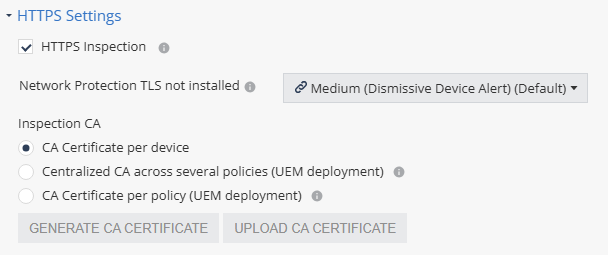
Click Network Protection > HTTPS Settings.
-
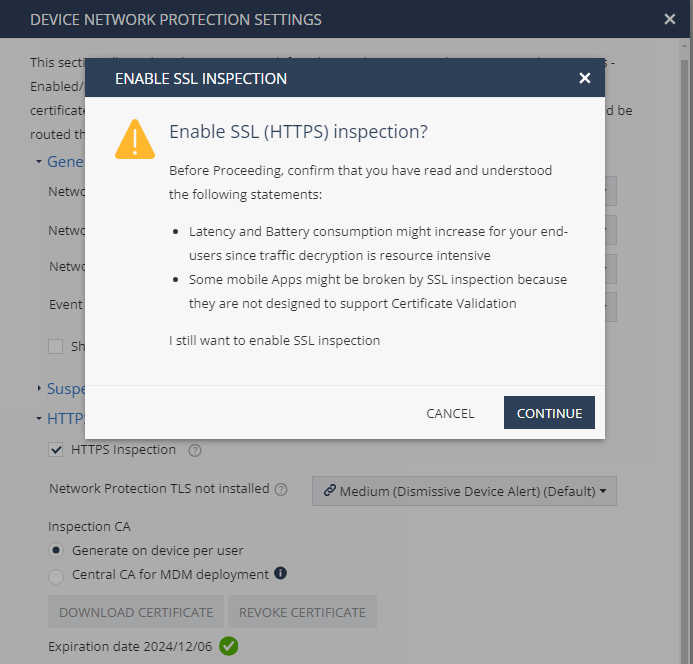
To enable SSL inspection, select the HTTPS Inspection checkbox.
The Enable SSL Inspection window appears.
Notes -
-
For Mobile Security/ONP to decrypt the HTTPS traffic, the mobile apps and browsers must support users’ CA certificate.
-
The browsers that support SSL inspection on Android are:
Browser Name
Package Name
Brave Browser
com.brave.browser
Bromite Browser
org.bromite.bromite
Chrome Beta
com.chrome.beta
Chrome Canary
com.chrome.canary
Chrome Dev
com.chrome.dev
Chromer
arun.com.chromer
Ecosia Browser
com.ecosia.android
Google Chrome
com.android.chrome
Huawei Browser
com.huawei.browser
Kiwi Browser
com.kiwibrowser.browser
Microsoft Edge
com.microsoft.emmx
Naked Browser
com.fevdev.nakedbrowser
Naked Browser LTS (Light)
com.fevdev.nakedbrowserlts
Opera Browser
com.opera.browser
Samsung Internet Browser
com.sec.android.app.sbrowser
Samsung Internet Browser Beta
com.sec.android.app.sbrowser.beta
Vivaldi Browser
com.vivaldi.browser
Yandex Browser
com.yandex.browser
-
-
Click Continue.
-
From the Network Protection TLS not installed list, select the risk level if CA certificate is not installed or not trusted on the device.
-
In the Inspection CA section, select the CA certificate that ONP will use to inspect HTTPS traffic on the end-user device.
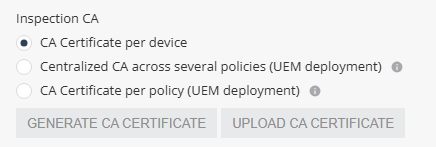
Select one of these:
-
CA Certificate per device - Allows you to generate a unique certificate for each device. The user must manually install the certificate on the device when installing the Harmony Mobile Protect app.
-
Centralized CA across several policies - Allows you to use the centralized CA certificate across several policies. To generate the centralized CA certificate, go to Settings > Central HTTPS Inspection Root CA.
Note - If you initially chose to use a centralized CA certificate but later changed to a different CA certificate option:
-
The current policy will no longer use the centralized certificate.
-
The centralized CA certificate remains active and continues to be associated with all other policies in your account.
-
-
CA Certificate per policy - If your organization uses a UEM
Unified Endpoint Management. An architecture and approach that controls different types of devices such as computers, smartphones and IoT devices from a centralized command point., you can generate a new CA certificate for each policy, download and deploy it on the end-user device through UEM.-
To generate a CA certificate issued by Check Point, click Generate CA Certificate. The new certificate is valid for one year from the current date, as shown in Expiration date.
-
To use a self-signed or a third-party CA certificate, click Upload CA Certificate.
For the Transport Layer Security (TLS
Transport Layer Security. A security protocol designed to facilitate privacy and data security for communications over the Internet.) certificate to be valid:-
The certificate must have a lifecycle of at least 30 days and not longer than 390 days.
-
The certificate must be valid for more than 30 days from the time it is uploaded to the Mobile Security Administrator Portal.
-
Note - Check Point recommends you renew the CA certificate at least two weeks before the expiration date. To renew the CA certificate, see sk181288.
-
-
-
To save the policy changes, click Save.
Advanced Network Protection Settings
You can configure a fallback DNS server for ONP when the device's DNS server is not available.
To configure a fallback DNS server for ONP:
-
Go to Policy and select a policy profile.
-
Click any one of these:
-
Device
-
Application
-
File
-
Network
-
-
Click Network Protection > Advanced Network Protection settings.

By default, the system uses a public DNS server IP address.
-
To use a private or a different public DNS server, modify the IP addresses in these fields:
-
Fallback ONP DNS IPv4 - Fallback DNS server IP address in IPv4
Internet Protocol Version 4 IP address. A 32-bit number - 4 sets of numbers, each set can be from 0 - 255. format. -
Fallback ONP DNS IPv6 - Fallback DNS server IP address in IPv6
Internet Protocol Version 6 IP address. 128-bit number - 8 sets of hexadecimal numbers, each set can be from 0 - ffff. format.If the fallback DNS server address in IPv4 or IPv6 format is not available, the system uses the default public DNS server IP address.
-
- To save the policy changes, click Save.
Privacy Settings
-
Go to Policy and select a policy profile.
-
Click any one of these:
-
Device
-
Application
-
File
-
Network
-
-
Click Network Protection > Privacy Settings.
-
Select the Hide browsing details checkbox to hide device browsing details.
-
To save the policy changes, click Save.
Browser Only Settings
In this section, you can set the risk levels for iOS devices and enable or disable ONP for specific browsers. To enable these settings, you must set Network Protection Working Mode as Browser only. For more information, see General Settings.
For queries on operating your corporate VPN and Browser only VPN in tandem, contact Check Point support.
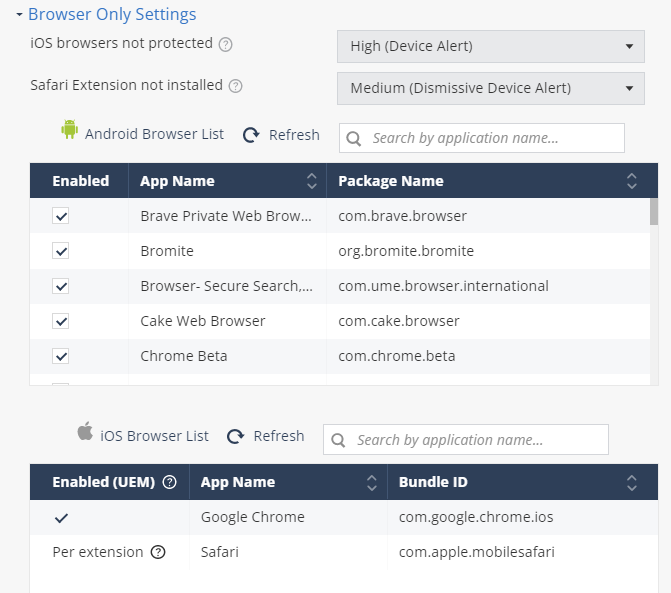
To set the risk level for iOS devices:
-
Go to Policy and select a policy profile.
-
Click any one of these:
-
Device
-
Application
-
File
-
Network
-
-
Go to Network Protection > Browser Only Settings and set these parameters:
Item
Description
Value
iOS browsers not protected
Set the risk level if the iOS browsers are not protected on the device.
-
No Risk (Default)
-
High (Device Alert)
-
Medium (Device Alert)
-
Medium (No Device Alert)
-
Medium (Dismissive Device Alert)
-
Low
-
No Risk
Safari Extension not installed
Set the risk level if the Safari browser extension is not installed on the device.
-
-
To save the policy changes, click Save.
Enabling ONP for Browsers Supported by Android Devices
For Android devices, the supported browsers are listed in the Android Browser List table. You can enable or disable ONP for these browsers from the Mobile Security dashboard.
-
Go to Policy and select a policy profile.
-
Click any one of these:
-
Device
-
Application
-
File
-
Network
-
-
Go to Network Protection > Browser Only Settings.
By default, ONP is enabled for all the browsers.
-
To disable ONP for a browser, clear the checkbox. The system saves the changes automatically and applies them to the device immediately.
When you disable ONP for a browser installed on any of the active devices, a warning message appears.
|
|
Note - To request ONP for a browser that is not in the Android Browser List table, contact Check Point Support. |
Enabling ONP for Browsers Supported by iOS Devices
For iOS devices, the supported browsers are listed in Policy > Network Protection > Browser Only Settings > iOS Browser List table.
Use the Per App VPN setting in the UEM to enable or disable ONP for a browser. After you enable ONP for a browser in the UEM, it takes up to two hours for the system to add it in the iOS Browser List table.
If the browser app configured for ONP in the UEM is not supported by Check Point, then it is not added in the iOS Browser List table. For assistance, contact Check Point Support.
For more information to configure the Per App VPN setting, see sk179387 or refer to your UEM documentation.
|
|
Note - To allow network protection for the traffic generated by Safari browser, the end-user need to enable Mobile Security Safari Extension in the mobile device. To enable the extension, see sk179966. |