
Device Policies
In this section, you can set the conditions and risk levels for general, iOS and Android specific policies.
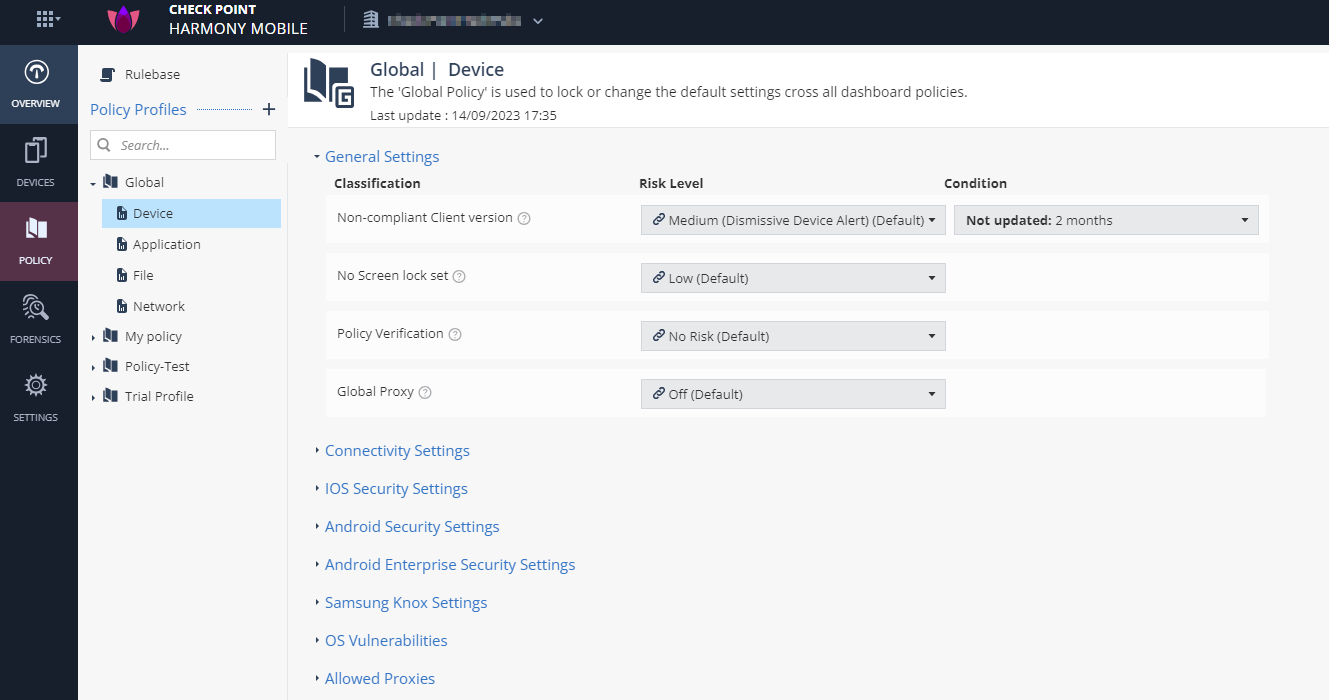
General Settings
To configure the general settings:
-
Go to Policy and select a policy profile.
-
Click Device > General Settings and set the Risk Level for these classifications:
Classification
Description
Risk Level
Condition
Non-compliant Client version
Set a Risk Level for the device if a non-compliant client version specified by the Condition is installed.
-
No Risk (Default)
-
High (Device Alert)
-
Medium (Device Alert)
-
Medium (No Device Alert)
-
Medium (Dismissive Device Alert)
-
Low
-
No Risk
Specify the non-compliant client version condition.
No Screen lock set
Set a Risk Level if no screen lock is set on the device.
-
Low (Default)
-
High (Device Alert)
-
Medium (Device Alert)
-
Medium (No Device Alert)
-
Medium (Dismissive Device Alert)
-
Low
-
No Risk
N/A
Policy Verification
Set a Risk Level if the device fails the policy compliance test.
-
No Risk (Default)
-
High (Device Alert)
-
Medium (Device Alert)
-
Medium (No Device Alert)
-
Medium (Dismissive Device Alert)
-
Low
-
No Risk
N/A
Global Proxy
Set a Risk Level if the device is configured to work with a Global Proxy.
-
Off (Default)
-
High (Device Alert)
-
Medium (Device Alert)
-
Medium (No Device Alert)
-
Medium (Dismissive Device Alert)
-
Low
-
No Risk
N/A
-
-
To save the policy changes, click Save.
Connectivity Settings
If a user device does not communicate with the Mobile Security server for a specified number of days, you can change the device status to Inactive and set a risk level for the device.
|
|
Note - Mobile Security does not protect a device if its status is Inactive. |

To change the status of the device to inactive:
-
Go to Policy and select a policy profile.
-
Click Device > Connectivity Settings.
-
From the Change device status to 'Inactive' if device did not communicate with server for drop-down list, select the number of days after which the system automatically changes the device status to Inactive.
-
In the Connectivity status section, select a risk level for the device if the device does not communicate with the Mobile Security server for the specified number of days.
This must be less than the number of days you specify to change the device status to Inactive in step 3.
-
To save the policy changes, click Save.
iOS Security Settings
To configure the iOS security settings:
-
Go to Policy and select a policy profile.
-
Click Device > iOS Security Settings and set the Risk Level for these classifications:
Classification
Description
Risk Level
Jailbroken Device
Set a Risk Level if the device is identified as a jailbroken device.
-
No Risk (Default)
-
High (Device Alert)
-
Medium (Device Alert)
-
Medium (No Device Alert)
-
Medium (Dismissive Device Alert)
-
Low
-
No Risk
Notification Permission is set to OFF
Set a Risk Level if the user does not grant notification permission for the Harmony Mobile Protect app on the device.
 Note - Mobile Security triggers notifications in different scenarios. For example, when a new policy is set, or to announce detected risks for applications. We recommend that you allow notification permission for the Mobile Security application on the device.
-
Medium (Device Alert) (Default)
-
High (Device Alert)
-
Medium (Device Alert)
-
Medium (No Device Alert)
-
Medium (Dismissive Device Alert)
-
Low
-
No Risk
Enterprise Certificate Profile
Set a Risk Level if an enterprise certificate profile is installed on the device.
-
No Risk (Default)
-
High (Device Alert)
-
Medium (Device Alert)
-
Medium (No Device Alert)
-
Medium (Dismissive Device Alert)
-
Low
-
No Risk
Developer certificate profile
Set a Risk Level if a developer certificate profile is installed on the device.
-
No Risk (Default)
-
High (Device Alert)
-
Medium (Device Alert)
-
Medium (No Device Alert)
-
Medium (Dismissive Device Alert)
-
Low
-
No Risk
Location Permission is set to OFF
Set a Risk Level if the user does not grant location permission for the Harmony Mobile Protect app on the device.
Note - If the location permission is turned on, Mobile Security application sends the device location if a Man-in-the-Middle attack occurs in the connected network. We recommend that you allow location permission for the Mobile Security application on the device.-
Low (Default)
-
High (Device Alert)
-
Medium (Device Alert)
-
Medium (No Device Alert)
-
Medium (Dismissive Device Alert)
-
Low
-
No Risk
Local Network Permission
Set a Risk Level if the user does not grant local network permissions for Harmony Mobile Protect app on the device. The system also sends an alert or notification to the user.
This permission is required when On-Device Network Protection is enabled to use the local DNS
 Domain Name System. A hierarchical distributed naming system for computers, services, or resources connected to the internet or a private network. Used to translate names into IP addresses. server.
-
Medium (Device Alert) (Default)
-
High (Device Alert)
-
Medium (Device Alert)
-
Medium (No Device Alert)
-
Medium (Dismissive Device Alert)
-
Low
-
No Risk
-
-
To save the policy changes, click Save.
Android Security Settings
To configure the Android security settings:
-
Go to Policy and select a policy profile.
-
Click Device > Android Security Settings and set the Risk Level for these classifications:
Classification
Description
Risk Level
Rooted Device Set a Risk level if the device is identified as a rooted device. -
No Risk (Default)
-
High (Device Alert)
-
Medium (Device Alert)
-
Medium (No Device Alert)
-
Medium (Dismissive Device Alert)
-
Low
-
No Risk
Verified boot is disabled
Set a Risk Level if the verified boot feature is disabled on the device.
-
Low (Default)
-
High (Device Alert)
-
Medium (Device Alert)
-
Medium (No Device Alert)
-
Medium (Dismissive Device Alert)
-
Low
-
No Risk
SELinux
Security-Enhanced Linux Permissive modeSet a Risk Level if SELinux policy is not enabled on the device.
-
Low (Default)
-
High (Device Alert)
-
Medium (Device Alert)
-
Medium (No Device Alert)
-
Medium (Dismissive Device Alert)
-
Low
-
No Risk
Device Encryption disabled
Set a Risk Level if device encryption is disabled.
-
Low (Default)
-
High (Device Alert)
-
Medium (Device Alert)
-
Medium (No Device Alert)
-
Medium (Dismissive Device Alert)
-
Low
-
No Risk
Unknown Sources Enabled
Set a Risk Level if the device allows app installations from sources other than the play store.
-
Medium (No Device Alert) (Default)
-
High (Device Alert)
-
Medium (Device Alert)
-
Medium (No Device Alert)
-
Medium (Dismissive Device Alert)
-
Low
-
No Risk
USB debugging enabled
Set a Risk Level if the device allows USB debugging.
-
Medium (No Device Alert) (Default)
-
High (Device Alert)
-
Medium (Device Alert)
-
Medium (No Device Alert)
-
Medium (Dismissive Device Alert)
-
Low
-
No Risk
Notification Permission is set to OFF
Set a Risk Level if notification permission is disabled for the Harmony Mobile Protect app on the device.
-
Low (Default)
-
High (Device Alert)
-
Medium (Device Alert)
-
Medium (No Device Alert)
-
Medium (Dismissive Device Alert)
-
Low
-
No Risk
Location Permission is set to OFF
Set a Risk Level if device location permission is disabled for the Harmony Mobile application on the device.
-
Low (Default)
-
High (Device Alert)
-
Medium (Device Alert)
-
Medium (No Device Alert)
-
Medium (Dismissive Device Alert)
-
Low
-
No Risk
Qualcomm Hexagon Vulnerability *
Set a Risk Level based on Qualcomm Hexagon vulnerability.
-
High (Device Alert)
-
Medium (Device Alert)
-
Medium (No Device Alert)
-
Medium (Dismissive Device Alert)
-
Low
-
No Risk
VPN lock down
Set a Risk Level if the Block connections without VPN setting is disabled for the device.
-
Medium (Device Alert) (Default)
-
High (Device Alert)
-
Medium (Device Alert)
-
Medium (No Device Alert)
-
Medium (Dismissive Device Alert)
-
Low
-
No Risk
MediaTek Audio DSP Vulnerability *
Set a Risk Level for the CVE
Common Vulnerabilities and Exposures. A list of publicly disclosed computer security flaws. When someone refers to a CVE, they mean a security flaw assigned with a CVE ID number.-2021-0673 vulnerability. The system diverts the CVE MediaTek debugging framework for audio drivers to escalate local process privileges.
-
No Risk (Default)
-
High (Device Alert)
-
Medium (Device Alert)
-
Medium (No Device Alert)
-
Medium (Dismissive Device Alert)
-
Low
-
No Risk
* To view the setting, contact Check Point Support.
-
-
To save the policy changes, click Save.
Android Enterprise Security Settings
Users may have both personal and work profile on an Android enterprise environment. The Harmony Mobile Protect app manages and protects only the work profile on the user device.
To protect the device's personal profile, you must install and activate Harmony Mobile Protect app manually. You can specify these settings to warn or enforce the user to install and activate Harmony Mobile Protect app to manage and protect the personal profile.
To configure the Android enterprise security settings:
-
Go to Policy and select a policy profile.
-
Click Device > Android Enterprise Security Settings and set the Risk Level for these classifications:
Classification
Description
Risk Level
Personal Profile not Protected
Set a Risk Level when the Harmony Mobile Protect app is not activated for the personal profile.
-
High (Device Alert) (Default)
-
High (Device Alert)
-
Medium (Device Alert)
-
Medium (No Device Alert)
-
Medium (Dismissive Device Alert)
-
Low
-
No Risk
Mobile Security not installed on personal profile
Set a Risk Level when the Harmony Mobile Protect app is not installed for the personal profile.
-
Medium (Device Alert) (Default)
-
High (Device Alert)
-
Medium (Device Alert)
-
Medium (No Device Alert)
-
Medium (Dismissive Device Alert)
-
Low
-
No Risk
-
-
To save the policy changes, click Save.
Samsung Knox Settings
Mobile Security integrates with the Samsung Knox framework to allow advanced security capabilities on Samsung devices. The user must grant the Samsung Knox permissions to enable these capabilities.
To configure the Samsung Knox settings:
-
Go to Policy and select a policy profile.
-
Click Device > Samsung Knox Settings and set the Risk Level for these classifications:
Setting
Description
Knox permission not granted
Select the device risk level if the Samsung Knox permissions are not granted.
-
Medium (Device Alert) (Default)
-
High (Device Alert)
-
Medium (Device Alert)
-
Medium (No Device Alert)
-
Medium (Dismissive Device Alert)
-
Low
-
No Risk
Block application until scan ended
Select this checkbox so that the application does not run until the scan is completed and the application is confirmed as legitimate.
Block application at risk
Select this checkbox to prevent the application from running based on the risk level selected in the drop-down list. Recommended threshold is High.
-
-
To save the policy changes, click Save.
OS Vulnerabilities
To configure the OS vulnerabilities settings:
-
Go to Policy and select a policy profile.
-
Click Device > OS Vulnerabilities and set the Risk Level for these classifications:
Classification
Description
Risk Level
Condition
iOS OS Version
Select a Risk Level if the iOS version is older than the one specified in the Condition.
-
No Risk (Default)
-
High (Device Alert)
-
Medium (Device Alert)
-
Medium (No Device Alert)
-
Medium (Dismissive Device Alert)
-
Low
-
No Risk
Specify the condition for the iOS version.
Android OS Version
Select a Risk Level if the Android OS version is older than the one specified in the Condition.
-
High (Device Alert)
-
Medium (Device Alert)
-
Medium (No Device Alert)
-
Medium (Dismissive Device Alert)
-
Low
-
No Risk
Specify the condition for the Android OS version.
New Security Patch Available
Select a Risk Level if a new security patch update is available for the Android device but it is not installed for the duration specified in the Condition, after its release.
Note - The availability of the patches depends on each Original Equipment Manufacturer (OEM). See https://source.android.com/docs/security/bulletin
-
No Risk (Default)
-
High (Device Alert)
-
Medium (Device Alert)
-
Medium (No Device Alert)
-
Medium (Dismissive Device Alert)
-
Low
-
No Risk
Specify the duration. Default is one week.
Security Patch Not Updated
Select a Risk Level if the manufacturer has discontinued security patch updates or no security patch information available for the Android device since the duration specified in the Condition.
-
No Risk (Default)
-
High (Device Alert)
-
Medium (Device Alert)
-
Medium (No Device Alert)
-
Medium (Dismissive Device Alert)
-
Low
-
No Risk
Specify the duration.
CVEs detected on device OS
Set a Risk Level for the highest Common Vulnerability Scoring System (CVSS
Common Vulnerability Scoring System ) V3 score of the CVEs detected on the device OS version, as specified in the Condition.
Note - CVSS is a severity score of the vulnerability from 0.1 (lowest) to 10.0 (highest). Check the CVEs scores at: https://nvd.nist.gov/Vulnerability-Metrics/.For full visibility of the CVEs detected across your mobile device fleet, go to Forensics > OS CVE Assessment.
-
High
-
Medium
-
Low
-
No Risk
Specify the condition. For example, if the CVSS V3 score is above a certain range.
-
-
To save the policy changes, click Save.
To add CVEs that trigger a specific risk level on the user device:
-
In the OS Vulnerabilities section, click Add.
-
Enter the CVE and the Risk Level.
-
To save the policy changes, click Save.
Allowed Proxies
The Allowed Proxies table displays the allowed list of proxy server IP addresses that you can configure on the user’s iOS device.
To add a new proxy to the allowed proxy list:
-
Go to Policy and select a policy profile.
-
Click Device > Allowed Proxies.
-
Click Add.
The Proxy IP window appears.
-
Enter the Proxy IP and click Add.
-
To import a list of proxy IP address, click Import and upload the .CSV file with a list of addresses and comments.
-
To remove a proxy IP address from the list, select it and click Delete.
-
To save the policy changes, click Save.