Application Policies
Malicious Applications
Applications that have both risky capabilities and have malicious intents are categorized as malicious applications by the Mobile Security Behavioral Risk Engine (BRE Behavioral Risk Engine). Their risk level is always set to High and you cannot configure it.
Risky Applications
Applications that have bad reputation or that may pose a security risk to the organization are considered to be risky applications.
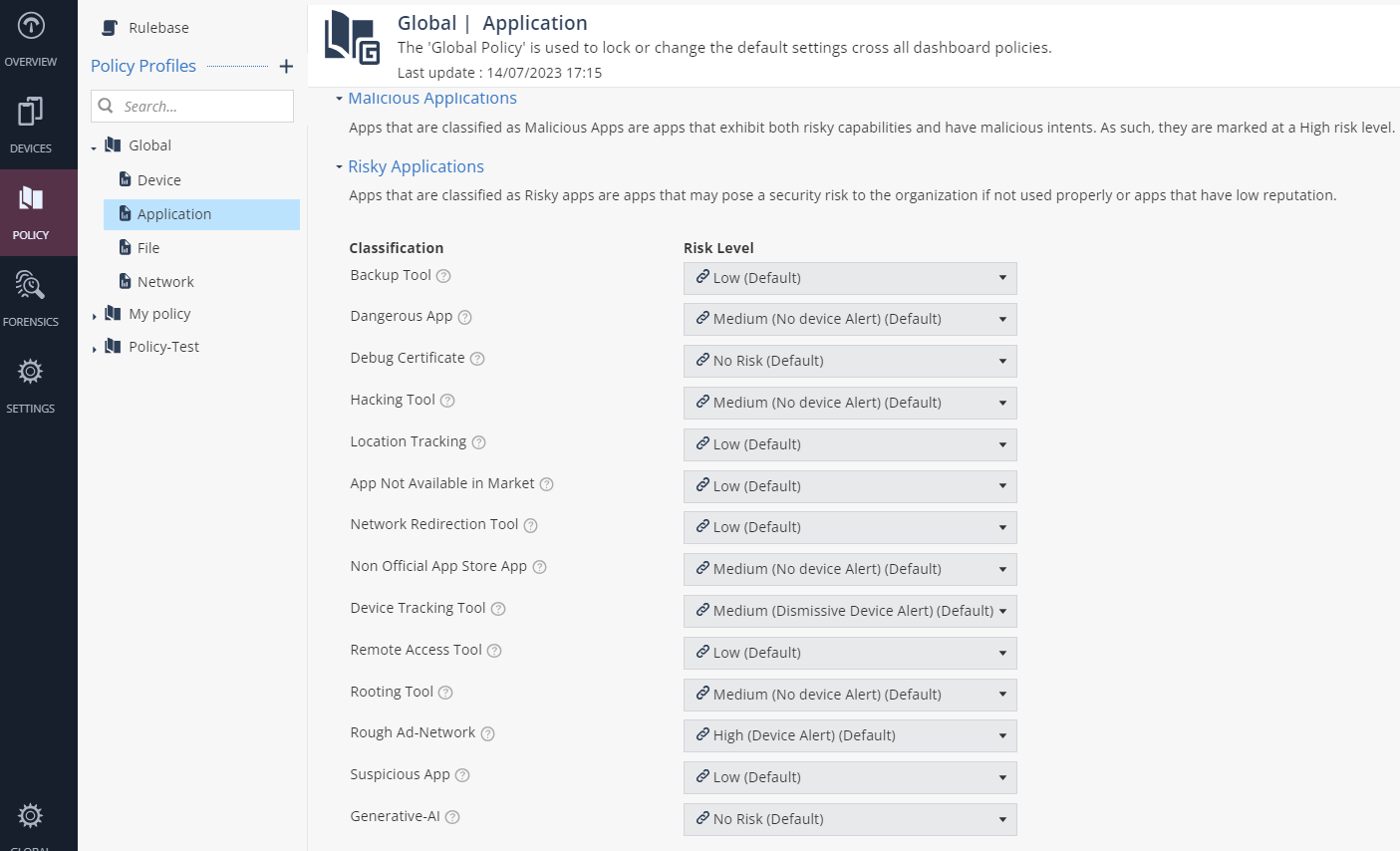
To set the risk level for these applications:
-
Go to Policy and select a policy profile.
-
Click Application > Risky Applications and set the Risk Level for these classifications:
Classification
Description
Risk Level
Backup Tool
Set the Risk Level if an application backs up sensitive information from the device.
-
Low (Default)
-
High (Device Alert)
-
Medium (Device Alert)
-
Medium (No Device Alert)
-
Medium (Dismissive Device Alert)
-
Low
-
No Risk
Dangerous App
Set the Risk Level if a legitimate application can compromise the device, change configuration, or provide unauthorized access to corporate resources.
-
High (Device Alert) (Default)
-
High (Device Alert)
-
Medium (Device Alert)
-
Medium (No Device Alert)
-
Medium (Dismissive Device Alert)
-
Low
-
No Risk
Debug Certificate
Set the Risk Level if an application is signed by a debug certificate.
-
No Risk (Default)
-
High (Device Alert)
-
Medium (Device Alert)
-
Medium (No Device Alert)
-
Medium (Dismissive Device Alert)
-
Low
-
No Risk
Hacking Tool
Set the Risk Level if an application compromises local network data, device data or application data (on either device or server).
-
Medium (No Device Alert) (Default)
-
High (Device Alert)
-
Medium (Device Alert)
-
Medium (No Device Alert)
-
Medium (Dismissive Device Alert)
-
Low
-
No Risk
Location Tracking
Set the Risk Level if an application allows remote access to the device location without the user's consent.
-
Low (Default)
-
High (Device Alert)
-
Medium (Device Alert)
-
Medium (No Device Alert)
-
Medium (Dismissive Device Alert)
-
Low
-
No Risk
App Not Available in Market
Set the Risk Level if an application previously available in the app store is removed.
-
Low (Default)
-
High (Device Alert)
-
Medium (Device Alert)
-
Medium (No Device Alert)
-
Medium (Dismissive Device Alert)
-
Low
-
No Risk
Network Redirection Tool
Set the Risk Level if an application redirects network communication without the user's consent.
-
Low (Default)
-
High (Device Alert)
-
Medium (Device Alert)
-
Medium (No Device Alert)
-
Medium (Dismissive Device Alert)
-
Low
-
No Risk
Non Official App Store App
Set the Risk Level if an application is not verified by an official app store.
-
Medium (No Device Alert) (Default)
-
High (Device Alert)
-
Medium (Device Alert)
-
Medium (No Device Alert)
-
Medium (Dismissive Device Alert)
-
Low
-
No Risk
Device Tracking Tool
Set the Risk Level if an application allows remote access to the device location without the user's consent.
-
Medium (Dismissive Device Alert) (Default)
-
High (Device Alert)
-
Medium (Device Alert)
-
Medium (No Device Alert)
-
Medium (Dismissive Device Alert)
-
Low
-
No Risk
Remote Access Tool
Set the Risk Level if an application allows remote control of the device without the user's consent.
-
Low (Default)
-
High (Device Alert)
-
Medium (Device Alert)
-
Medium (No Device Alert)
-
Medium (Dismissive Device Alert)
-
Low
-
No Risk
Rooting Tool
Set the Risk Level if an application is identified as a rooting or jailbreak tool.
-
Low (Default)
-
High (Device Alert)
-
Medium (Device Alert)
-
Medium (No Device Alert)
-
Medium (Dismissive Device Alert)
-
Low
-
No Risk
Rough Ad-Network
Set the Risk Level if an application contains an ad-network and can leak sensitive data from the device and violates user privacy.
-
High (Device Alert) (Default)
-
High (Device Alert)
-
Medium (Device Alert)
-
Medium (No Device Alert)
-
Medium (Dismissive Device Alert)
-
Low
-
No Risk
Suspicious App
Set the Risk Level if an application has suspicious capabilities.
-
Medium (No Device Alert) (Default)
-
High (Device Alert)
-
Medium (Device Alert)
-
Medium (No Device Alert)
-
Medium (Dismissive Device Alert)
-
Low
-
No Risk
Generative-AI
Set the Risk Level if an application uses Artificial Intelligence (AI) services.
-
No Risk (Default)
-
Medium (Device Alert)
-
Medium (No Device Alert)
-
Medium (Dismissive Device Alert)
-
Low
-
No Risk
-
-
To save the policy changes, click Save.
Block Application Traffic
You can block the traffic generated by or intended to a risky application based on the specified risk level. For example, if you specify the risk level as Medium, then the system blocks the traffic for all applications whose risk level is Medium or higher.
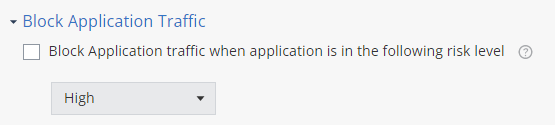
To block the application traffic, you must:
-
Set On-device Network Protection to Always ON or Turn ON when device is at High risk.
-
Set Network Protection Working Mode to Full Inspection.
For more information, see Network Protection.
You can determine the risk level of an application from one of these:
-
The Severity column in the Application Risk table:
This table lists the risk level for each severity level. For more information, see View By Application Risk.
Severity Level
Risk Level
High
High
Medium
Medium
Low
Low
None
No risk
-
Applications allowed or blocked under Application Exceptions.
To block the application traffic:
-
Go to Policy and select a policy profile.
-
Click Application > Block Application Traffic.
-
Select the Block Application traffic when application is in the following risk level checkbox.
-
From the drop-down list, select the risk level.
|
|
Notes :
|
Application Categories
In this section, you can set risk level for the different application categories.
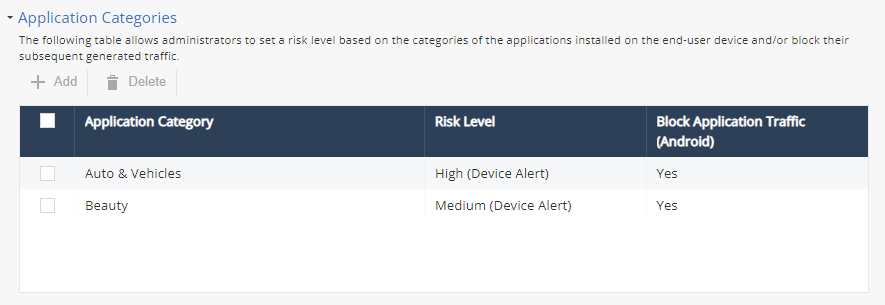
To add a new application category:
-
Go to Policy and select a policy profile.
-
Click Application > Application Categories.
-
In the table, click Add.
A window appears.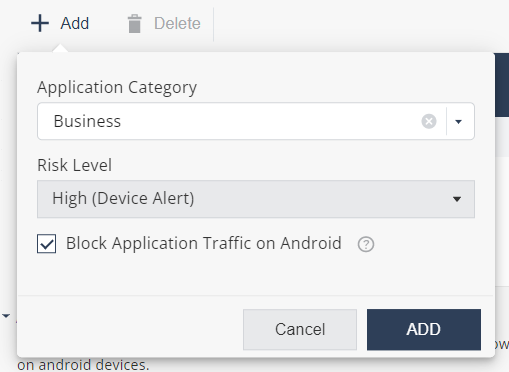
-
Set these parameters:
Item
Description
Application Category
Select the application category (Category obtained from Google Play (Android) and Play Store (iOS)).
Risk Level
Set the Risk Level:
-
No Risk (Default)
-
High (Device Alert)
-
Medium (Device Alert)
-
Medium (No Device Alert)
-
Medium (Dismissive Device Alert)
-
Low
-
No Risk
Block Application Traffic on Android
Select this checkbox to block application traffic on Android devices.
The feature works only for Android devices that enable the On Device Network Protection feature.
-
-
To delete a category, select it and click Delete.
-
To save the policy changes, click Save.
Application Exceptions
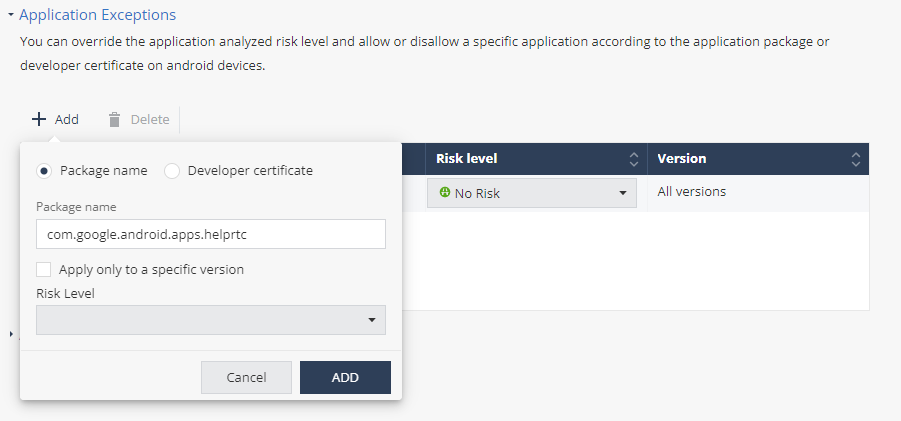
You can override the application's analyzed risk level according to the application package or developer certificate on Android devices. By default, it inherits the settings from the Global policy.
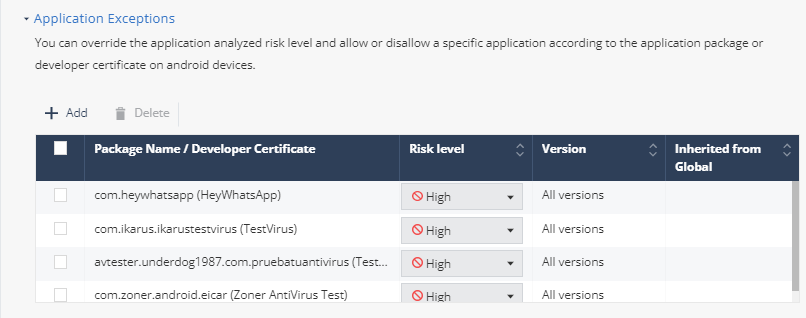
To add an exception to an application:
-
Go to Policy and select a policy profile.
-
Click Application > Application Exceptions.
-
In the table, click Add.
A window appears.
-
Select one of these:
-
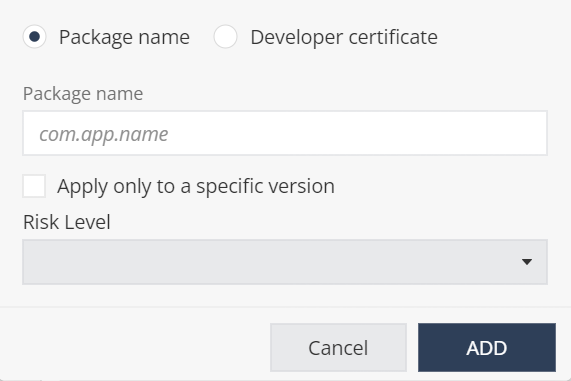
Package name:
-
Enter the application Package name.
-
To apply the exception only to a specific version, select the Apply only to specific version checkbox.
-
In the Version field, enter the application package version number.
 Note - Version field appears only if you select Apply only to specific version checkbox.
 -
From the Risk Level drop-down list, select the risk level:
-
High – The system changes the application's risk level to High Risk. As a result, the actual application triggers on-device mitigation and a pop-up event. This app triggers an increase in the risk level of the device.
-
No risk – The system changes the application's risk level to No Risk. The application no longer triggers on-device mitigation or a pop-up event.
-
Ask for user approval – When the user installs an app, the user is prompted about the risk and can allow or disallow the application.
-
-
Click Add.
-
-
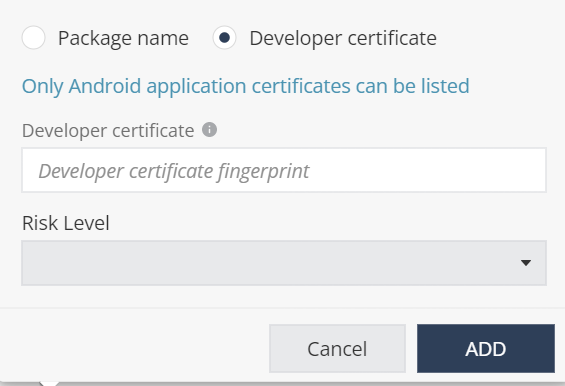
Developer certificate (applies only to Android applications):
-
In the Developer certificate field, enter the certificate ID.
-
From the Risk Level drop-down list, select the risk level:
-
High
-
No risk
-
Ask for user approval
-
-
Click Add.
-
-
- To save the policy changes, click Save.
If you do not know the applications details:
-
Go to Forensics > Applications.
-
Find the relevant application and click the Global Policy value.
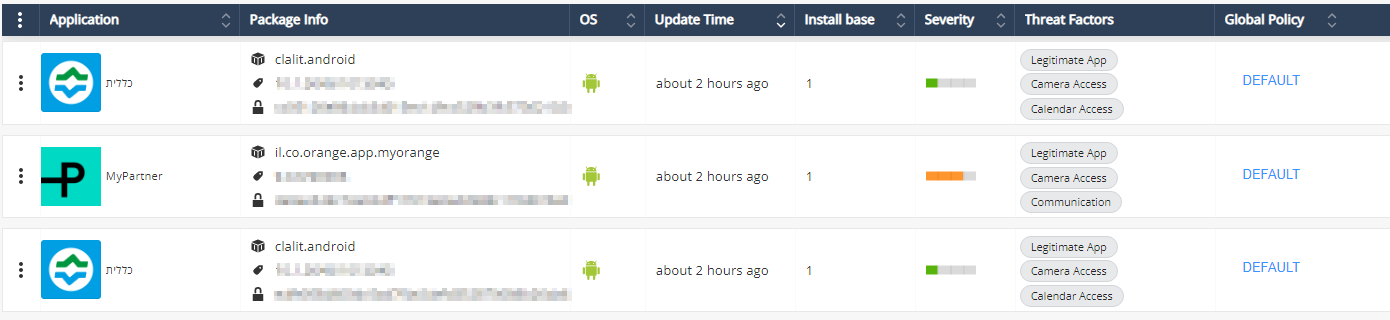
The Application Exceptions section appears with the chosen application details.
-
Select the Risk Level and click Add.
-
To save the policy changes, click Save.