Application
You can view an application by Application risk or by MARS score.

View By Application Risk
Applications Risk view is the main screen for risk analysis of different applications installed on the corporate devices. The applications are categorized to help the administrators understand the risk level. Click on each category to find the corresponding risk level.
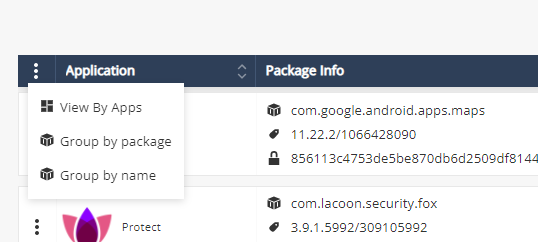
You can arrange the application list according to package and name:
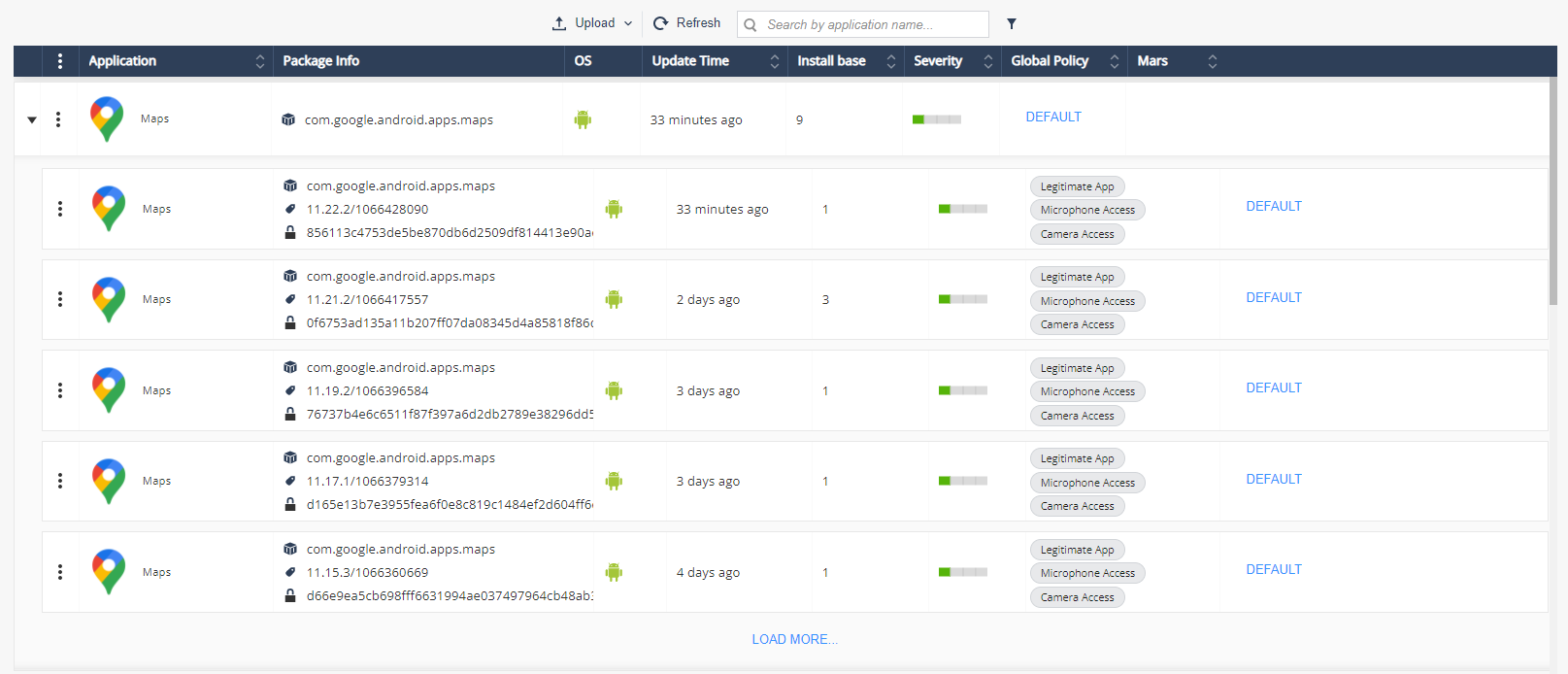
Application data:
|
Item |
Description |
|---|---|
|
Application |
Name of the application. |
|
Package Info |
|
|
OS |
Application platform:
|
|
Update Time |
Indicates the last time the application was updated. |
|
Install Base |
The install base tells the administrators the current count of this app version that is currently installed within their environment. |
|
Global risk level |
Risk level of the application in the Global policy. |
|
Risk level by policy |
Risk level of the application in all other policies. |
|
Severity |
Highest risk level specified for the application in Application Exceptions across all the policies. For example, if the risk level of an application is High in policy 1, Medium in policy 2 and Low in policy 3, then the Severity is High.
|
|
Global Policy |
The Global policy of the application:
Click on the policy will direct to Application Policy section with the chosen application details. |
-
You can filter every column in the table:
-
Click Filter
 above the table.
 -
On the Filters pane on the right side of the window, adjust information you want to view.

Note - If you filter for a Severity Level, the Severity column may not match the specified filtered risk level. This is because the Severity column always shows the highest risk level specified for the application in Application Exceptions across all policies and at least one policy has the filtered risk level for the application.
For example, if you filter for None and if the Severity column shows High for some applications, then it indicates that these applications' risk level is set to None in at least one of the policies.
-
-
Click
 .
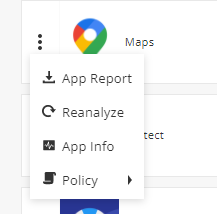
. -
App Report: Generates application report
-
Reanalyze: Send application to reanalyzed
-
App view: Opens an extended application details view
-
Policy:Directs to the application policy section.
-
Application Overview
Click on the application row or on the App View option to open the application overview:
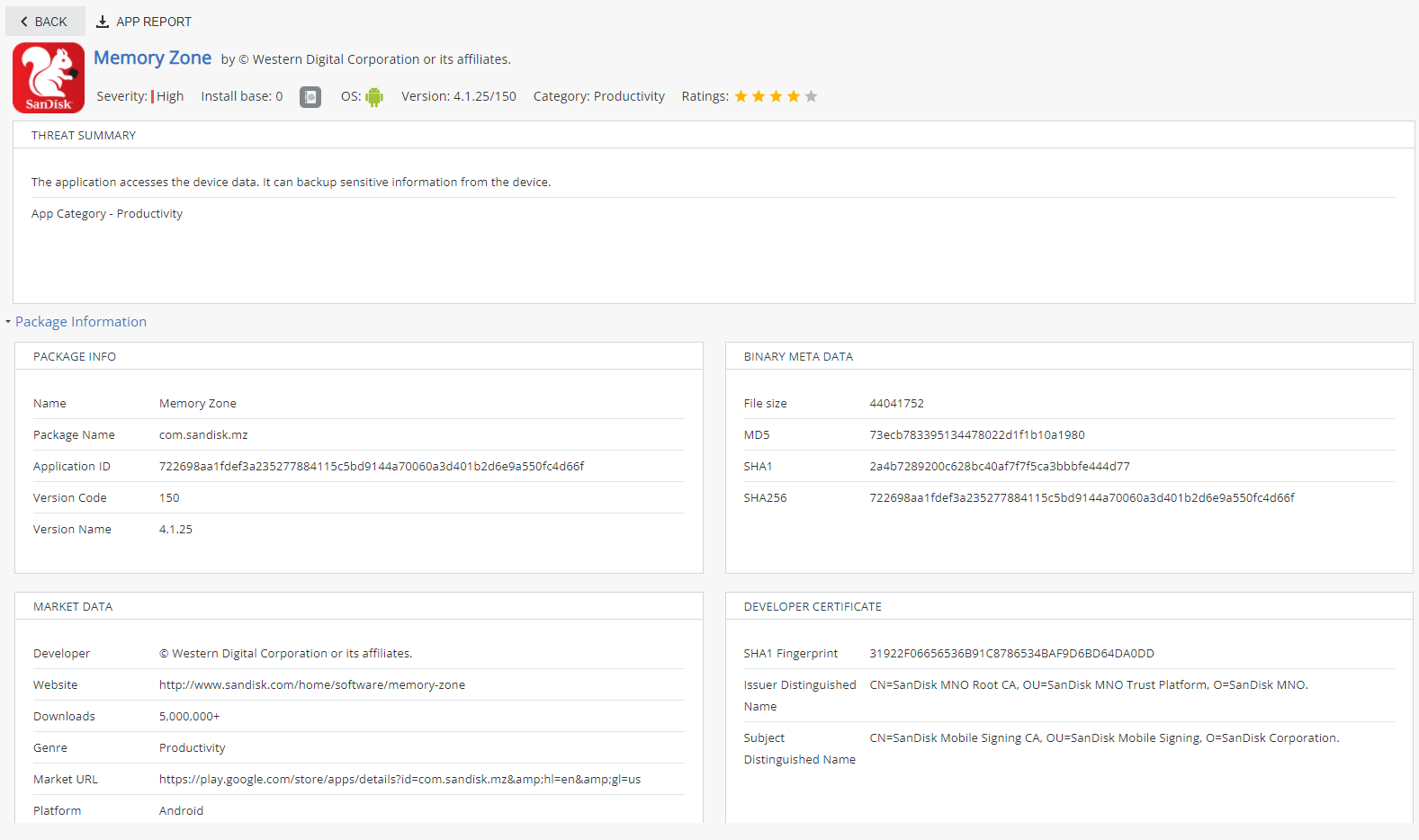
Severity
Severity indicates the risk level of the analyzed application. The possible values are:
-
High – Indicates that the app is malicious or contradicts company policy.
-
Medium – Indicates a potential threat by a legitimate application or configuration which contradicts the company policy.
-
Low – Indicates the app might perform potentially risky behavior. This might be caused by a legitimate app which uses an unusual ad network or an app which has access to the device contacts with no reasonable explanation, but no potential risk is applied.
-
No Risk – Indicates an app is legitimate or complies with company policy.
Install Base
The install base tells the administrators the current count of this particular version of the app that is currently installed within their environment.
At the bottom of the page you can locate information of where this app is installed in the environment (only if the app presents a risk to your organization). See Installations for a list of devices on which the app is installed.
Package Information
Package Information includes detailed information about these:
-
Package Info
-
Binary Meta-Data
-
Market Data
-
Developer Certificate Data

Capabilities Summary
This panel provides an overview of what this application can do.

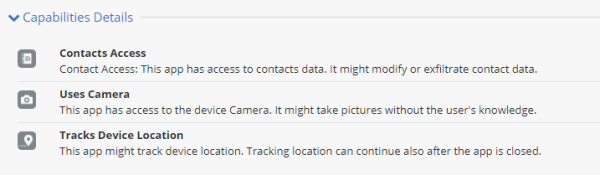
Capabilities Details
This panel provides additional details about the capabilities of this application.
Exploits
Exploits panel appears only on malicious apps which use and exploit the OS vulnerability. It displays detailed information about the exploit and shows the risk level on a 1 to 10 scale.

Cloud Hosting Services
This section displays a listing of any cloud services used by the app.

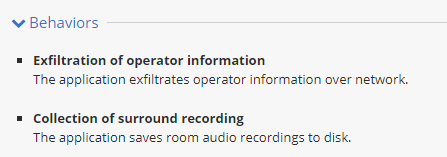
Behaviors
This section displays a collection of characteristics of the app called identifiers. Identifiers are used to declare the current risk level of the app.
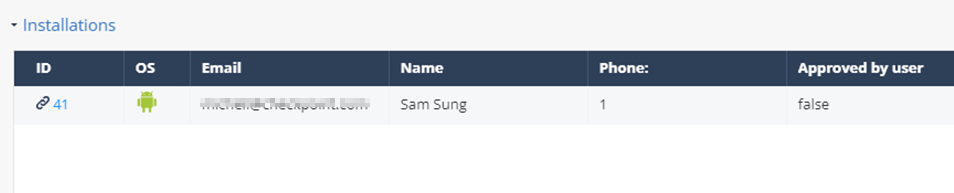
Installations
The Installations table displays the list of devices where the selected application is currently installed.
|
|
Notes -
|
Network
If the app is designed to use the network for specific reason such as send information to a specific URL, this address will be shown in this section.

Application Permissions
The Application permissions panel displays the app permissions and the risk level it implies.

File System Access
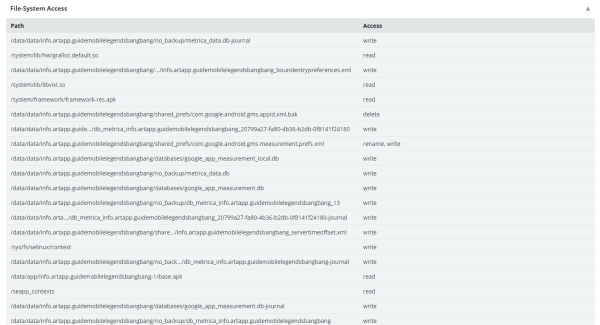
This section displays all of the access permissions this app has to the device file system.
MITRE ATT&CK Matrix
MITRE ATT&CK is a globally accessible knowledge base of adversary tactics and techniques based on real-world observations. When Mobile Security detects a malicious application, it uses the MITRE ATT&CK tactics and techniques to categorize and represent the risks and damages that this application may cause.
For more information about the MITRE ATT&CK Matrix, see https://attack.mitre.org/techniques/mobile/
|
|
Note - The MITRE ATT&CK Matrix is available only if the application contains malware. |
To view the MITRE ATT&CK Matrix for an application:
-
Go to Forensics > Application.
-
Do one of these:
-
If the application was installed on the tenant device, click View Application Risk.
-
If the application file or URL was uploaded for analysis, click View MARS scores.
-
-
Click the application in the table to view its details.
Note - If you selected View MARS scores in step 2, click the application and then click App Info to view the application details. -
To view the attack technique description, click any of the MITRE ATT&CK Tactics (for example, T1532: Data Encrypted).
The system opens a web page on the MITRE ATT&CK website that shows the description of the specific attack technique. -
To view the complete MITRE ATT&CK Matrix for the application, click Open MITRE ATT&CK full table.
This matrix highlights the tactics and techniques used for the application.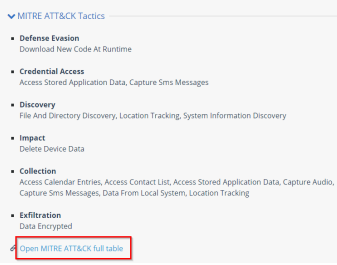
MARS – Mobile Application Reputation Service
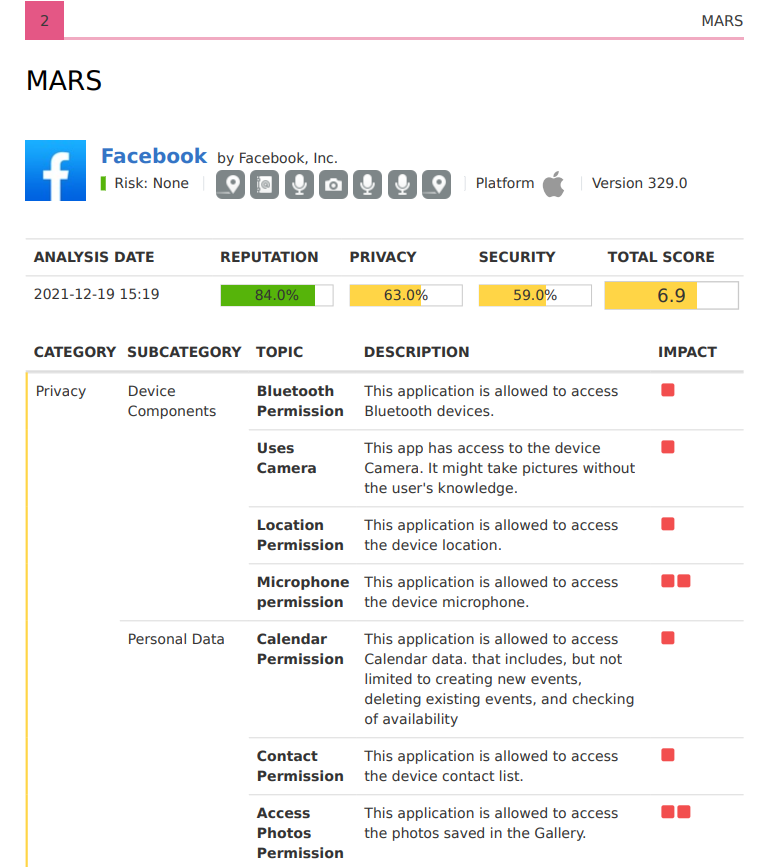
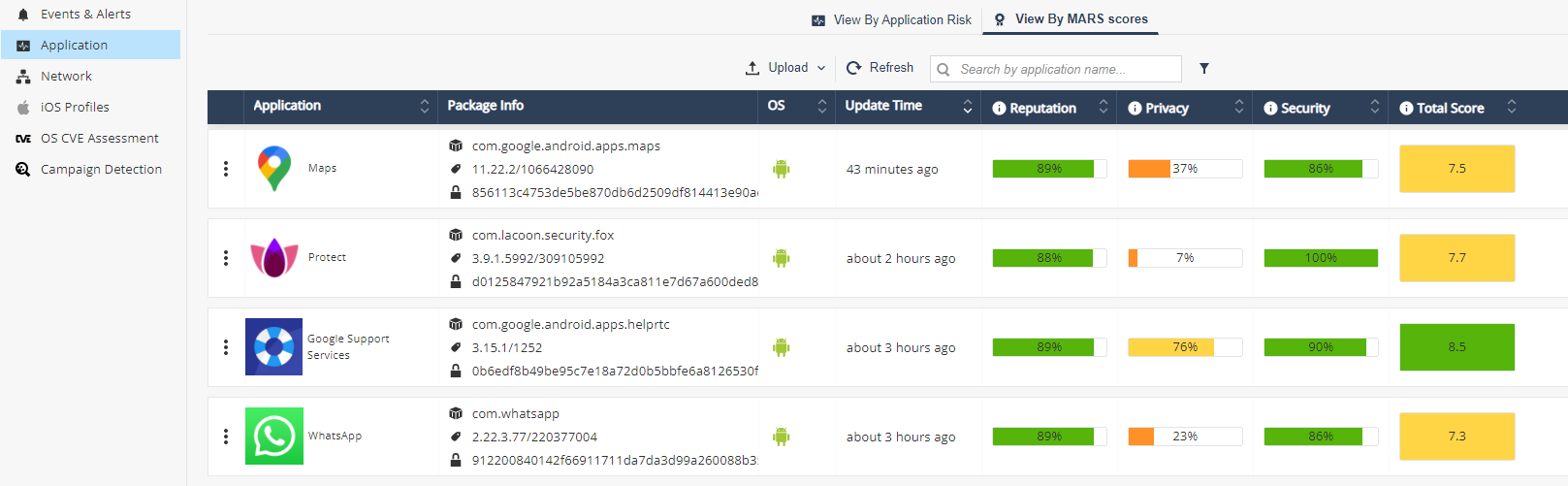
MARS provides analysis of any mobile application that is uploaded to the service either as a binary file or a link to the official Apple App Store and Google Play. To view the MARS score of applications, go to Application and click the View MARS scores tab.
With MARS, administrators can upload an application either as a binary file (APK - Android App format or IPA - iOS App format) or a direct link to an application in the official store (Apple App Store or Google Play Store), once uploaded into Mobile Security Dashboard, administrator receives a full app analysis report after few minutes.
-
To learn about an application, administrator should upload the APK/IPA file, iOS App Store link or Google Play Store link into Mobile Security Dashboard (under Forensics > MARS tab).
-
If the App is analyzed for the first time, it may take few minutes for Mobile Security to analyze the App, when done - administrator receives an email with a link to MARS full App analysis report, at the same time MARS dashboard is updated with new report.
-
MARS generates a report which analyses the application according to 3 categories: security (vulnerabilities), reputation and privacy. Each category consists of a list of findings, split into sub-categories and topics, with their associated impact on the category score.
-
For each category a score is calculated according to MARS analysis findings, then, a weighted summary score is given to the application.
-
If the App was already analyzed by Mobile Security, administrator can immediately view or download the full App analysis.
-
After reading the App analysis report, administrators can make educated decisions based on full App analysis before they distribute an App into their organization’s Mobile devices.
-
The App analysis report consists of the data as described in ‘App Analysis Overview’ (p.62) plus the MARS analysis for the 3 categories – security, reputation and privacy.
-
MARS detailed app report is linked to its App Risk analysis, clicking on ‘App Risk’ icon will take you directly to the App Risk analysis page.
-
Administrator can also export a full app report (MARS + Risk Analysis) and ask to reanalyze the app if a new version is available on the Apple app store or Google Play.
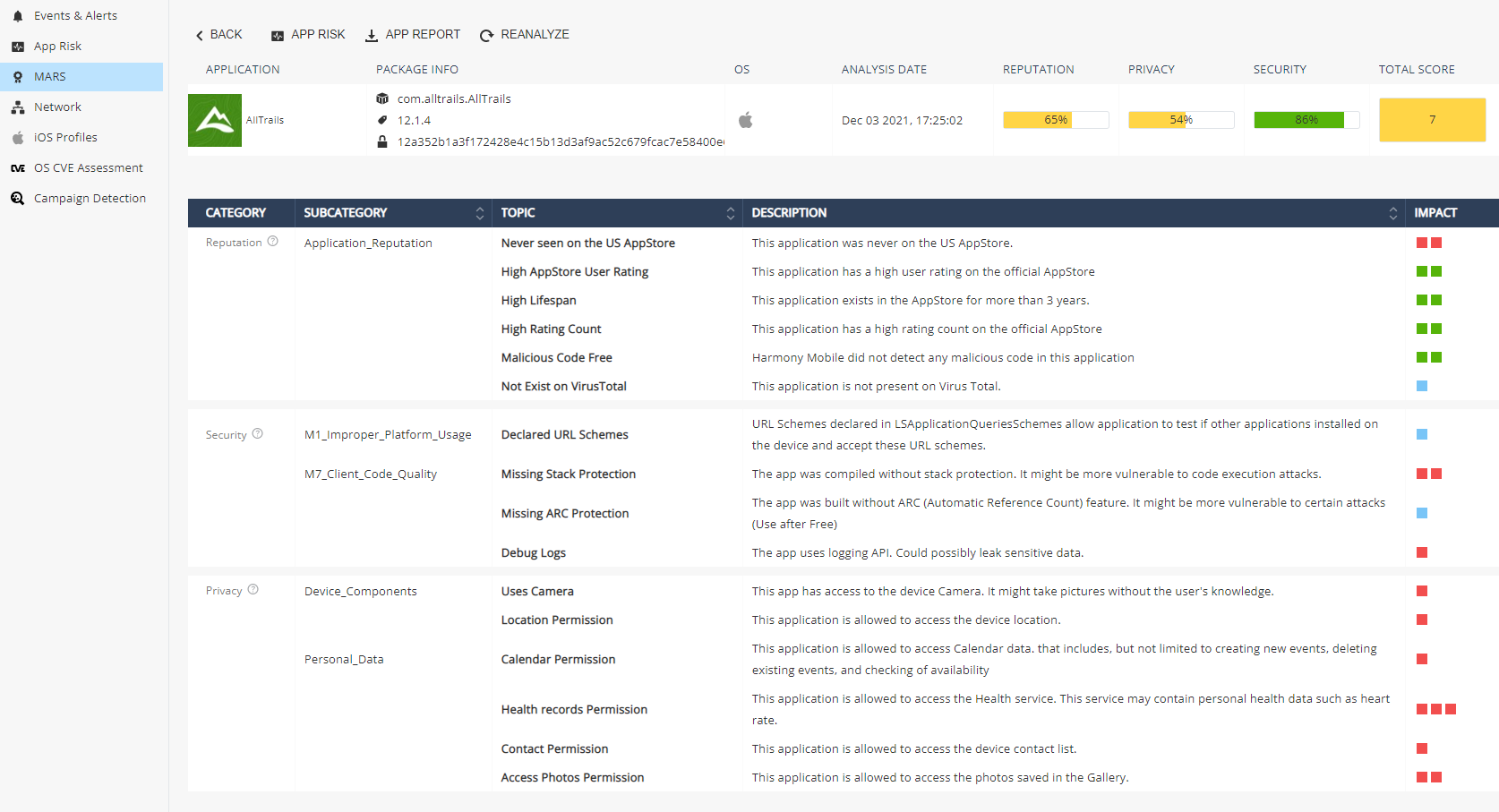
App report (MARS and Risk Analysis):