SAML Configuration for Okta

  1. Make sure you have a Okta account, if not, create an account.
  2. Log in to your Avanan Administrator Portal.
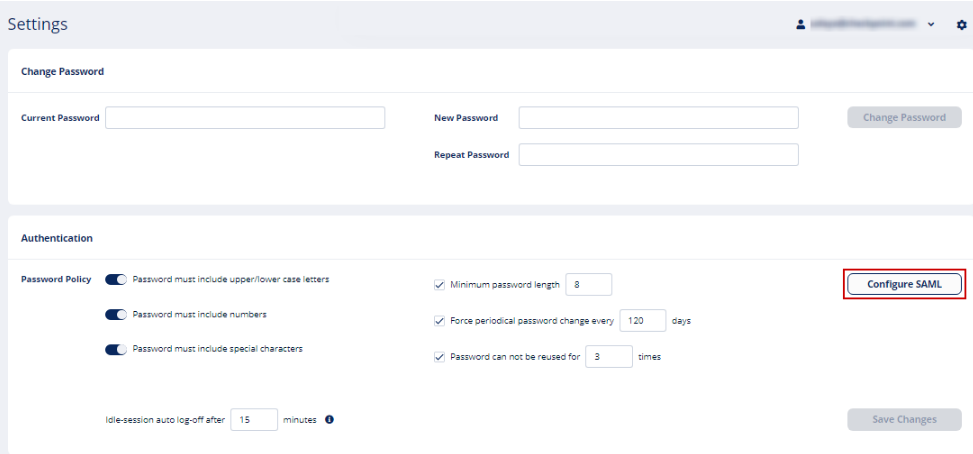
    1. Go to System Settings > Settings.
    2. Click Configure SAML.

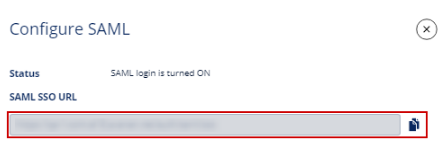
      The Configure SAML window appears.

    3. In the SAML SSO URL field, click for-Avanan-MSP-AG/Copy.png to copy the SAML SSO URL.
    4. In the Identifier Provider Entity ID field, enter a unique string, for example, Avanan.
  3. Create your private integration in Okta.
    1. Sign in to your Developer Edition org as a user with administrative privileges.
    2. Go to Applications > Applications in the Admin Console.
    3. Click Create App Integration.
    4. Select SAML 2.0 in the Sign-in method section.
    5. Click Next.
    6. In the General Settings tab, enter a name for your integration and optionally upload a logo.
    7. Click Next.
    8. In the Configure SAML tab, paste the URL copied in step 2c.
    9. In the Single sign on URL field, enter the Assertion Consumer Service (ACS) URL.
    10. In the Audience URI (SP Entity ID) field, enter the value entered in the Identifier Provider Entity ID field in step 2d.
    11. From the Name ID Format field, select Email Address.
    12. Click Finish.
  4. In the SAML SSO URL field, paste the URL copied from SSO provider.
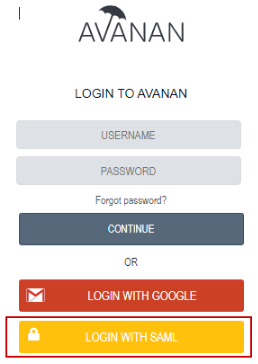
    You are now able to login to the Avanan Administrator Portal with SAML. You can also run from Okta directly from https://{domain}.oktapreview.com/app/UserHome.