
SAML Configuration for JumpCloud
-
Log in to the Avanan
Administrator Portal.
-
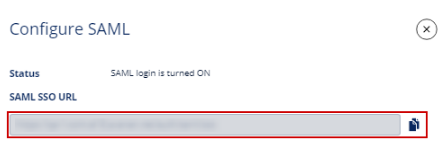
In the SAML
SSO URL field, click
 to copy the SAML
SSO URL.
to copy the SAML
SSO URL.
-
In the SAML
SSO URL field, click
-
Log in to the JumpCloud Administrator Portal.
-
Go to Applications and click
 .
.
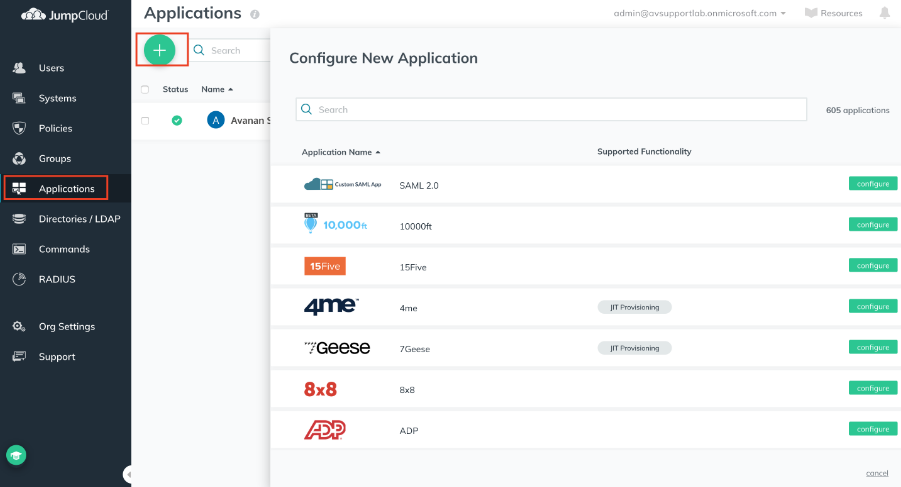
The Configure New Application window appears.
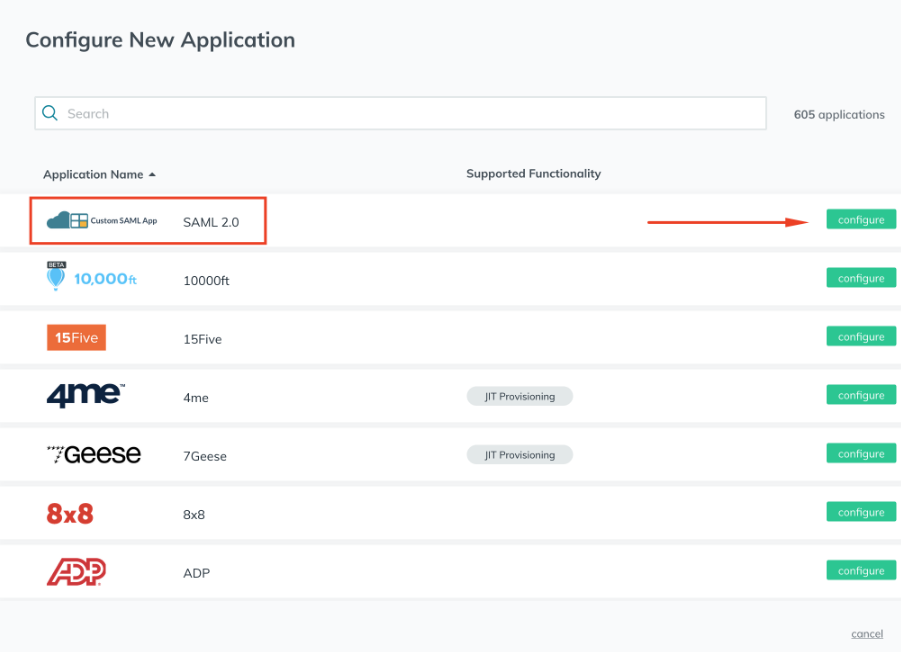
-
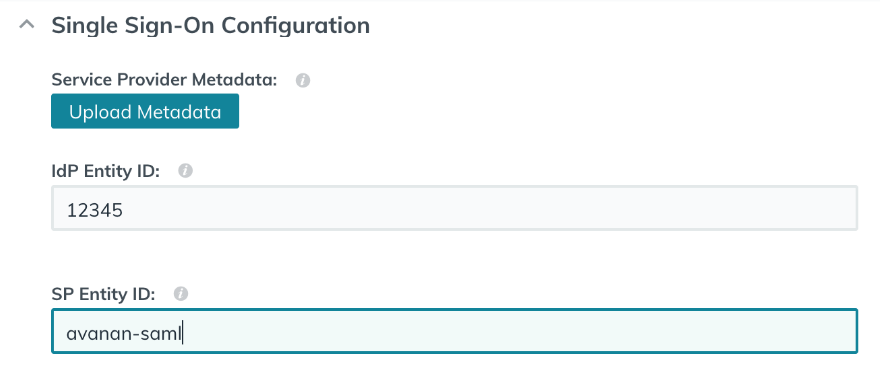
Specify these:
IdP Entity ID
SP Entity ID - Paste the url copied in step 1.b.
-
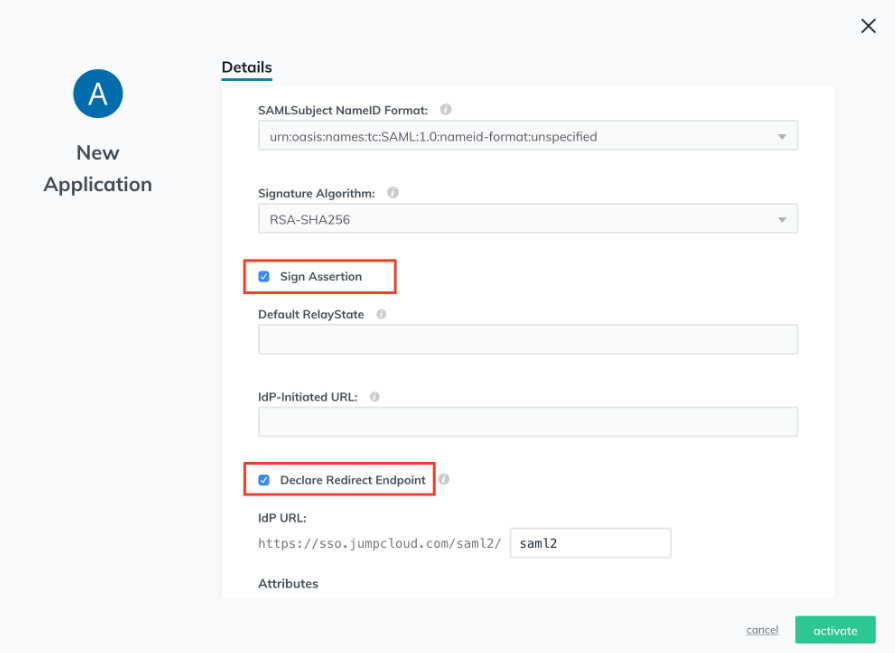
Select these checkboxes:
Sign Assertion
Declare Redirect Endpoint
-
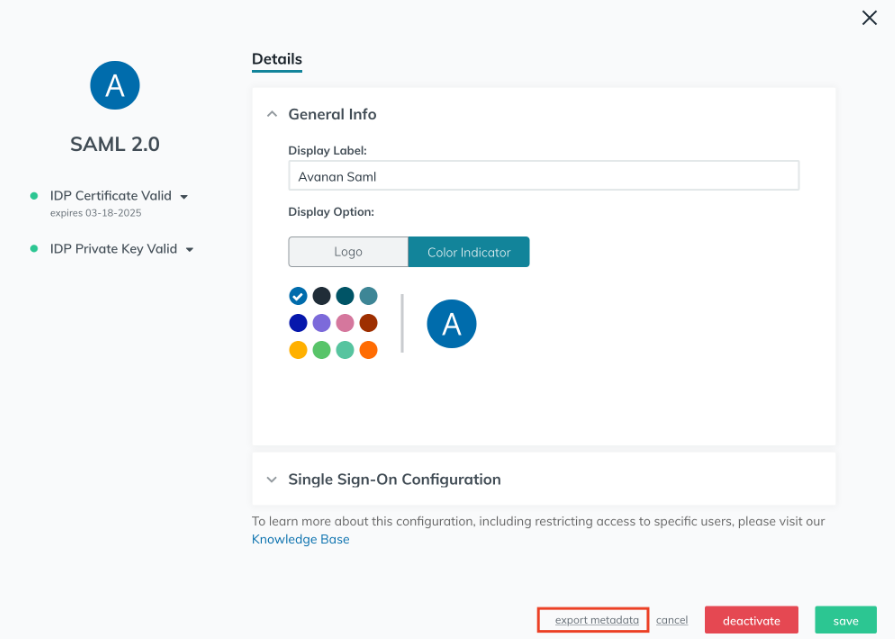
Click export metadata.
-
Go to Applications and click
-
Log in to the Avanan
Administrator Portal.
-
Go to System Settings > Settings and click Configure SAML.
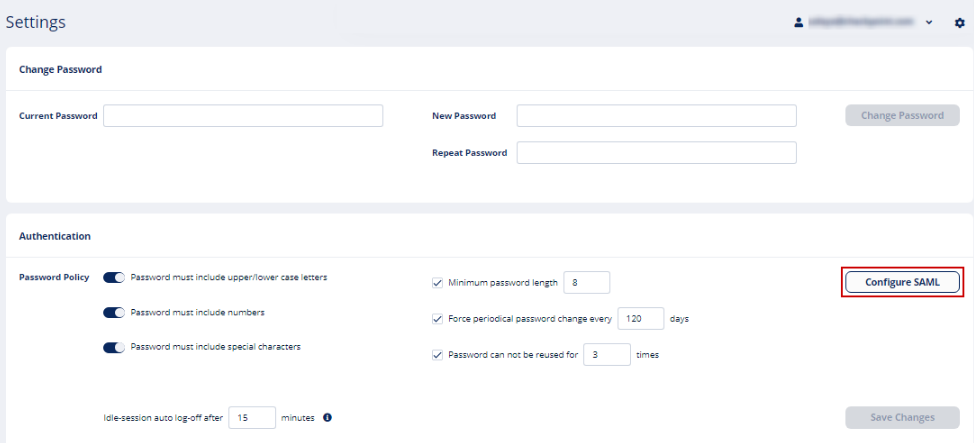
The Configure SAML window appears.
-
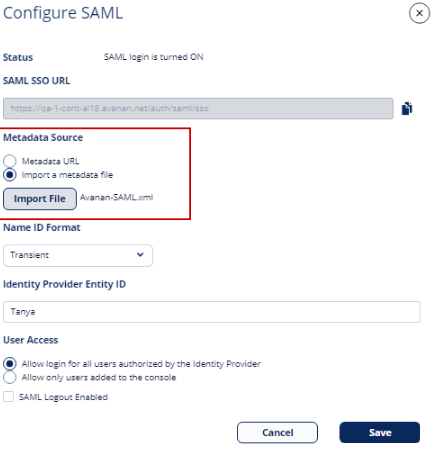
In the Metadata Source field, select Import a metadata file and upload the XML file downloaded in step 2.k.
-
Go to System Settings > Settings and click Configure SAML.
-
To assign users to the newly created JumpCloud application, log in to the JumpCloud Administrator Portal.
-
From the edit group window, click Applications and select the newly created application.
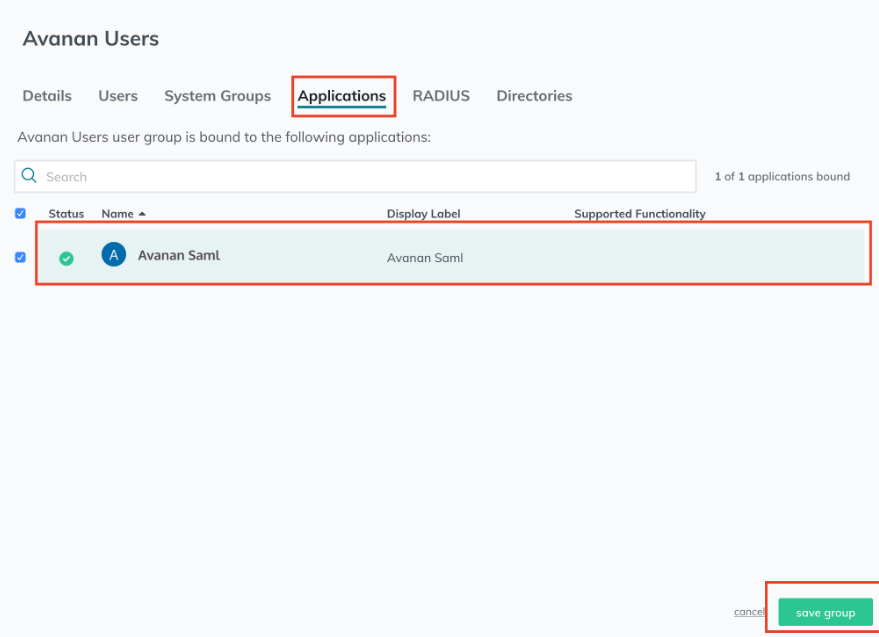
You are now able to login to the Avanan Administrator Portal with SAML.
-
From the edit group window, click Applications and select the newly created application.
For more information, see https://jumpcloud.com/support.