
Deactivating Office 365 Mail
-
Click Stop for Office 365 Mail.
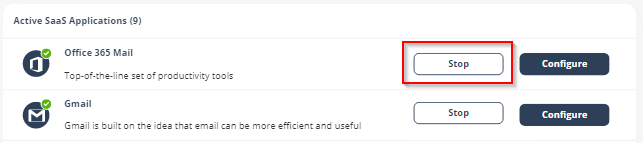
Upon deactivation, Avanan will no longer protect your organization's Office 365 mailboxes.
To complete the deactivation process:
-
If you receive Office 365 protection was successfully uninstalled message, follow these steps.
-
Sign in to the Microsoft Entra ID (formerly Azure AD) portal as a Global Administrator or a Co-Administrator.
-
In the left menu, select Enterprise applications.
The All applications pane opens and displays a list of the applications in your Microsoft Entra ID (formerly Azure AD) tenant.
-
Select the Avanan Cloud Security Platform - Emails V2 application to delete.
-
In the Manage section of the left menu, select Properties.
-
At the top of the Properties pane, select Delete, and then select Yes to confirm you want to delete the application from your Microsoft Entra ID (formerly Azure AD) tenant.
-
Review the Reported message destinations settings (Settings > Email & Collaboration > Go to User reported settings and scroll down to Reported message destinations) and choose whether you want to change them.
Note:When you initially connected Avanan to Microsoft 365, these settings were modified to ensure reported emails appear in the Avanan Administrator Portal. For more information, see Reported Phishing Emails.
-
-
If you receive Avanan was unable to be uninstalled automatically from Office 365 message, follow these steps.
-
In the Exchange Admin Center
-
Sign in to the Exchange Admin Center as the Global Administrator or a Co-Administrator.
-
In the left menu, select Mail Flow, and then Rules.
-
Delete all entries that start with Avanan.
-
In Journal Rules, click on the value shown right after the text "Send undeliverable journal reports to:".
-
In the dialog box, clear the value (or set a new value as your preference) and click Save.
-
-
In the left menu, select Mail Flow, and then Connectors.
-
Delete all entries that start with Avanan.
-
In the left menu, select Protection, and then Connection Filter.
-
Select the Default entry and click Edit.
-
In the dialog box that appears, click Connection filtering, and remove the IP address relevant to your data region in the Allowed IP Address list:
If your data residency is in the United States:
35.174.145.124
3.214.204.181
If your data residency is in Europe:
52.212.19.177
52.17.62.50
If your data residency is in Australia *:
13.211.69.231
3.105.224.60
If your data residency is in Canada:
15.222.110.90
52.60.189.48
If your data residency is in India *:
3.109.187.96
43.204.62.184
If your data residency is in United Arab Emirates *:
3.29.194.128
3.29.194.144
If your data residency is in United Kingdom *:
13.42.61.32
13.42.61.47
* These regions are relevant only for tenants created using the Avanan MSP portal.
-
Click Save.
-
-
In the Microsoft Entra ID (formerly Azure AD) portal
-
Sign in to the Microsoft Entra ID (formerly Azure AD) portal as the Global Administrator or a Co-Administrator.
-
In the left menu, select Enterprise applications.
The All applications pane opens and displays a list of the applications in your Microsoft Entra ID (formerly Azure AD) tenant.
-
Select the Avanan Cloud Security Platform - Emails V2 application to delete.
-
In the Manage section of the left menu, select Properties.
-
At the top of the Properties pane, select Delete, and then select Yes to confirm you want to delete the application from your Microsoft Entra ID (formerly Azure AD) tenant.
-
-
After a certain period of time your tenant-related data will be deleted. If you want the data to be deleted immediately, contact Avanan Support.