
DLP Policy
By default, the DLP policy scans the messages and files for potentially leaked information, such as credit card number and Social Security Number (SSN).
Supported Actions
Microsoft Teams DLP policy supports these actions:
-
Tombstone of files and text messages that contain sensitive information.
-
If sensitive information is found, the sender will get the tombstoned message.

For information about unblocking the tombstoned message, see Unblocking Messages.
-
If sensitive information is found, the recipient(s) will get the tombstoned message.

-
-
Alert sender: Sends an email notification to the sender of a file or message that contains sensitive information.
-
Alert admin(s): Sends an email notification to the admin(s) about the files or messages that contain sensitive information.
Configuring DLP Policy for Microsoft Teams
To configure DLP policy:
-
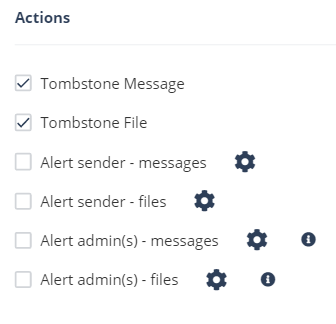
Configure Actions required from the policy.
-
To tombstone messages, enable the Tombstone Message checkbox.
Note:This option will be available only when Detect and Remediate protection mode is enabled.
-
To tombstone files, enable the Tombstone File checkbox.
Note:This option will be available only when Detect and Remediate protection mode is enabled.
-
To send email alerts to the sender about DLP in messages and files, enable the Alert sender - messages and Alert sender - files checkbox.
-
To send email alerts to admins about DLP in messages and files, enable the Alert admin(s) - messages and Alert admin(s) - files checkbox.
Note:-
To customize the email alert templates, click on the gear icon to the right of the alert.
-