
Configuring Click-Time Protection Engine
- Navigate to Security Settings > Security Engines.
-
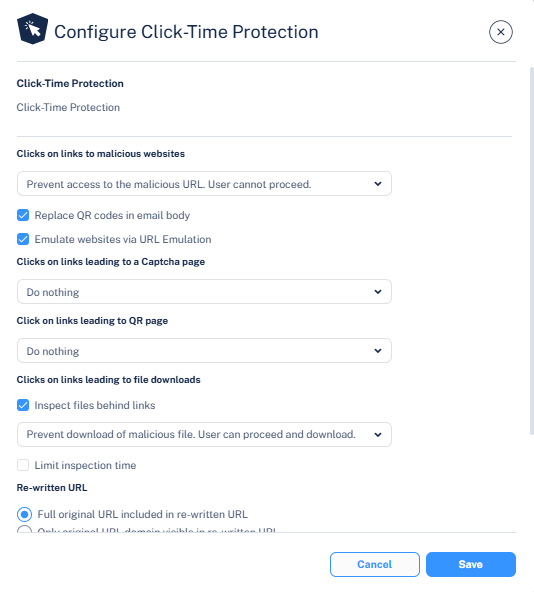
Click Configure for Click-Time Protection.
-
In the Click on links to malicious websites section, select the required option to handle the malicious websites.
Prevent access to the malicious URL. User has option to proceed.
Prevent access to the malicious URL. User cannot proceed.
Do nothing
-
To replace the QR code in the body of the email to redirect to the rewritten link, select the Replace QR codes in email body checkbox.
Note:
For the rewritten QR codes, the structure will be the same as V2 version even if you select to use V1 version. For more information, see Rewritten Avanan URL.
-
To emulate websites behind links to detect phishing websites with no bad reputation, select the Emulate websites via URL Emulation checkbox.
Note:
If the Emulate websites via URL Emulation was disabled, and if the administrator enables it, it could take up to 20 minutes for the URL Emulation to start working.
-
From the Click on links leading to a Captcha page dropdown, select the required option to handle the captcha page.
Prevent access to the page. User cannot proceed.
Prevent access to the page. User has option to proceed.
Do nothing (Default)
Note:The Click on links leading to a Captcha page dropdown is available only when the Emulate websites via URL Emulation checkbox is enabled.
-
From the Click on links leading to a QR page dropdown, select the required option to handle the QR page.
Prevent access to the page. User cannot proceed.
Prevent access to the page. User has option to proceed.
Do nothing (Default)
Note:The Click on links leading to a QR page dropdown is available only when the Emulate websites via URL Emulation checkbox is enabled.
-
To inspect files behind links, do these in the Clicks on links leading to file downloads section.
- Select the Inspect files behind links checkbox.
-
Select a workflow.
Prevent download of malicious file. User has option to proceed and download.
Prevent download of malicious file. User cannot proceed.
Do nothing
-
To allow the download of files if the file inspection exceeds a specific time, do these.
Select the Limit inspection time checkbox.
In the Allow download if inspection takes more than (seconds) field, enter the time in seconds.
For more information, see Protection Against Malicious Files Behind Links.
-
Under Advanced, select the required URL version (V1 or V2).
For more information about URL version, see Rewritten Avanan URL.
Note:Avanan recommends using V2 version.
-
Click Save.
Note:
To start rewriting the links, you must configure a Click-Time Protection policy. To configure Click-Time Protection policy, see Click-Time Protection Policy.
To create Allow-List or Block-List for Click-Time Protection, see Click-Time Protection Exceptions.