Activating Gmail

To activate Gmail:

  1. Navigate to Security Settings > SaaS Applications.
  2. Click Start for Gmail.

  3. Select the mode of operation:
    • Automatic mode

      Avanan performs the necessary configurations to your Google Workspace environment and operates in Monitor only mode.

    • Manual mode

      You must manually configure the necessary settings in the Google Admin Console before linking the application to your Gmail account and every time you add or edit the security policy associated with emails.

    Note:

    Avanan recommends using Automatic mode for better maintenance and management and a smoother user experience. Before using the Manual mode, contact Avanan Support to help resolve any issues raised with the Automatic mode for onboarding.

  4. Enable the I Accept Terms Of Service checkbox and click OK.
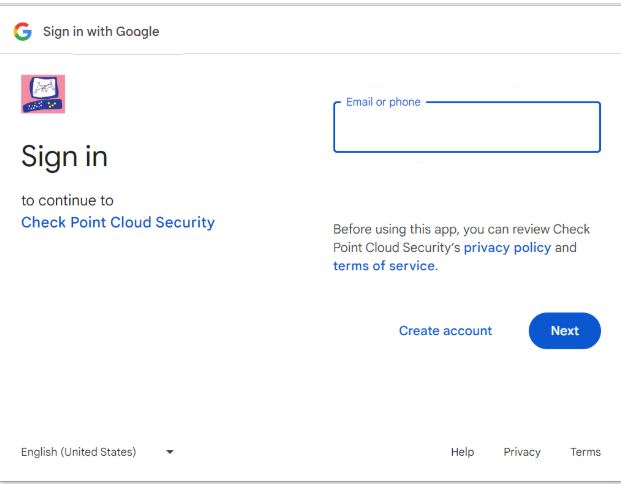
  5. In the Google Workspace window that appears, sign in with Google administrator credentials.

  6. After successful authentication, you will be redirected to the Avanan application installation page.

    Click Admin Install.

  7. In the Admin install pop-up that appears, click Continue.

  8. Review the permissions requested by Avanan application. Select Everyone at your organization, accept the terms of services, and click Finish.

  9. In the confirmation pop-up that appears after the Avanan application completes the installation, click Done.

    Gmail - Group Selection pop-up that appears.

  10. To protect all users in your organization, select All Organization and click OK.
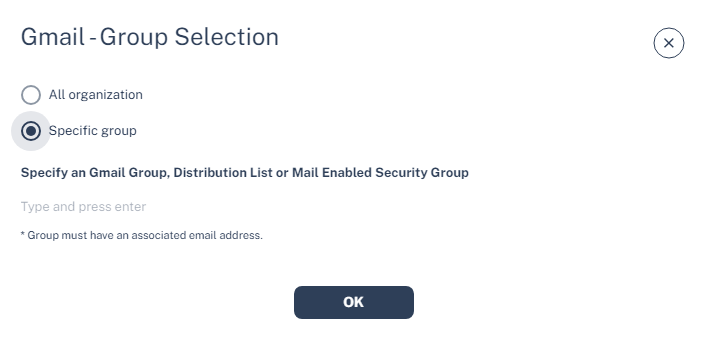
  11. To protect specific users in your organization, select Specific group, enter the group name and click OK.
    Note:

    The group name must have an associated email address.

    If you selected Automatic mode of operation, Avanan enables the Gmail SaaS application and starts monitoring for security events.

    If you selected Manual mode of operation, you need to make additional changes to integrate Google Gmail with Avanan.