
Smart Banners
Overview
Smart Banners are customizable banners added to incoming emails that Avanan found clean of threats.
These banners help distinguish external, unverified, or potentially fraudulent emails and so on that serve these main purposes:
-
Make users cyber-aware - The banners draw user attention to suspicious elements in the email that - combined with the user insights - might lead to the understanding that the email is malicious.
-
Remind users to follow the company policy - The banners alert the user to follow company policies for particular emails. For example, emails that contain invoices or requests to modify a partner's billing information.
Attaching Smart Banners to Emails
-
Create or edit an existing Threat Detection policy for Office 365 Mail or Gmail. See Threat Detection Policy for Incoming Emails.
-
Set the policy protection mode as Prevent (Inline).
Note:Smart Banners are not supported for policies in Detect and Detect and Remediate protection mode.
-
Scroll down to Clean Emails section and for Clean Workflow, select Deliver with Smart Banners.
-
Click Save.
-
When more than one banner is applicable for an email, Avanan adds the banner with the highest severity. If there are multiple banners with the same severity, the one with the highest priority is added. For information about priority of the banners, see Supported Smart Banners.
-
For standard email security actions like adding banners. To help maintain the integrity of digitally signed messages, Avanan offers the ability to avoid security modifications for S/MIME-signed emails. See Support for S/MIME-Signed Emails.
Customizing Smart Banners
To customize a Smart Banner:
-
Click User Interaction > Smart Banners.
-
Click on the banner.
The banner's preview appears.
-
Click the
 icon on the banner.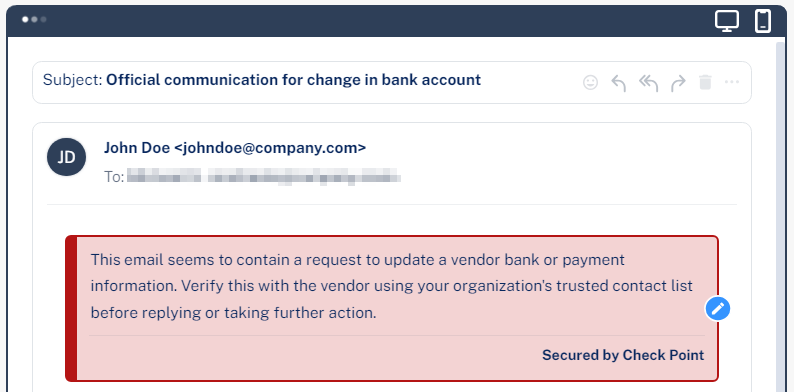
-
To change the banner's severity and color, select Low, Medium, or High.
-
Make the required changes to the text.
-
Click Save and Apply.
To remove the Secured by Avanan footer:
-
Go to User Interaction > Smart Banners.
-
Click Settings next to the Smart Banners at top left corner.
The Smart Banners Config pop-up appears.

-
Clear the Add "Secured by Check Point " to all banners checkbox.
-
Click OK.
Enabling/Disabling Specific Smart Banners
Avanan delivers the emails with a specific Smart Banner if they match the use case the banner covers.
-
Go to User Interaction > Smart Banners.
-
Toggle the button On/Off to the left of the required banner.
-
Click Save and Apply.
Automatically Enabling New Smart Banners
Avanan periodically introduces new banners for additional elements and characteristics.
-
Go to User Interaction > Smart Banners.
-
Click Settings next to the Smart Banners at top left corner.
The Smart Banners Config pop-up appears.
-
Enable the Automatically enable newly introduced banners checkbox.
-
Click OK.
Excluding Specific Sender Domains from Smart Banner
Avanan allows administrators to exclude Smart Banners from emails sent by specific domains. To do that:
-
Go to User Interaction > Smart Banners.
-
Click Settings next to the Smart Banners at top left corner.
The Smart Banners Config pop-up appears.
-
Select the Exclude sender domains checkbox.
-
In the Excluded sender addresses / domains field, enter the required addresses or domain(s) separated by commas.
-
Click OK.
Adding Smart Banners to Allow-Listed Emails
Avanan allows administrators to apply Smart Banners to allow-listed emails, ensuring users receive consistent guidance.
This feature reinforces security awareness without altering existing allow-listed email configurations and ensures organizations maintain consistent user education and awareness, even when specific senders bypass phishing inspection.
-
Go to Security Settings > Security Engines.
-
In the Phishing Detection section, click Configure for Anti-Phishing.
-
In the Configure Anti-Phishing pop-up that appears, scroll-down to Email Bomb - Excluded addresses section.
-
Select the Add Smart Banners to allow-listed emails checkbox.
 Note:
Note:If you select the Add Smart Banners to allow-listed emails checkbox, Avanan adds Smart Banners to allow-listed emails, even if they match an Anti-Phishing Allow-List rule.
-
Click Save.
Supported Smart Banners
Avanan supports these Smart Banners:
|
Category |
Smart Banner Name |
Description |
Default Severity |
Priority |
Is enabled by default? |
|---|---|---|---|---|---|
|
Business email compromise |
Sender resembles a real contact |
Email from a sender that resembles but is not identical to a contact. |
High |
1 |
Yes |
|
Request to update payment details 1 |
Email that resembles vendor payment change requests. |
High |
2 |
Yes |
|
|
Invoice from a new vendor 1 |
Email with invoice from unknown vendor. |
Medium |
21 |
Yes |
|
|
Payroll information update request 1 |
Emails requesting payroll updates. |
Low |
41 |
Yes |
|
|
Financial transaction requests |
Emails with Invoices / PO 1 |
Payment request emails via invoice or PO. |
Low |
42 |
Yes |
|
Payment request via payment service 1,7 |
Emails with payment service requests. |
Low |
43 |
Yes |
|
|
Avoiding inspection |
Emails with links to restricted resources 1,8 |
Links to restricted resources to avoid inspection. |
Low |
44 |
Yes |
|
Emails that appear to be from an e-sign service 1,6 |
Emails with e-sign document links. |
Low |
45 |
Yes |
|
|
Fundamentals |
Sender name different than address |
Mismatch between display name and email. |
High |
3 |
Yes |
|
Reply-to domain different and recently created |
Reply-to differs and domain is new. |
High |
4 |
Yes |
|
|
Sender domain created recently 2 |
Recently created sender domain. |
Medium |
23 |
Yes |
|
|
Sender SPF failed |
SPF validation failed. |
Medium |
24 |
Yes |
|
|
Incoming emails from external senders |
Email from outside organization. |
Informative (blue) |
81 |
No |
|
|
Impersonation |
First-time sender to recipient 3,4,5 |
Email from unknown sender. |
Low |
47 |
No |
|
First-time sender to recipient domain 4,5 |
Email to new domain interaction. |
Low |
46 |
No |
|
|
Sender resembles a person within the organization |
Display name impersonates internal user. |
Medium |
22 |
Yes |
1 These banners apply only to emails written in English and German.
2 This banner will be applied to emails only if the sender's domain was created in the last 100 days.
3 The First-time sender banner will not be applied to the recipient's emails after 24 hours from the sender's first email.
4 If an email is sent to multiple recipients, the banner will be added only if the condition applies to all recipients.
5 The banner will not be added if the sender domain regularly interacts in high volumes with other recipients from your domain. This exception does not apply to public domains. For example, gmail.com.
6 If an email appears to reference an electronic signature and may contain links that cannot be inspected for phishing or viruses, ensure its authenticity before clicking any links or taking further action.
7 Partially, these services send the emails in English. Avanan is trying to apply this banner based on keywords that limit it to actual payment requests.
8 Partially, these services usually send emails in English. Avanan is trying to apply this banner based on keywords that limit it to shared files, including keywords in Chinese, Greek, Spanish, and other languages.