


|
|
|
The 61000 Security System can work as a Security Gateway or as a VSX Gateway.
This procedure shows how to configure a VSX Gateway in SmartDashboard.
Before creating the VSX Gateway
It is important to know how VSX works, and understand the VSX architecture and concepts. It is also important to understand how to deploy and configure your security environment using VSX Virtual Devices:
To learn about how VSX works, architecture, concepts and Virtual Devices, see the R76 VSX Administration Guide.
The VSX Gateway Wizard
The VSX Gateway in this example has one Virtual System (VS0) and one dedicated management interface.
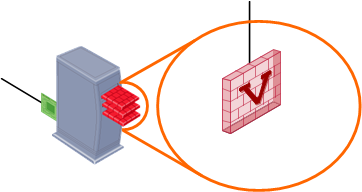
After you complete the VSX Gateway Wizard, you can change the VSX Gateway definition from SmartDashboard. For example, you can add Virtual Systems, add or delete interfaces, or configure existing interfaces to support VLANs.
|
Note -
|
To start the VSX Gateway wizard:
If you are using Multi-Domain Security Management, open SmartDashboard from the Domain Management Server of the VSX Gateway.
The General Properties page of the VSX Gateway Wizard opens.
Related Topics |
Configure these parameters on the General Properties page:
The Creation Templates page lets you configure predefined, default topology and routing definitions for Virtual Systems. This makes sure that Virtual Systems are consistent and makes the definition process faster. You always have the option to override the default creation template when you create or change a Virtual System.
The Creation Templates are:
For this example, choose Custom configuration.
Initialize SIC trust between the VSX Gateway and the management server. The gateway and server cannot communicate without Trust.
When you create a VSX Gateway, you must enter the Activation Key that you defined in the installation wizard setup program. Enter and confirm the activation key and then click Initialize. If you enter the correct activation key, the Trust State changes to Trust established.
In the VSX Gateway Interfaces window, define physical interfaces as VLAN trunks. The window shows the interfaces currently defined on the VSX Gateway.
To define an interface as a VLAN trunk, select VLAN Trunk for the interface.
If you chose the Custom Configuration option, the Virtual Network Device Configuration window opens. In this window, define a Virtual Device with an interface shared with the VSX Gateway. If you do not want to define a Virtual Device at this time, click Next to continue.
To define a Virtual Device with a shared interface:
Do not select the management interface if you want to define a Dedicated Management Interface (DMI) gateway. If you do not define a shared Virtual Device, a DMI gateway is created by default.
Important - This setting cannot be changed after you complete the VSX Gateway Wizard. If you define a non-DMI gateway, you cannot change it to a DMI gateway later.
These options are not available for a Virtual Switch.


