
HTTPS Inspection Policy
The HTTPS Inspection Policy page allows you to specify traffic that must be ignored by the Access Policy Threat Prevention Policy , and Data Loss Prevention
To view the HTTPS Inspection Policy page, access the SASE Administrator Portal and click Internet Access > HTTPS Inspection Policy.
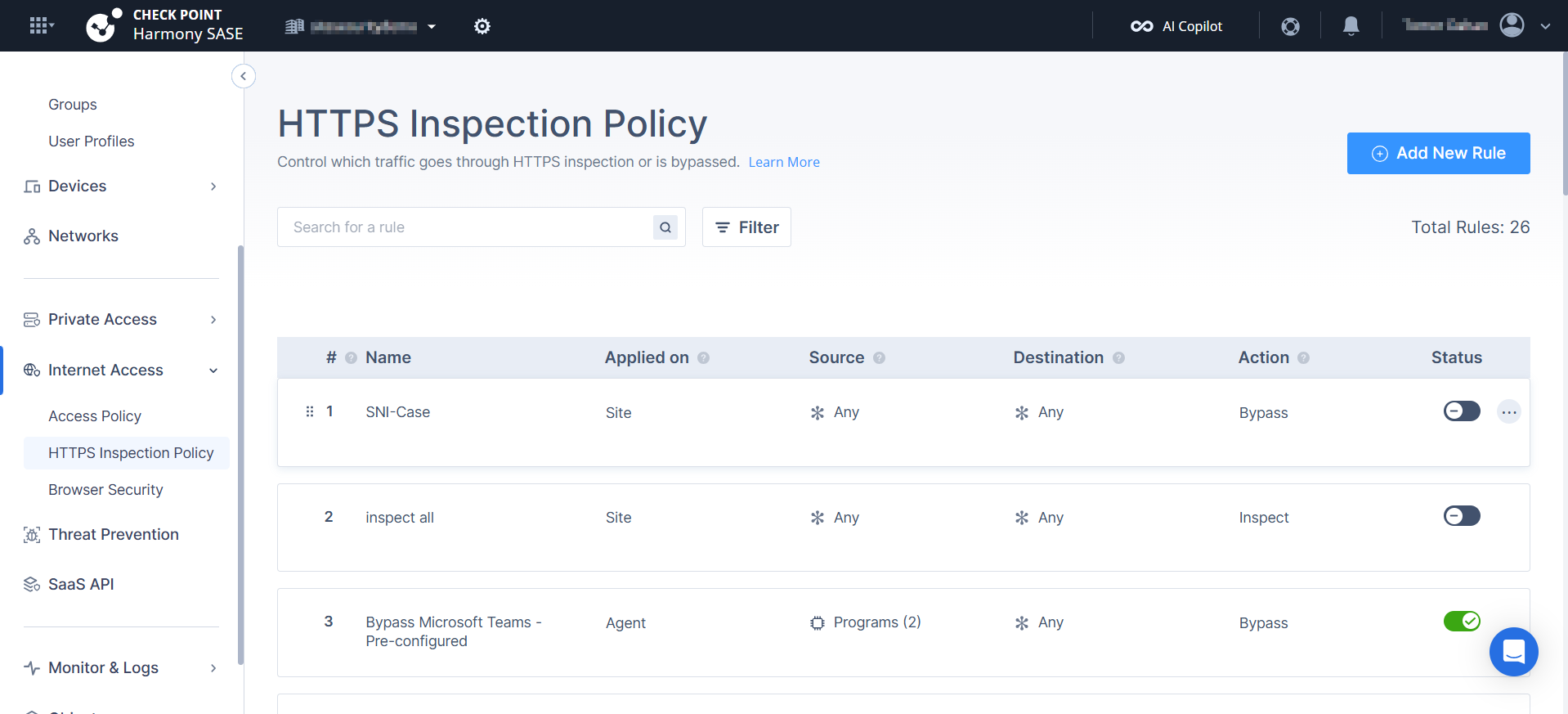
|
Column |
Description |
||||||||
|---|---|---|---|---|---|---|---|---|---|
|
Name |
Name of the rule. | ||||||||
|
Source |
Programs, groups, or members to which the rule is applied. When Groups/Members and Programs are both configured in the same rule, the rule applies only when both conditions are met (AND logic). Traffic must originate from a matching group or member and from a matching program. Multiple items within the same type use OR logic.
|
||||||||
|
Destination |
Destination of the web traffic. |
||||||||
|
Action |
Action for web traffic:
|
||||||||
|
Logging |
Enables logging for the rule. |
||||||||
|
Status |
Enables or disables the rule. |
Creating an HTTPS Inspection Policy Rule
-
Access the SASE Administrator Portal and click Internet Access > HTTPS Inspection Policy.
-
Click Add New Rule.
A new rule appears in the table.
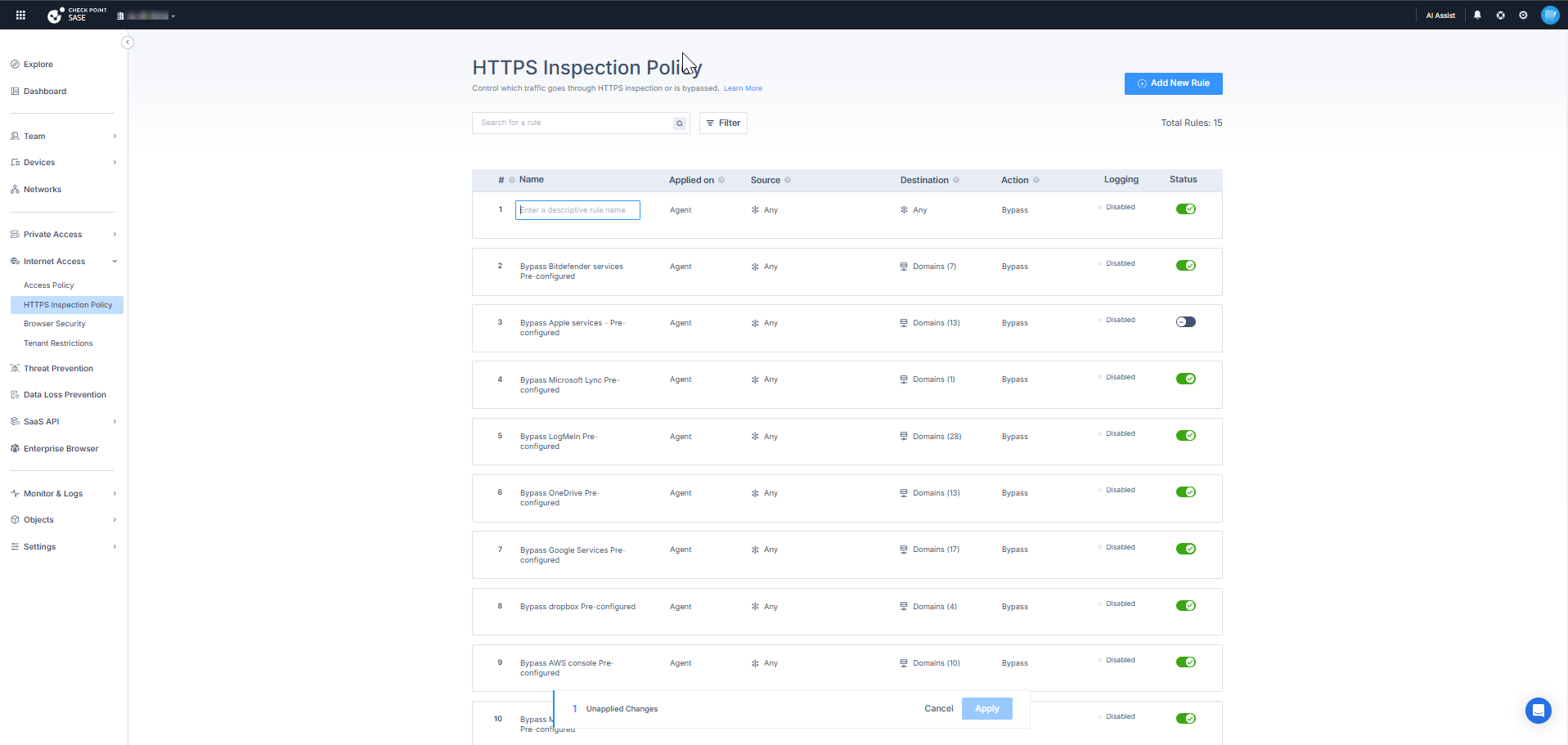
-
In the Name field, enter a name for the rule.
-
In the Applied on field, select these options:
-
Site
-
Agent
-
Agent & Site

Note - Action for the rule. Inspect is available only when Applied on is set to Site. For Agent and Agent & Site, the action is Bypass only.
-
-
In the Source field, add user or group list to which you want to apply the rule. Default is Any.
-
Click Any > Add Source.
Configuring the Source
To add groups or members:
-
Select Groups or Members.
The Manage Groups or Members window appears.
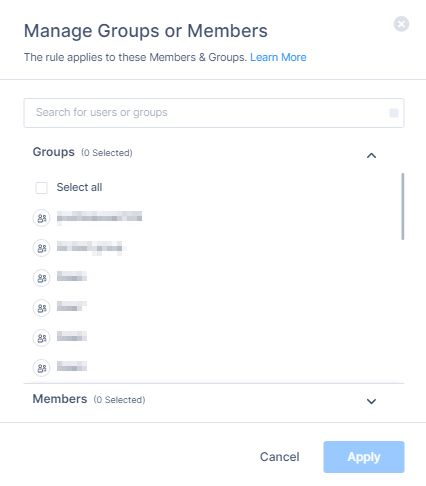
-
Select group(s) or member(s) from the list.
-
Click Apply.
To add programs:
-
Select Programs.
The Manage Programs window appears.
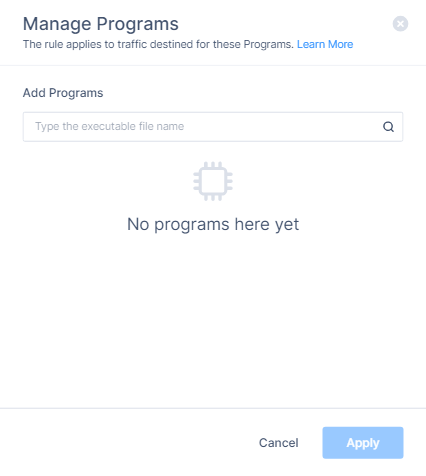
-
Enter the program name and press Enter.
-
Click Apply.
|
|
Note - When both Groups / Members and Programs are defined in the Source field, the bypass rule is enforced only when both conditions match (AND relationship). Traffic must originate from a user or group that matches the Groups / Members selection and from a process that matches the Programs selection. If only one condition is met, the rule is not triggered. Within the Destination field, multiple items use OR logic. The rule matches if the traffic targets any one of the defined destinations. |
Configuring the Destination
In the Destination field, select the destination. Default is Any.
-
Click Any > Add Destination.
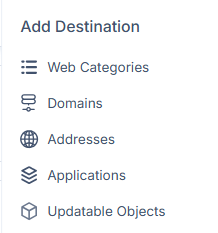
You can add these destination types:
-
Web Categories
-
Domains
-
Addresses
-
Updatable Objects
-
Applications
Note - Applications is available in Early Availability (EA) only. To enable, contact Check Point Support.
Web Categories
-
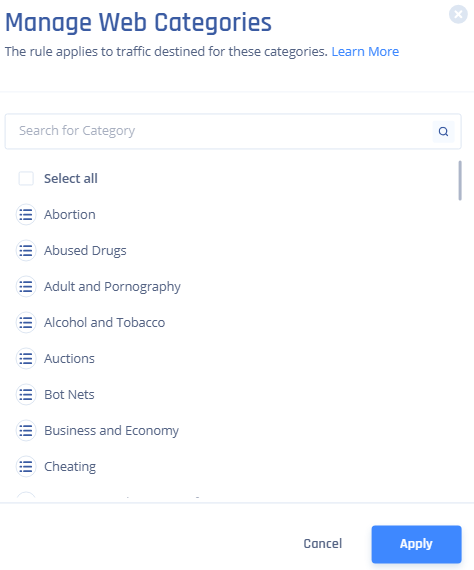
To add web categories, select Web Categories.
The Manage Web Categories window appears.
-
Select the categories from the list.
-
Click Apply.
Domains
-
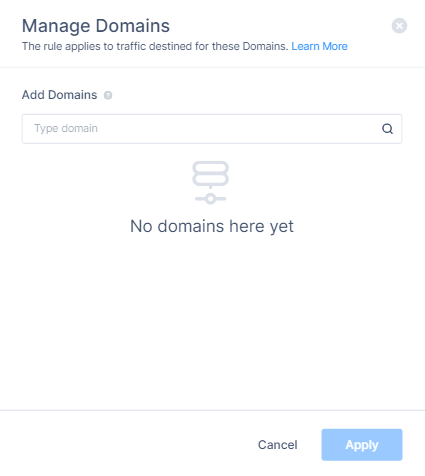
To add domains, select Domains.
The Manage Domains window appears.
-
Enter the domain name and press Enter. For example,
google.com. -
Click Apply.
Addresses
-
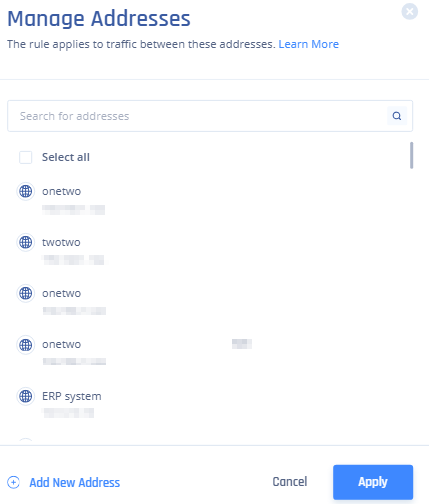
To add addresses, click Addresses.
The Manage Addresses window appears.
-
Select the address from the list and click Apply.
-
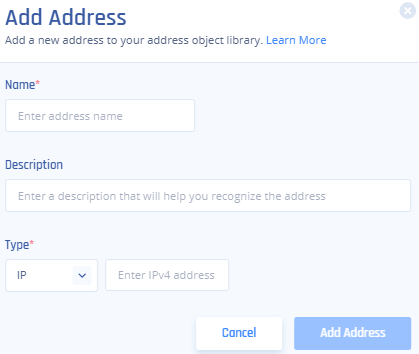
To add new address, click Add New Address.
The Add Address window appears.
-
In the Name field, enter address name.
-
In the Description field, enter a description.
-
In the Type list, select IP, Subnet, List, or FQDN.
-
Enter a value, For example:
-
For IP, enter the IPv4 address 139.1.1.1.
-
For subnet, enter 10.10.10.0/24.
-
For list, enter IP addresses separated by commas 172.16.254.1, 172.16.254.2.
-
For FQDN, enter the Fully Qualified Domain Name www.example.com.
-
-
Click Add Address.
-
Select the address from the list and click Apply.
Applications
Applications bypass TLS inspection for traffic that matches specific applications.
Matching is done before TLS inspection using pre-inspection signals (TLS SNI and the domain in the server certificate).
-
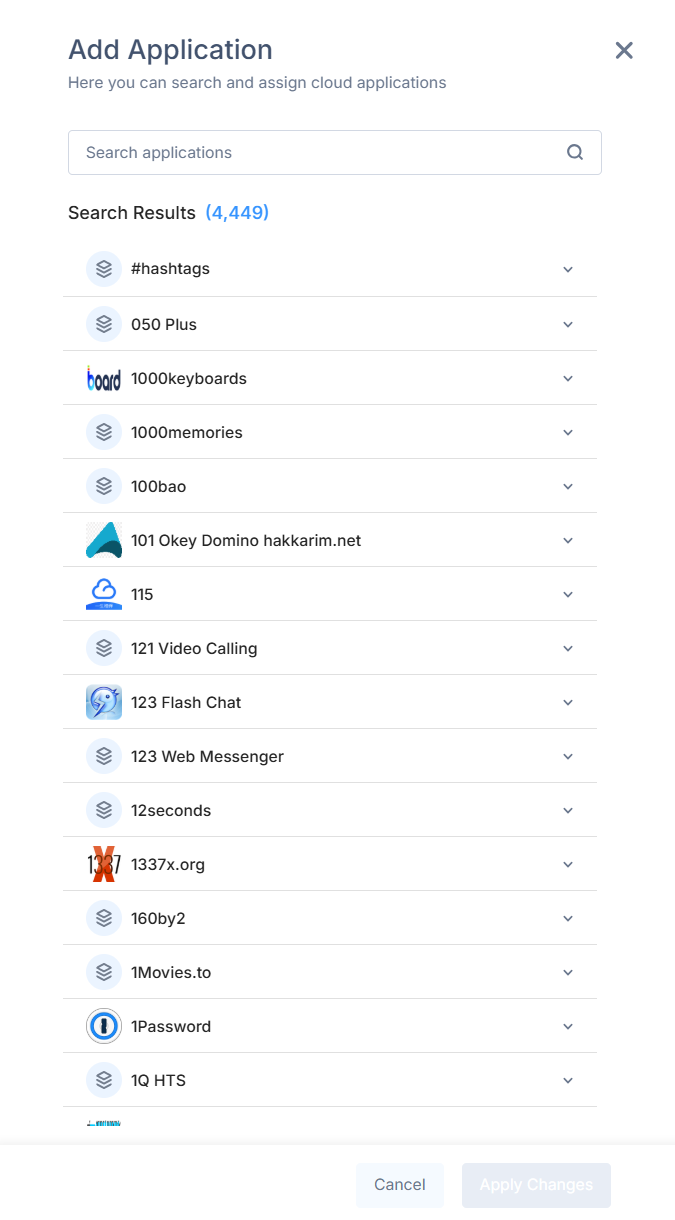
To add applications, select Applications.
The Add Application window appears.
-
Search for the application you want to bypass (for example, Zoom or Microsoft Teams)
-
Select the application (click the select icon next to the application).
-
Click Apply Changes.
|
|
Note - The application list available for bypass rules is a curated subset of the APPI catalog, filtered to applications that have reliable pre‑inspection identification signals. Not every application in the Access Policy catalog is available in the bypass picker. Application availability may vary. |
Updatable Objects
-
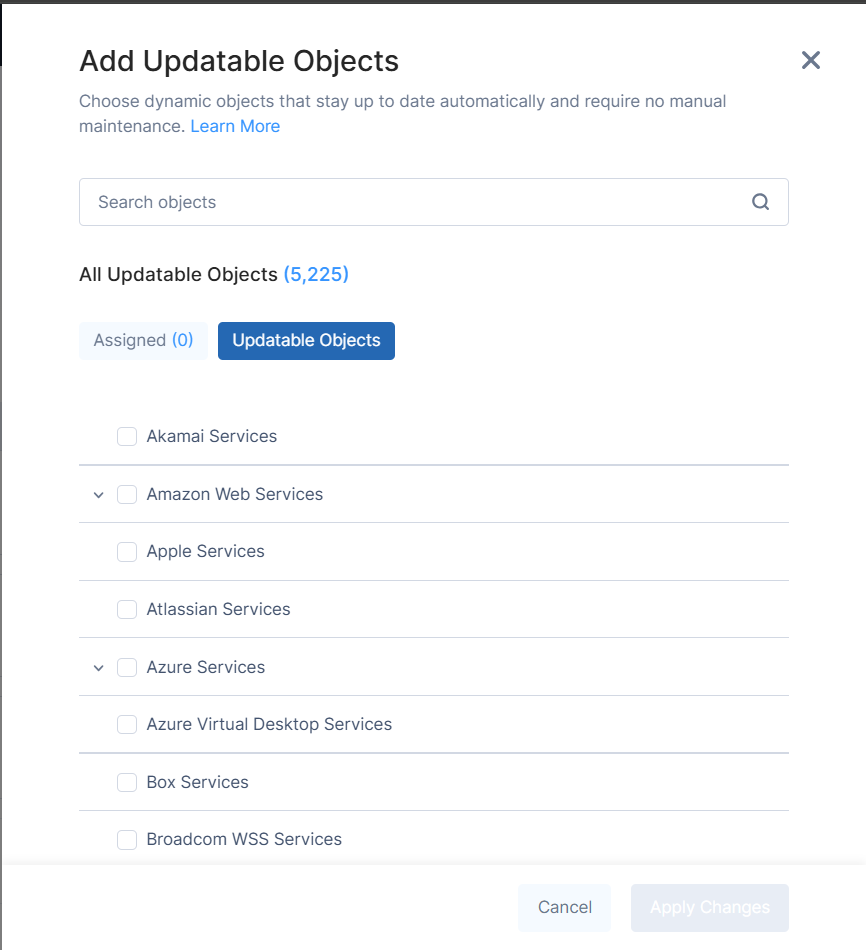
To add updatable objects, select Updatable Objects.
For more information, see Updatable Objects.
The Add Updatable Objects window appears.
-
Use the Search Objects field to find services, or click Updatable Objects to select the required services.
-
Selected services appear under the Assigned tab.
-
Click Apply Changes.
HTTPS Inspection Logs
When HTTPS Inspection is active, some traffic is bypassed instead of inspected. This can occur because of bypass rules, certificate pinning requirements, or program-based exclusions. Without visibility into bypassed traffic, it can be difficult to troubleshoot application issues or confirm that sensitive traffic is excluded correctly.
HTTPS Inspection Logs show bypassed traffic per session. Each log entry includes the source user, destination domain, URL category, and the rule that triggered the bypass.
You can use HTTPS Inspection Logs to:
-
Troubleshoot applications that break under inspection, such as those using certificate pinning
-
Verify that bypass rules are matching the intended traffic
-
Audit which users and destinations are excluded from inspection
-
Identify misconfigured rules generating unexpected bypasses
Enabling logging
To enable logging:
-
Open your HTTPS Inspection policy.
-
Locate the rule for which you want to collect logs.
-
Click
 and click Enable logging.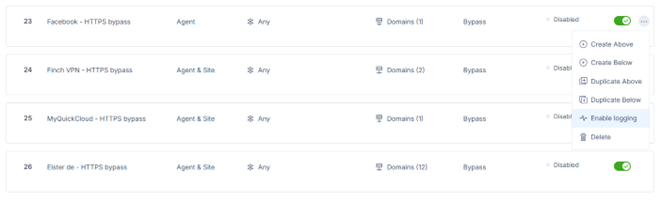
After logging is enabled, bypassed traffic that matches the rule appears in HTTPS Inspection Logs.
Prerequisites
Check Point SASE Agent version 12.7 or later.
What gets logged
Each log entry represents a browsing session to a domain, not individual requests. For example, navigating to facebook.com generates one log entry for facebook.com. Embedded assets and artifact requests from that page are not logged separately.
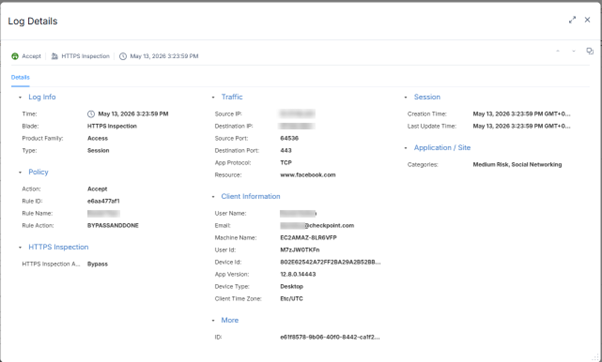
Each entry includes the source user, destination domain and URL, URL category, the rule that matched, and, where applicable, the program that initiated the connection.
Limitations
-
Logs are only available for rules where Applied On is set to Agent.
-
Logs are off by default for all rules. Enable logging per rule as required. Enabling logging on broad rules can generate a high volume of log entries.
-
Only bypass actions are logged in this view. Inspected traffic is not logged in this view. To log inspected traffic, configure logging in your Access Policy rules.
-
Application enrichment is not available, as it requires full inspection.
-
Program-based bypass rules do not generate logs.
Finishing the Rule
-
Turn on the Status toggle button.
-
Click Apply in the bottom of the page.

-
Click Apply.