
Automatic Client Update Procedure
- In the Capabilities & Exclusions pane, turn on the Automatic Client Update toggle for the appropriate operating system.
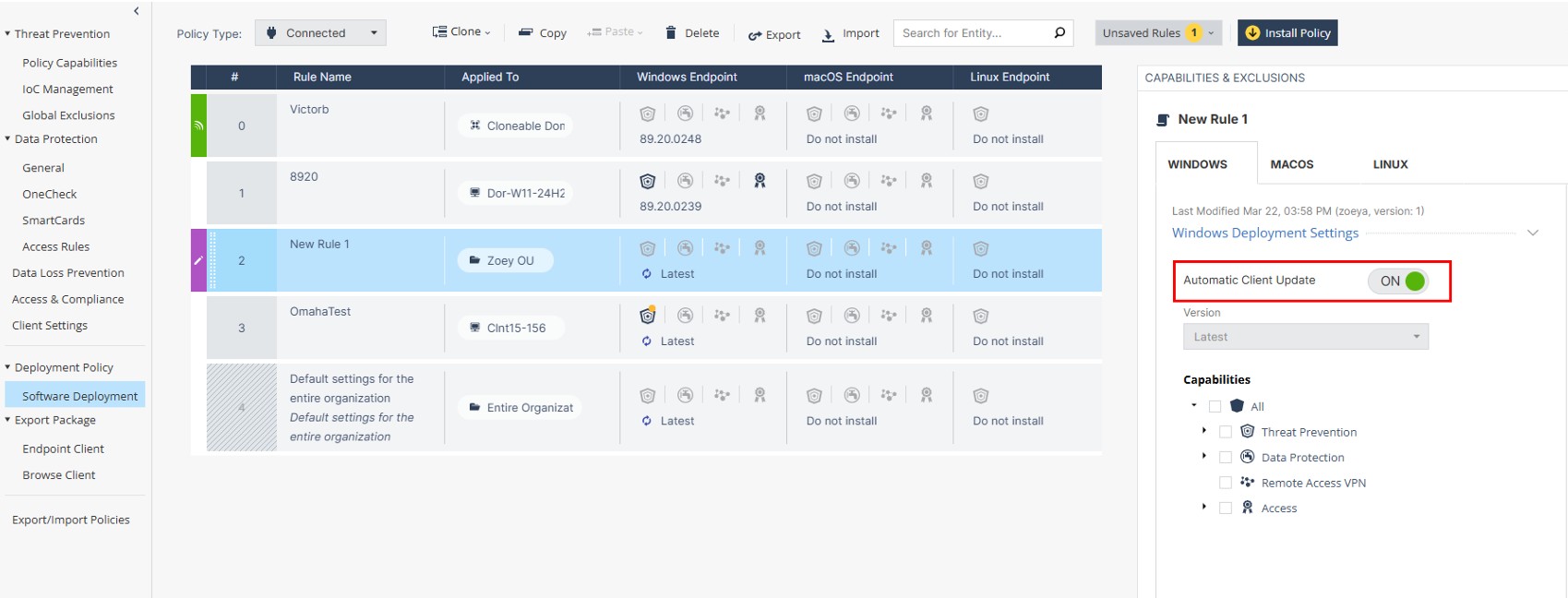
- To enforce the policy, click Install Policy.
All Endpoint Security clients associated with the selected policy are automatically upgraded to the latest version.
Note:-
The Automatic Client Update setting is enabled by default for:
-
New tenants
-
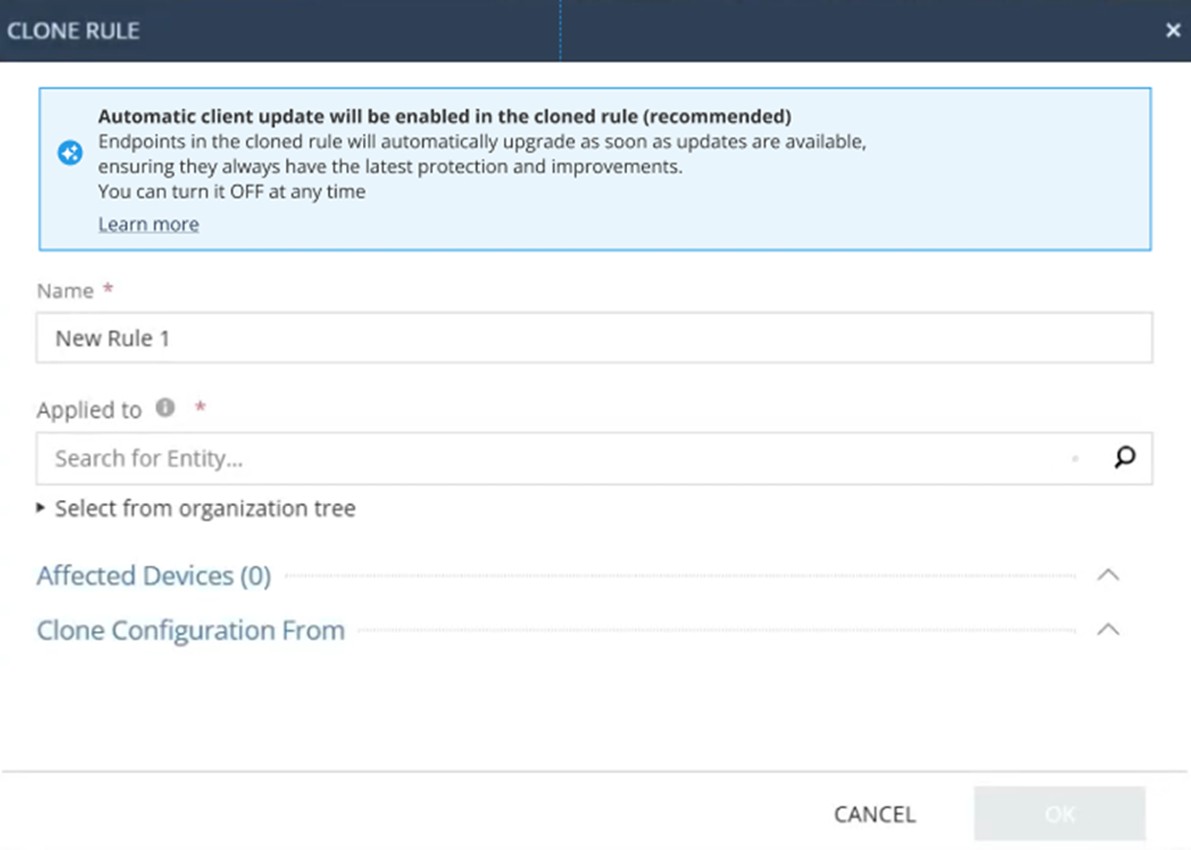
Newly cloned policy rules. This includes rules cloned in existing tenants, as this is the recommended configuration.
-
-
The Automatic Client Update setting is disabled by default for existing rules in existing tenants.
-
When you export a rule from one tenant and import it into another, the Automatic Client Update setting is enabled by default in the imported rule.
-
Administrators can modify the Automatic Client Update setting at any time before saving and installing the policy.
-
When Automatic Client Update is enabled, endpoint client upgrades are performed silently. End-user interaction is not required, unless the upgrade impacts user experience.
-
Blade selection and activation logic remains unchanged, regardless of whether Automatic Client Update is enabled or disabled.
-
The Automatic Client Update setting behaves the same for MSP accounts.
-