Managing the Logs Table
- To view the details of a specific log, double-click the row.
- To view the default columns, right-click the table header row and click Default.
- To modify the table columns, right-click the table header row and click Columns Profile Editor.
-
To add a new column to the table.
-
Click +.
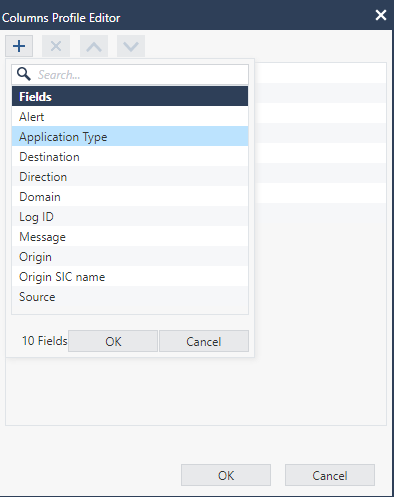
- Select the column from the list and click OK.
The new column appears in the Logs table and in the Statistics pane.
-
Click +.
-
To remove a column from the table:
- Select the column you want to delete and click X.
- Click OK.
The selected column is deleted from the Logs table and from the Statistics pane.
-
To sort the columns:
-
Select the column:
- To move the column higher in the order, click
. - To move the column lower in the order, click

- To move the column higher in the order, click
- Click OK.
The column position is updated in the Logs table and in the Statistics pane.
-
Select the column: