
Adding a New User
- Access the Avanan Administrator Portal.
- From the left navigation panel, click System Settings > Users.
-
In the User Management, click Add New User.
The Create New User page appears.
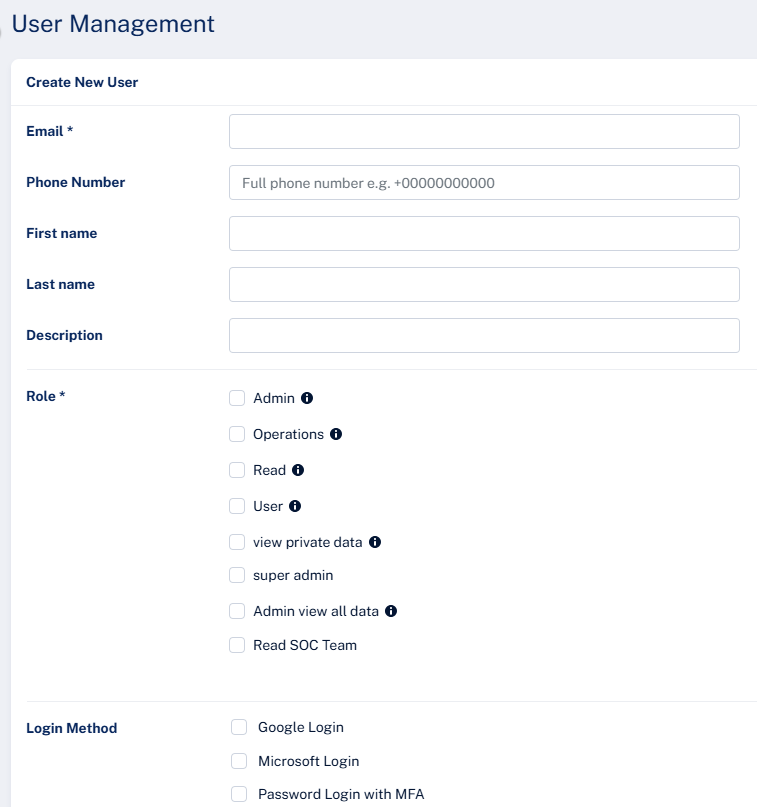
- In the Email field, enter the user email ID.
- In the Phone Number field, enter the user's phone number.
- (Optional) In the First name field, enter the first name of the user.
- (Optional) In the Last name field, enter the last name of the user.
- (Optional) In the Description field, enter the required description.
-
In the Role section, select the privilege type for the user.
Privilege
Description
Admin
Can access all the pages and can perform all operations.
Operations
Can perform all operations except:
Start, stop or authorize SaaS applications.
Interact with policy rules
Perform actions on custom queries.
Read
Read-only access to the portal.
User
Similar privileges to the Admin role, but cannot access the User Management page or create new SaaS applications.
View private data
Can view all private data in the portal.
Super admin
Can access all the pages and can perform all operations.
Admin view all data
Can view all the available data in the portal.
Read SOC Team
Read-only SOC Team access to the portal.
-
In the Login Method section, select the relevant authentication methods.
Google Login
Microsoft Login
Password Login with MFA
Note:You must enable at least one of the authentication methods.
- Click Create.