
Configuring AWS S3 to Send Avanan Logs to Splunk
-
Create a new user.
-
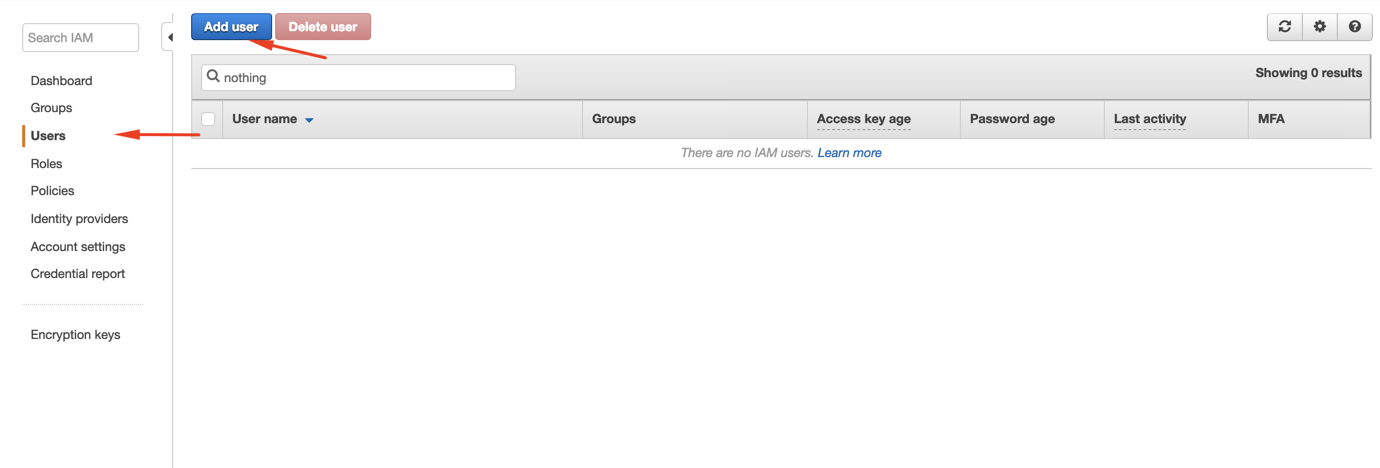
Click Users > Add User.
-
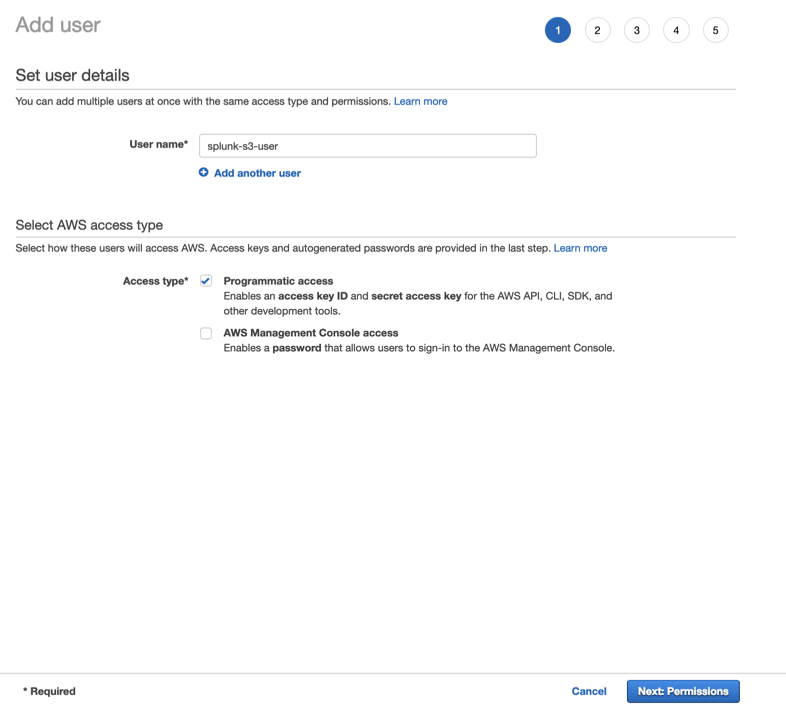
Select a name, enable Programmatic access, and click Next: Permissions.
-
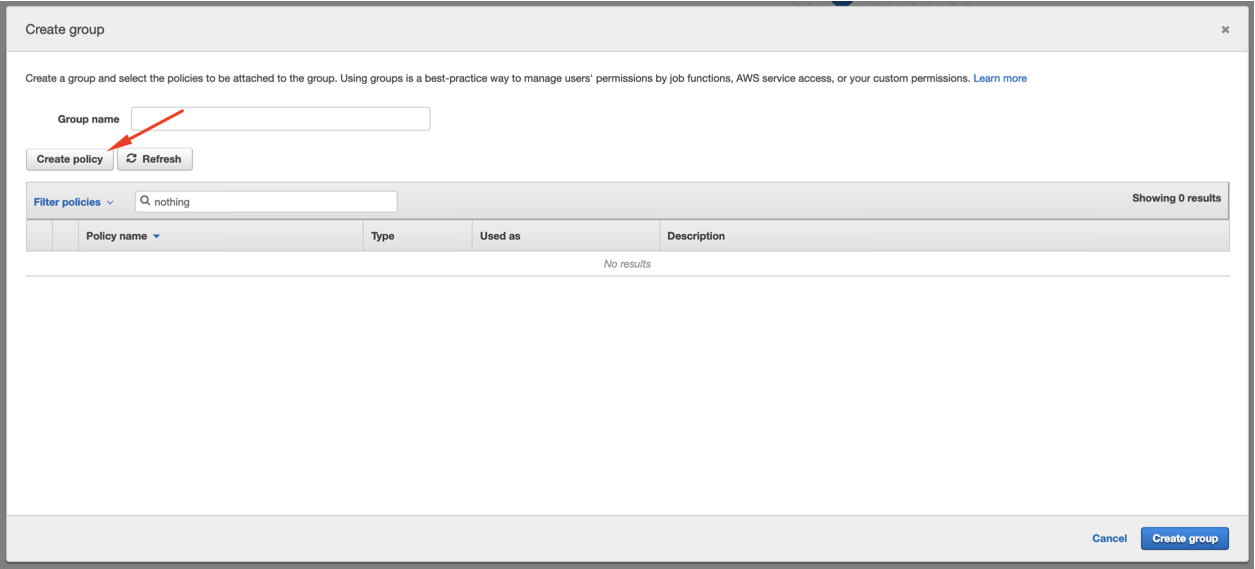
Click Create group or select the group if already created.
-
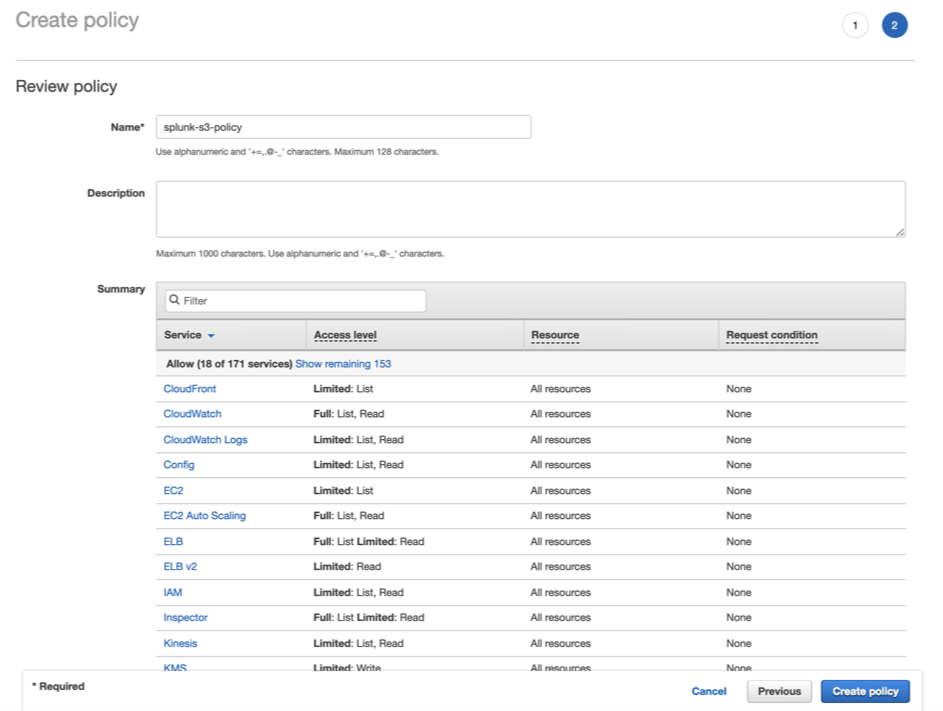
Click Review Policy, select the policy name and click Create Policy.
-
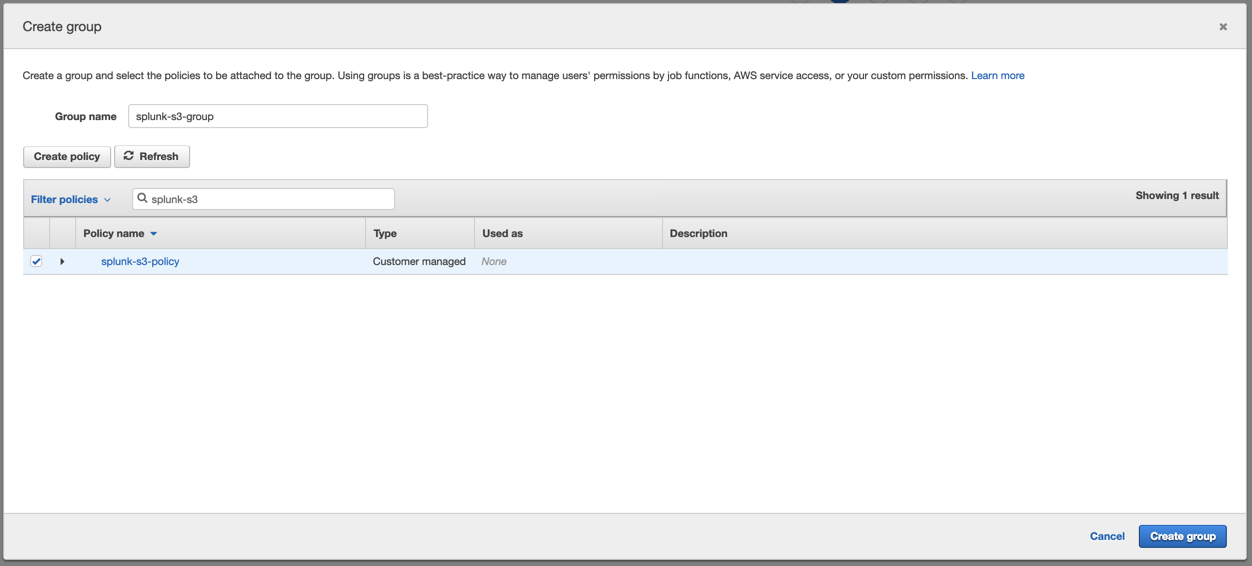
Select the policy created, give a group name and click Create group.
-
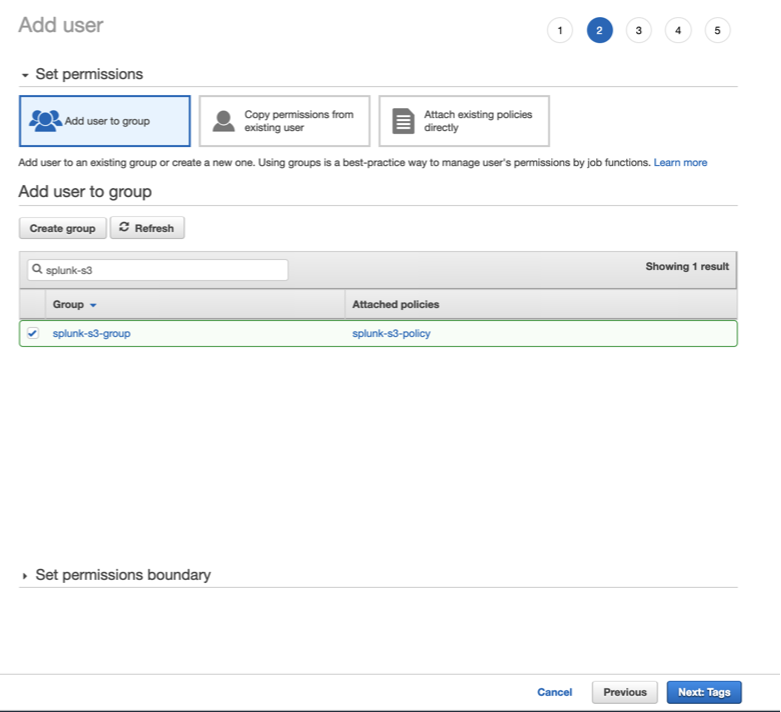
Go back to the Add user screen, confirm that the group you just created is selected and click Next: Tags.
-
Confirm all the configurations and click Create user.
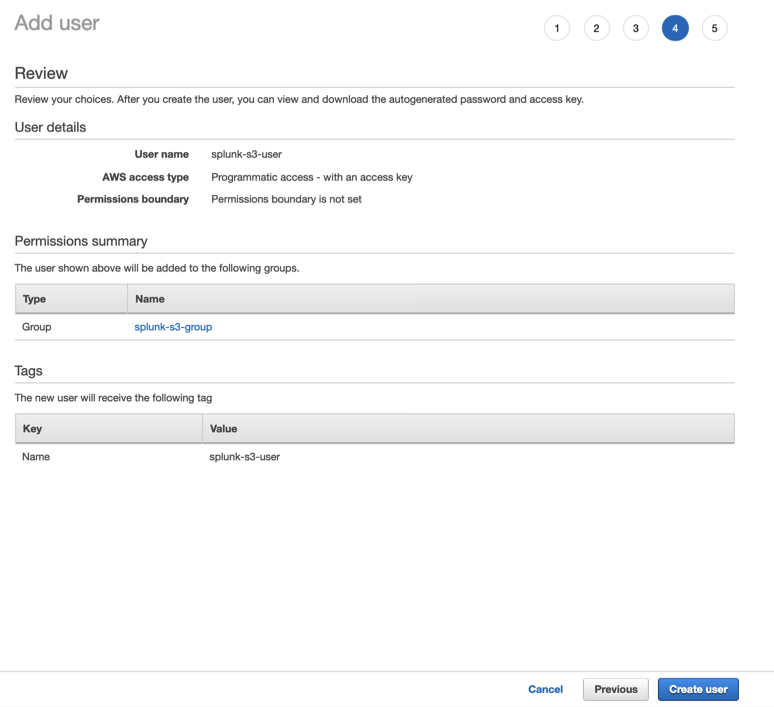 Note:Download the CSV file or copy the Access Key and Secret access key to a safe location. This information won't be available again.
-
Click Users > Add User.
-
Insert the 12 digit number of your account and click Next: Permissions.
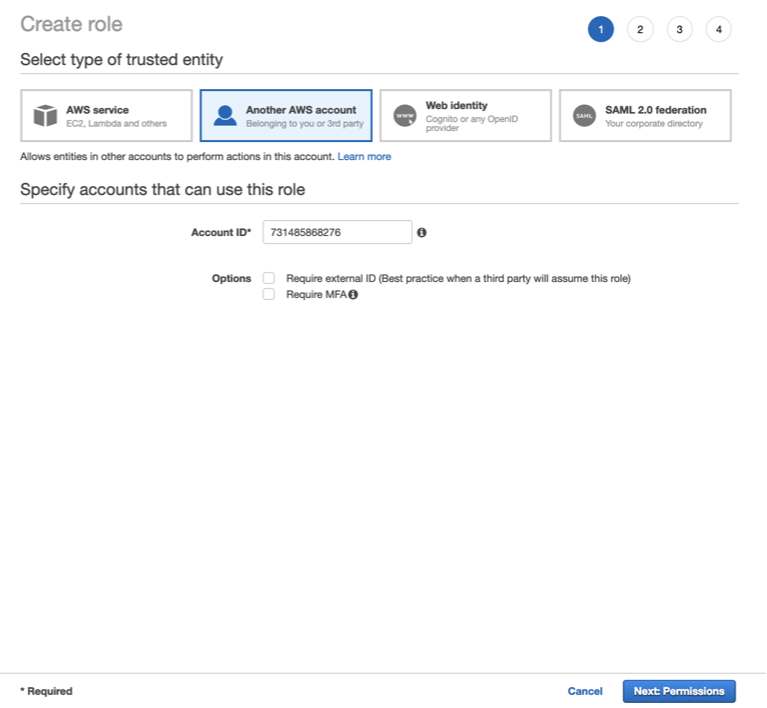 Note:To find the 12 digit number, open the user on another screen.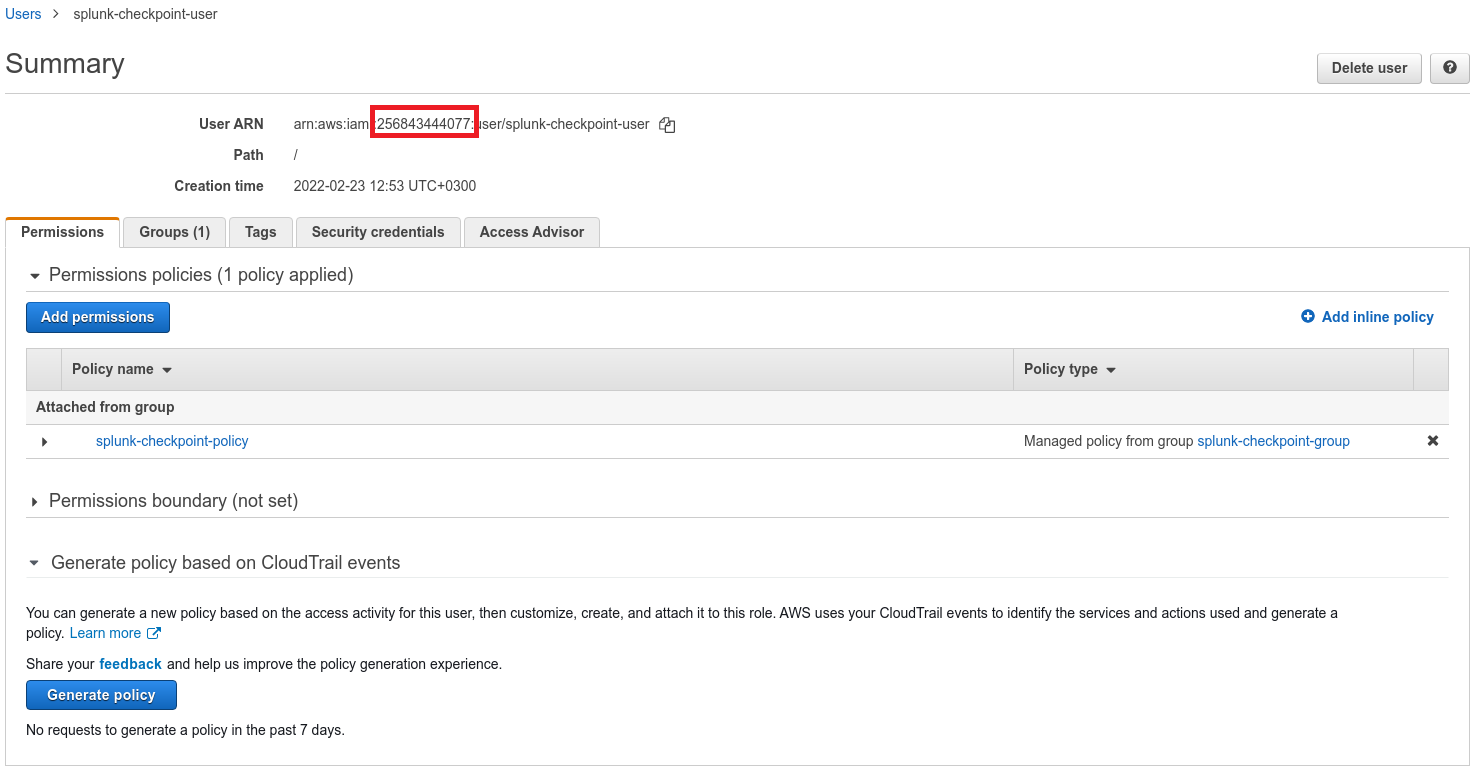
-
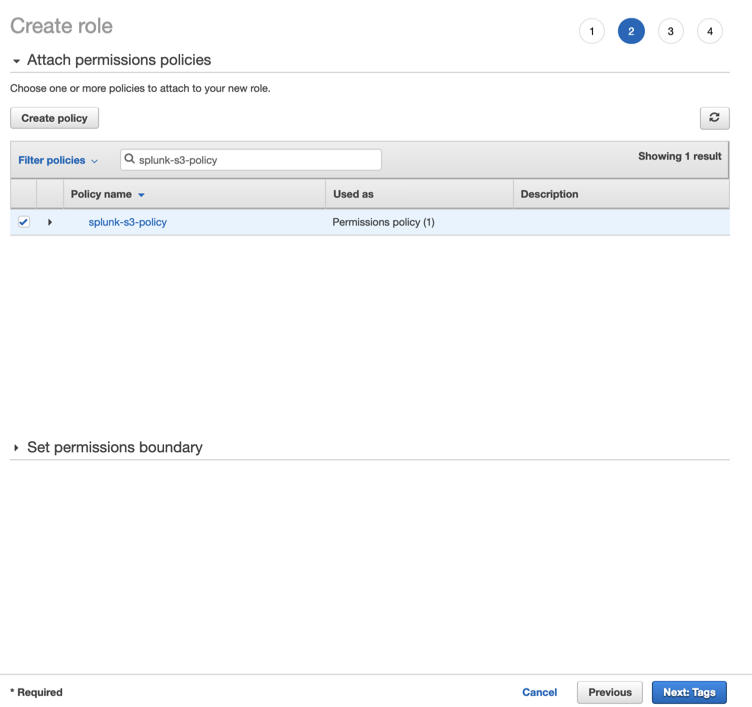
Select the policy created, and click Next: Tags.
-
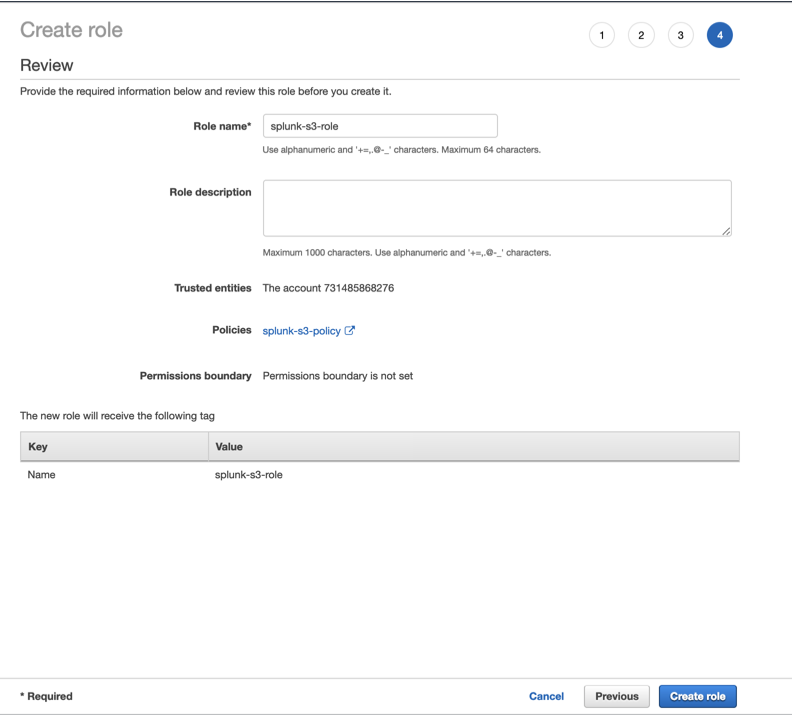
Select a role name and click Create Role.
-
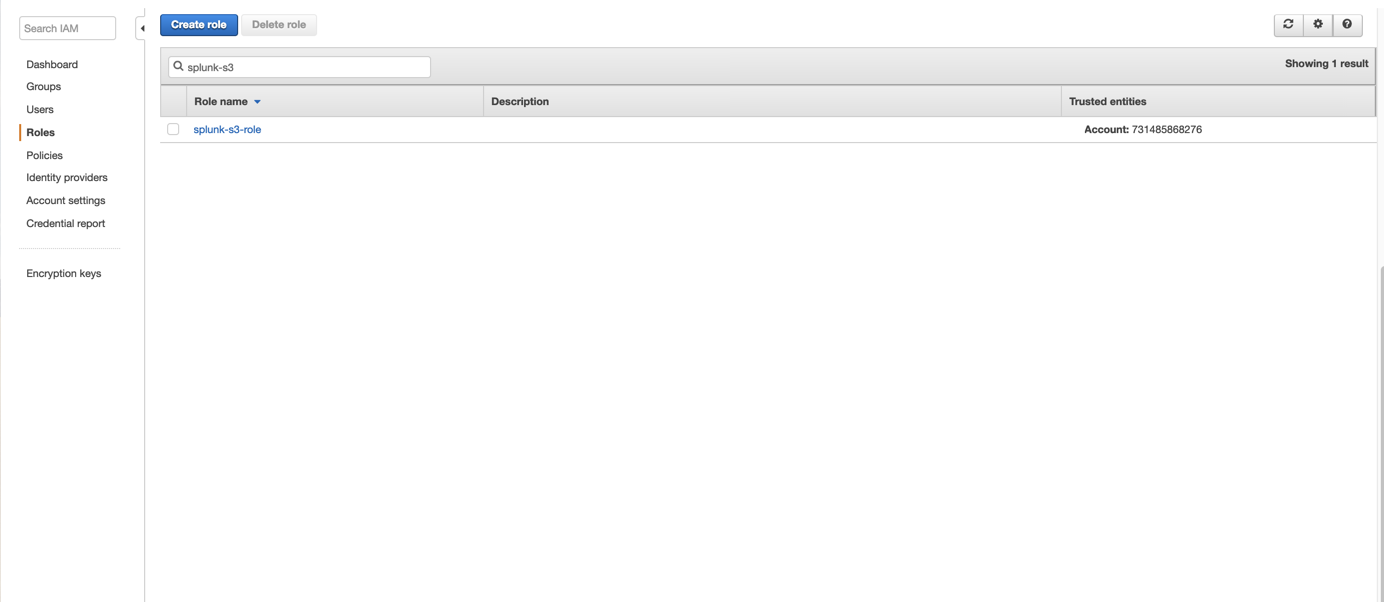
Search for the role you created and click on its name.
-
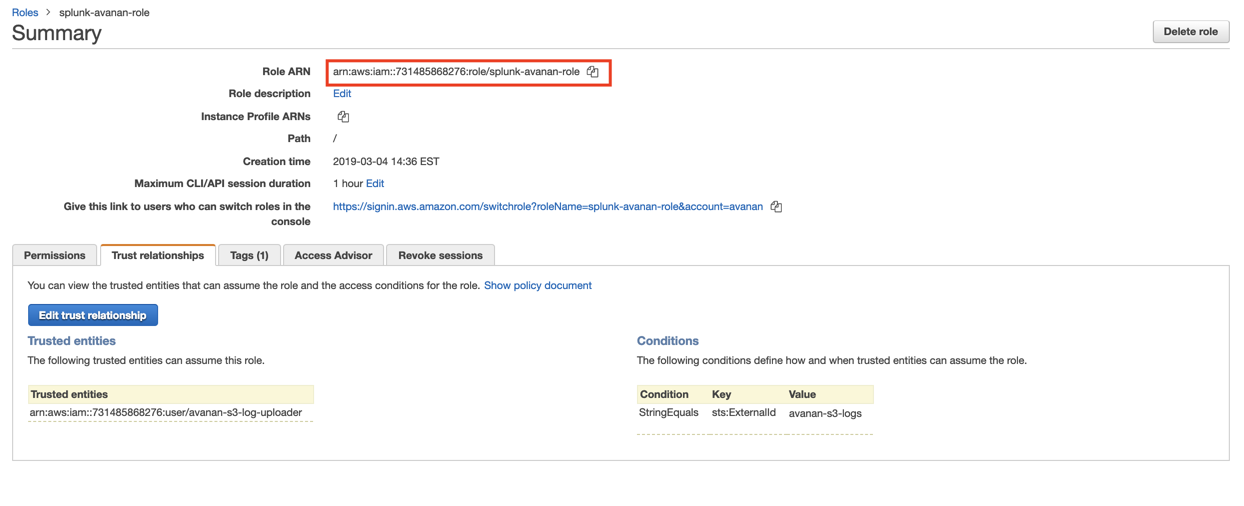
Copy the Role ARN.
-
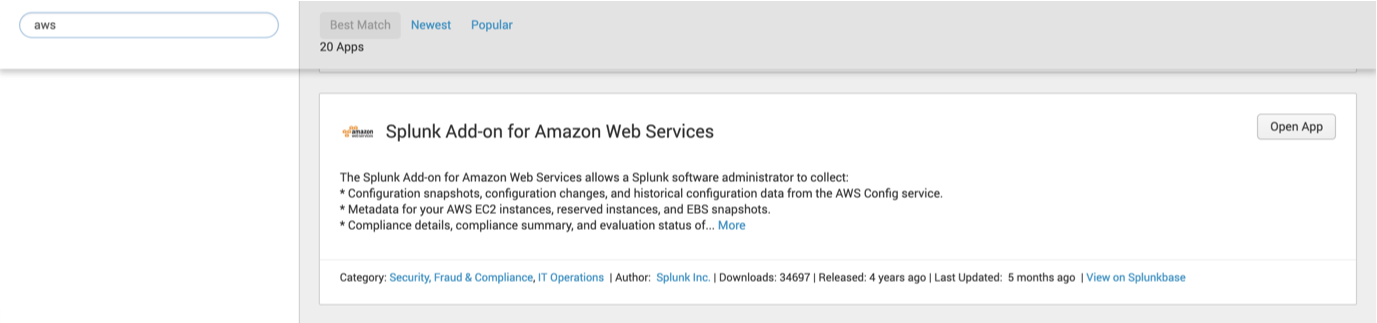
Open Splunk and install the Splunk Add-on for Amazon Web Services, if not already installed.
-
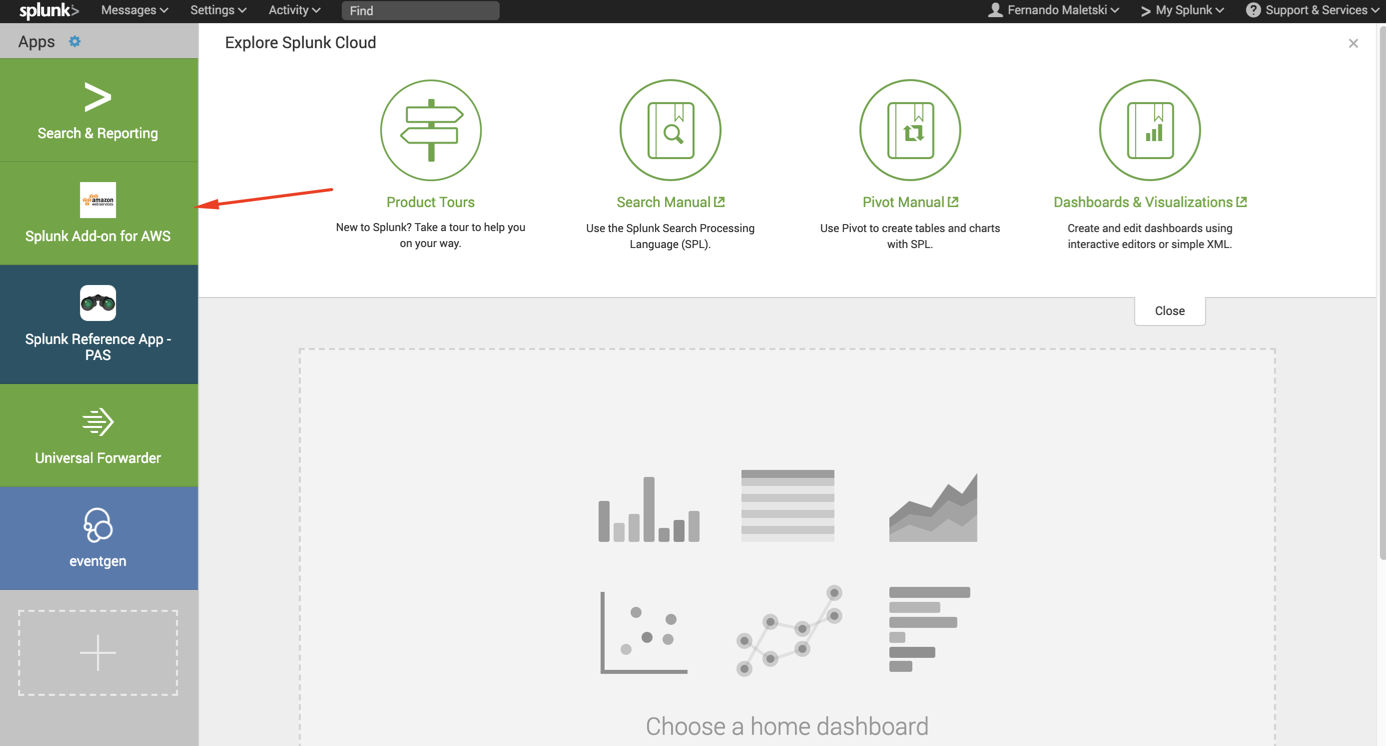
Open Splunk Add-on for AWS.
-
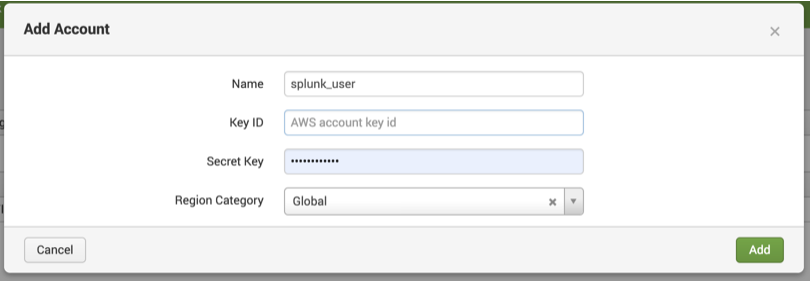
Click Configuration > Account > Add and enter the Key ID and Secret Key generated when the user was created and click Add.
-
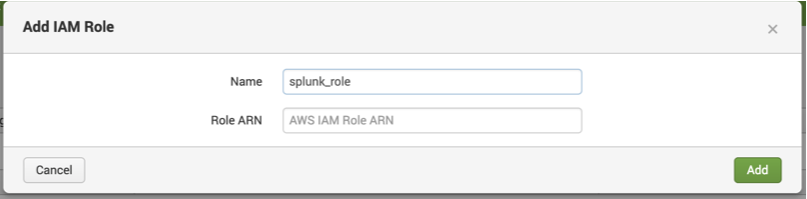
Click IAM Role > Add and enter the Role ARN.
-
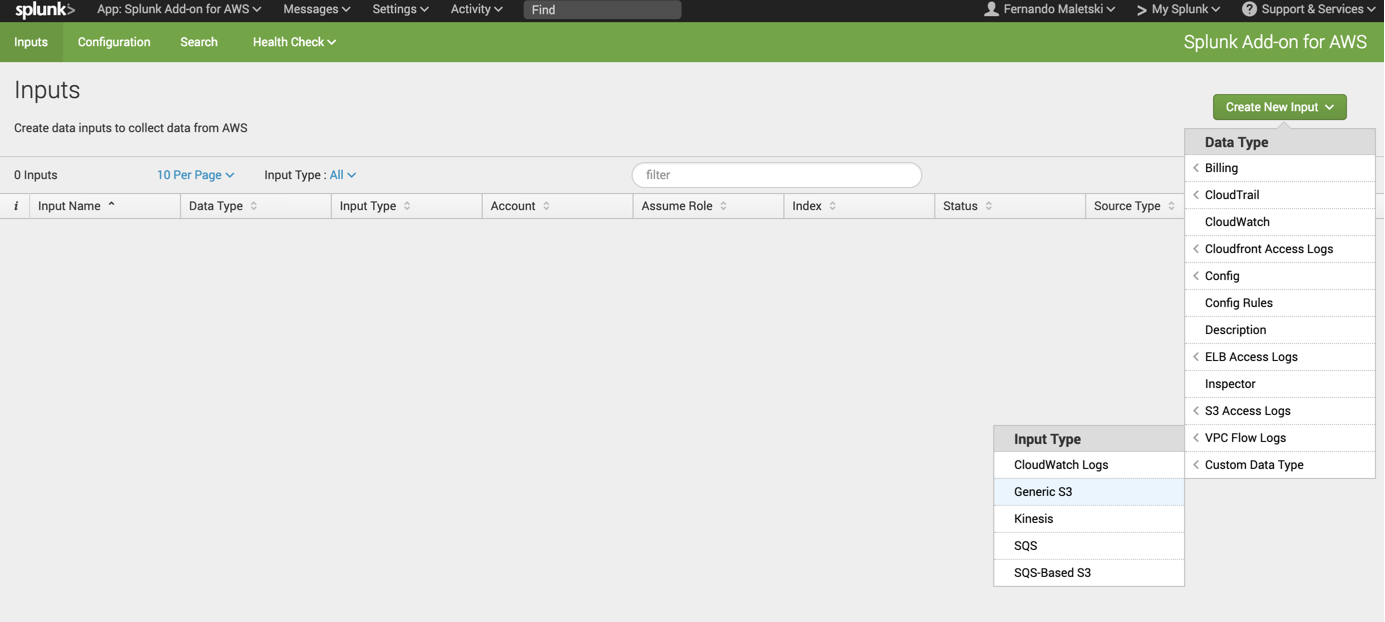
Click Inputs > Create New Input > Custom Data Type > Generic S3.
-
Click Save.
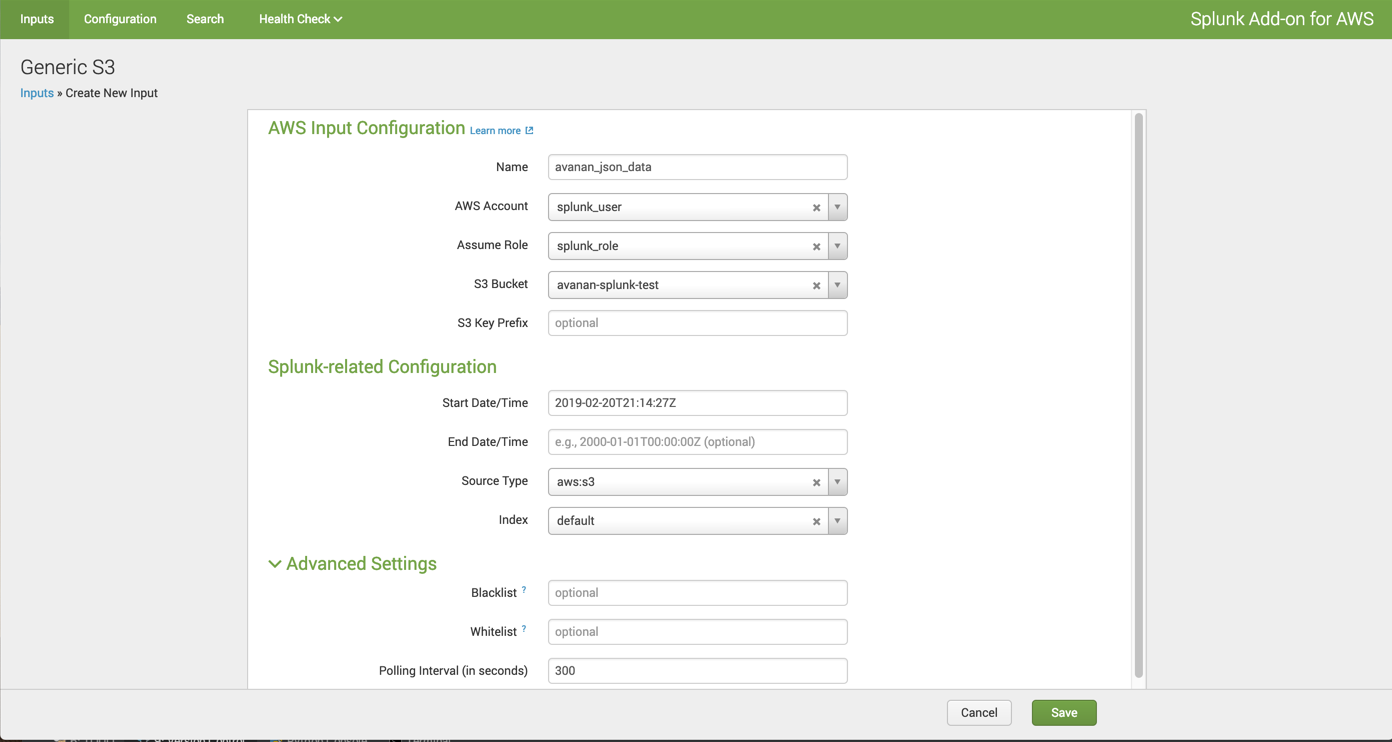
Now, Splunk reads the logs from the S3 bucket while Avanan uploads them to the S3 bucket.