Administrators can configure the Outlook Add-In from the User Interaction settings in the Avanan
Administrator Portal. These settings allow administrators to enable features, customize labels, and define end-user interaction preferences.
To generate the Add-In XML:
-
Access the Avanan
Administrator Portal.
-
From the left navigation panel, go to User Interaction > Misdirected Emails.
-
In the Misdirected Emails page, click Add-In Configuration.
-
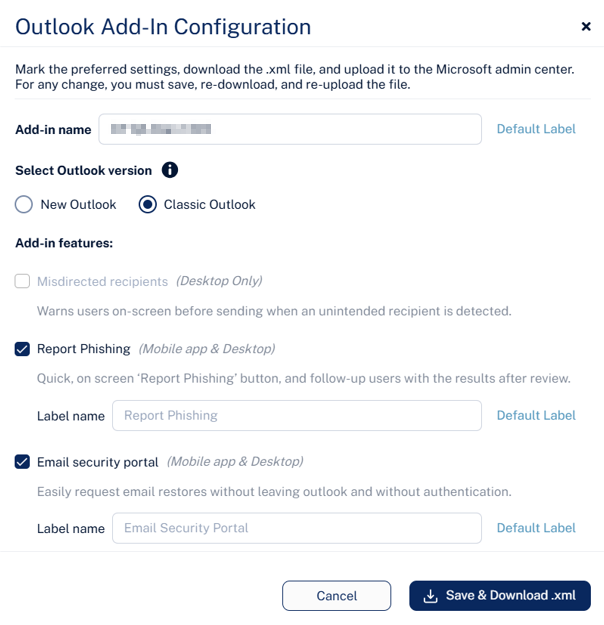
In the Outlook Add-In Configuration pop-up that appears, configure the following settings.
-
In the Add-In name field, enter a name for the add-in. This appears as the name of the add-in in the Outlook application. To use the default name of the add-in, click Default Label.
-
In the Select Outlook version section, select your Outlook version.
New Outlook
Classic Outlook
Note:
-
By default, the New Outlook option is selected.
-
The Outlook Add-In is supported in the following Classic Outlook versions:
-
Configure the Add-In features section.
- To enable on-screen warnings before sending an email when a misdirected recipient is detected, select the Misdirected recipients checkbox.
Note:
The Misdirected recipients checkbox is not available on mobile devices.
- To show Avanan branding in the warning dialog, enable the Display 'Powered by Avanan' toggle.
- To allow users to bypass the warning if needed, enable the Allow end users to ignore warnings toggle.
Note:
The Display 'Powered by Avanan' and Allow end users to ignore warnings toggles are not available on mobile devices.
- To add a Report Phishing button to the Outlook ribbon, select the Report Phishing checkbox.
- To add a button that opens the Avanan Portal directly from Outlook, select the Avanan portal checkbox. It allows users to manage quarantined emails and restore requests without re-authentication.
- Click Save & Download .xml to download the add-in configuration file.
