
DLP Policy
By default, the DLP policy scans the uploaded files to SharePoint for potentially leaked information, such as credit card number and Social Security Number (SSN).
Office 365 SharePoint DLP policy supports these actions:
Send files with sensitive data to the vault.
Alert owner: Sends an email notification to the user who uploaded a file that contains sensitive information.
Alert admin(s): Sends an email notification to the admin(s) about the files that contain sensitive information.
To configure DLP policy:
-
Configure Actions for the policy.
-
To send a detected file with sensitive data to its owner's vault, enable the Send files with sensitive data to vault checkbox.
Note:This option will be available only in Detect and Remediate protection mode.
-
To send email alerts to admins about DLP, enable the Alert admin(s) checkbox.
-
To send email alerts to the file owner about DLP, enable the Alert file owner(s) checkbox.
-
To quarantine drive files, enable the Quarantine drive files checkbox.
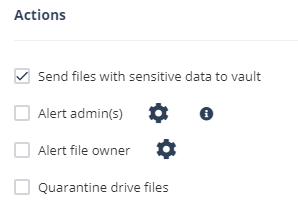
Note:For a policy, you can only enable Send file with sensitive data to vault or Quarantine drive files.
To customize the email alert templates, click on the gear icon to the right of the alert.
-