
Step 1 - Create a CrowdStrike Data Connection
To create a crowdstrike data connection:
-
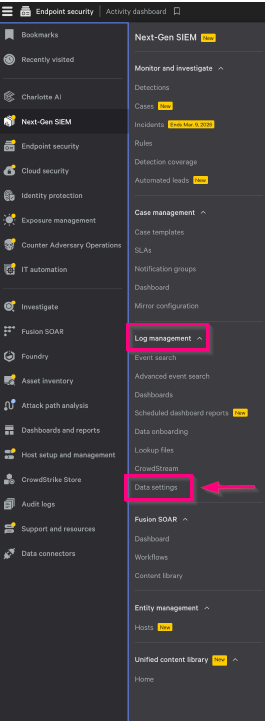
Click the Menu icon and go to Next-Gen SIEM > Log management > Data settings.
-
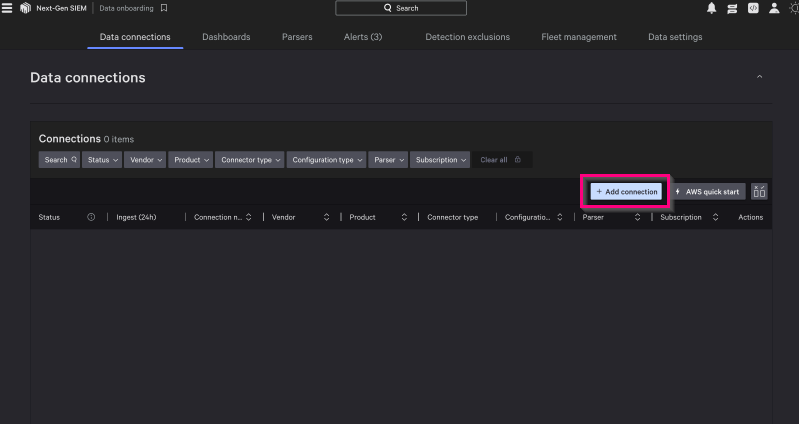
Go to the Data connections tab and click Add connection.
-
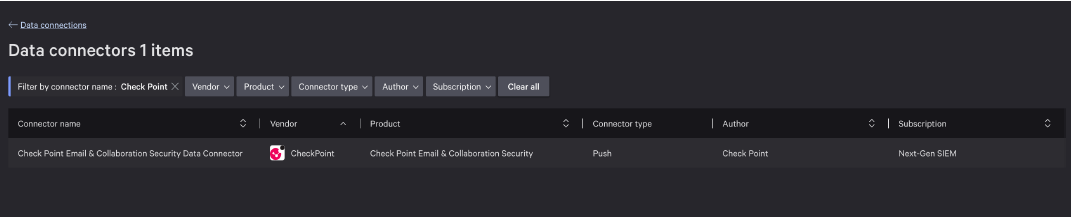
In the Data connections page, enter Check Point in the search bar and filter by connector name.
-
Select Check Point Email & Collaboration Security Data Connector.
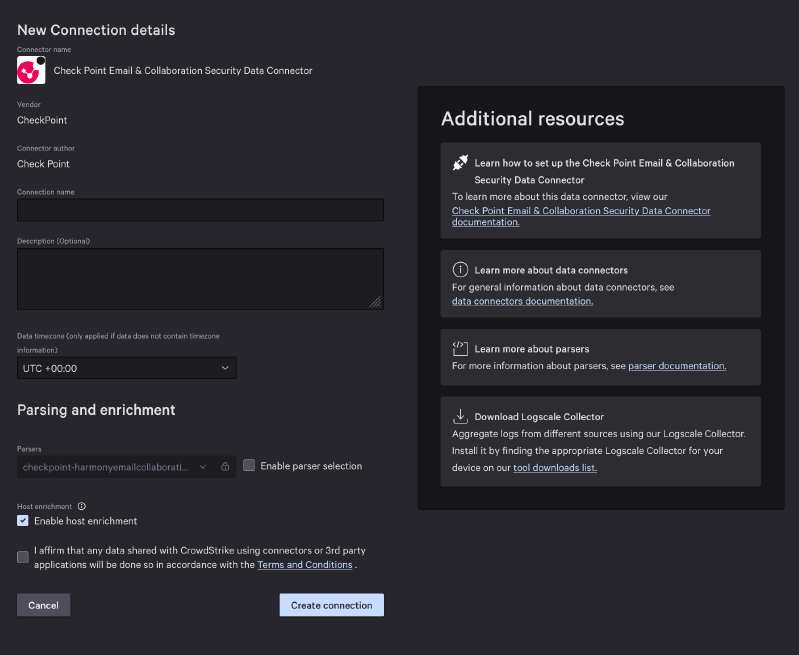
The New Connection details page appears.
-
Click Create connection.
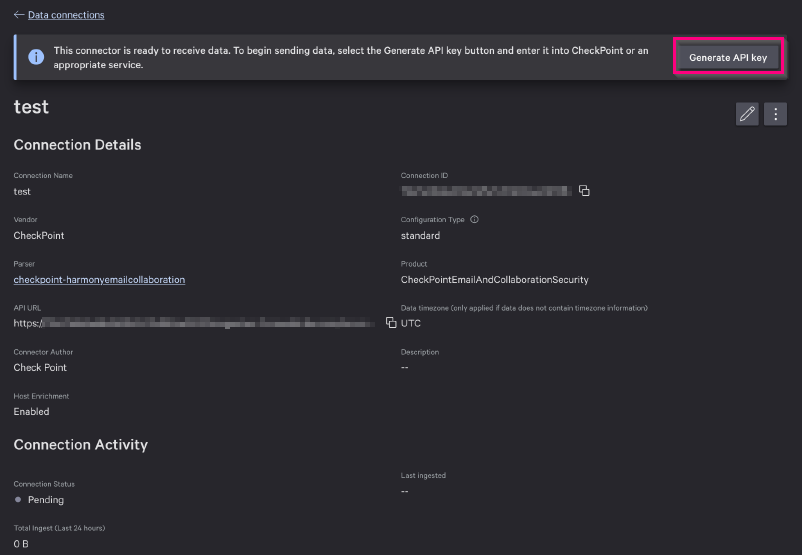
In the Connection Details page, Generate API key banner appears.
-
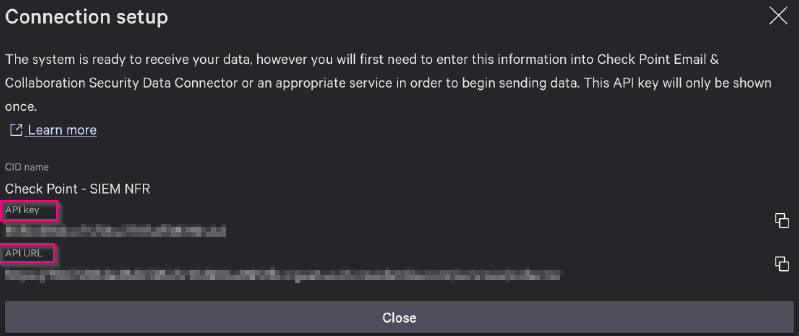
In the Connection setup page, copy the API URL and API Key to configure SIEM integration.
 Note:
Note:Make sure to note down the API URL and API Key, as they will not be available again.