
Automatically Blocking All Outgoing Emails
Even after a compromised account is detected and blocked, administrators may choose to add another layer of security by blocking all outgoing emails from the compromised account for these reasons:
-
Scheduled Malicious Messages: Attackers might schedule emails to be sent later, anticipating that the compromised account could be blocked at any time.
-
Hybrid Environments: In environments where the on-premises Active Directory overrides the Azure Active Directory, blocked users may get unblocked. Blocking all outgoing emails ensures that even if the user is unblocked, no emails can be sent from the compromised account.
To automatically block all outgoing emails:
-
Navigate to Security Settings > Security Engines.
-
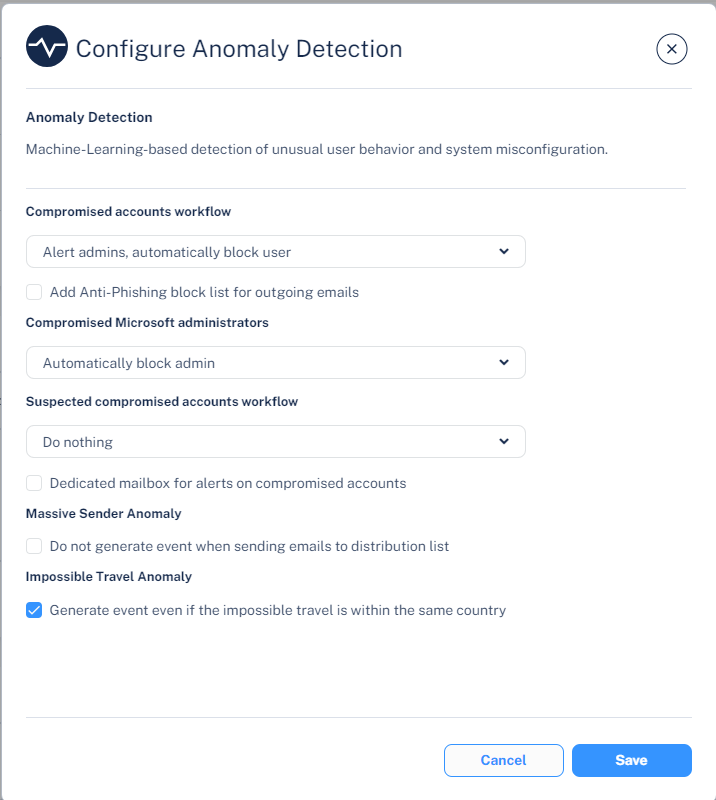
Click Configure for Anomaly Detection.
-
To automatically block outgoing emails for compromised accounts, in the Compromised accounts workflow section, select the Add Anti-Phishing block list for outgoing emails checkbox.
-
To automatically block outgoing emails for suspected compromised accounts, in the Suspected compromised accounts workflow section, select the Add Anti-Phishing block list for outgoing emails checkbox.
-
Click Save.
Notes:
-
Once this option is selected, when the system detects a compromised user account, it automatically creates a Anti-Phishing block-list. It flags all emails from this user as phishing and enforces the configured phishing workflow.
-
After unblocking a blocked compromised account, you must manually remove the block-list for the account. See Deleting Anti-Phishing Exceptions .