
End-User Portal (Avanan Portal)
Avanan offers an Avanan Portal for end users to access all quarantined emails. In this portal, end users can preview the quarantined emails, restore them, or submit a restore request for them - all in accordance with the defined organization's policies.
-
The Avanan Portal only shows the quarantined emails that users can act on - either restore directly or request to restore.
-
The email's availability in the Avanan Portal depends on its metadata retention period.
-
The availability of action buttons (Restore / Request Restore) and email body depends on the raw email's retention period. For more information, see Appendix G: Data Retention Policy.
-
For Microsoft quarantined emails:
-
Taking action might fail if the email is no longer retained in Microsoft's quarantine.
-
Once restored, the email body will not be visible.
-
To enable the Avanan portal for end users:
-
Go to Security Settings > User Interaction > Quarantine.
-
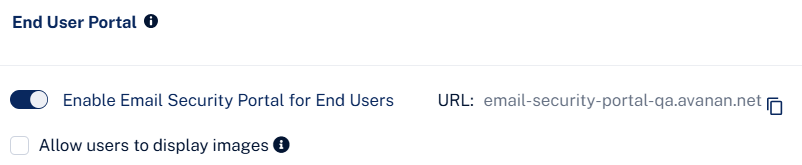
In the End User Portal section, select the Enable Avanan Portal for End Users toggle button.
-
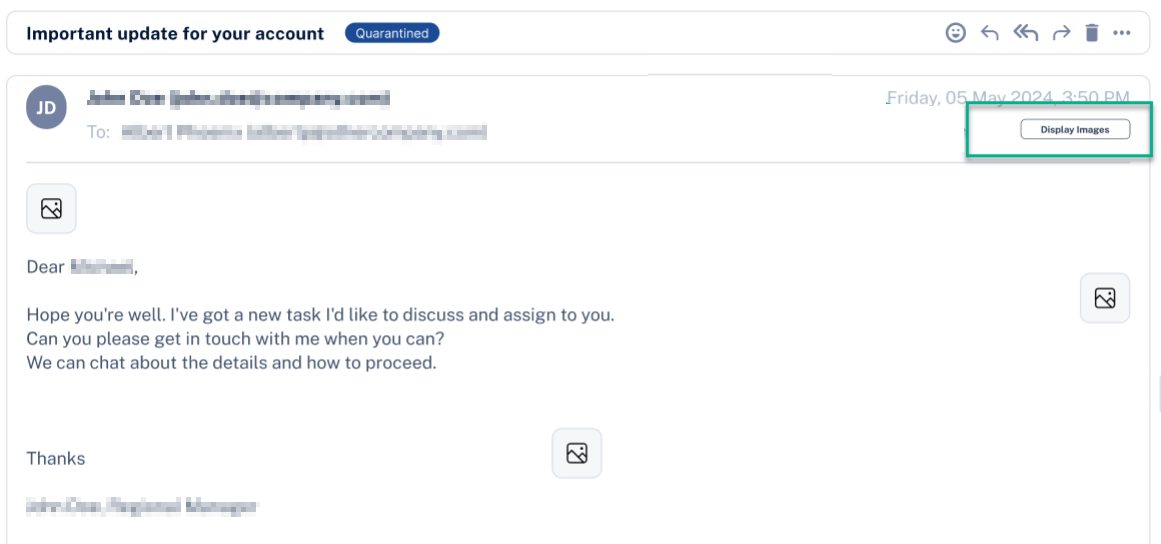
To allow end users to view images in the quarantined emails in the End User Portal, select the Allow users to display images checkbox.
End users can now see the Display Images button when they preview quarantined emails in the End User Portal.
-
Click Save and Apply.
After enabling the Avanan Portal, all the end users can access it from this link: https://email-security-portal.avanan.net.
To limit access to specific users, see Limiting End User Portal Access to Specific Users or Groups.
Accessing the Avanan Portal
Administrators can enable end users to log in to the Avanan Portal using these authentication methods:
-
Microsoft login
-
Google login
-
One-time password login
In addition,administrators can allow end users to access the Avanan Portal to manage quarantined emails and submit restore requests directly from their Outlook inbox using the Outlook Add-in, without re-authentication. See Accessing the Avanan Portal from Outlook.
Enable or Disable an Authentication Method
To enable or disable an authentication method, do these:
-
Access the Avanan Administrator Portal and click Security Settings.
-
Go to User Interactions > Quarantine > End User Portal.
-
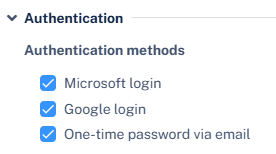
In the Authentication section, select or deselect the required authentication methods:
-
Microsoft login
-
Google login
-
One-time password via email
-
-
Click Save and Apply.
Note:After enabling the authorizing method (google/microsoft), an administrator must authorize the login for the entire organization by granting the necessary permission. For more information, see Authorizing Login Access for the Organization.
Authorizing Login Access for the Organization
Avanan allows users to log in to the End User Portal (Avanan Portal) with Microsoft/Google credentials. To enable this option, the administrator must authorize the login for the entire organization by granting the necessary permissions.
To authorize Microsoft/Google login permissions:
-
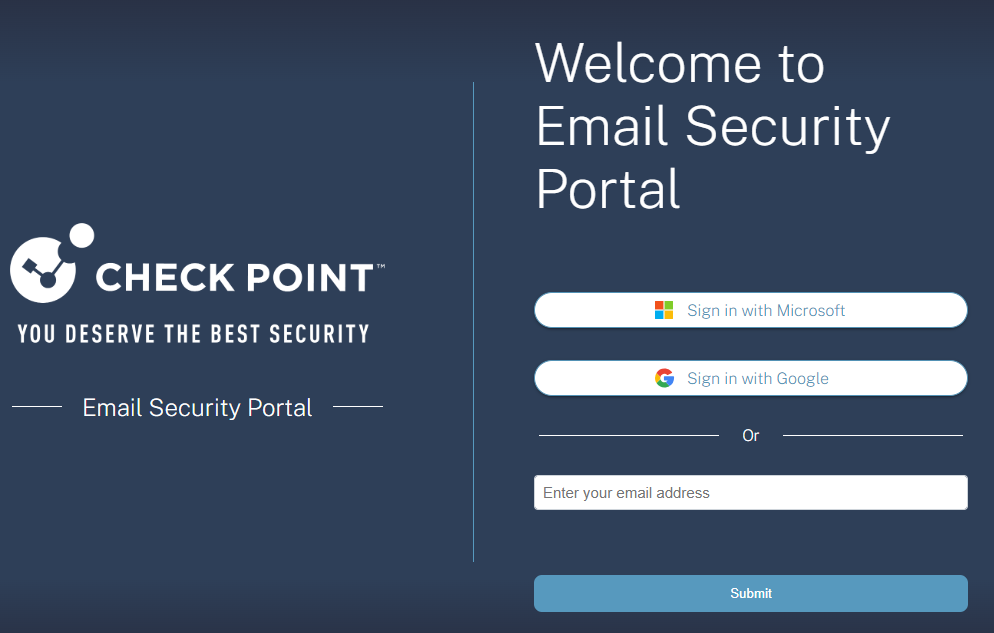
Access the Avanan Portal using or https://email-security-portal.avanan.net.
-
To allow end users to sign in using Microsoft credentials, select Sign in with Microsoft.
-
To allow end users to sign in using Google credentials, select Sign in with Google.
-
Enter the administrator credentials.
The Permissions requested pop-up appears for End User Portal HEC - prod application and requests for the necessary permissions. See Required Permissions for Microsoft/Google Login Authorization.
-
To allow end users to sign in using Microsoft/Google credentials, select the Consent on behalf of your organization checkbox.
-
Click Accept.
End users can now sign in to the Avanan Portal using the organization's Microsoft/Google credentials.
Required Permissions for Microsoft/Google Login Authorization
|
Permissions required from Microsoft / Google |
Functions performed by Avanan |
|---|---|
| Sign you in and read your profile | Allows users to sign in to the app and allows the app to read the profile of signed-in users. It also allows the app to read basic company information of signed-in users. |
| Maintain access to data you have given it access to | Allows the app to view and update the signed-in user data even when you are not currently using the app. |