
Confirming the installed SmartConsole Build number
You can see the SmartConsole build number in several ways.
Viewing the Build number in the SmartConsole login window
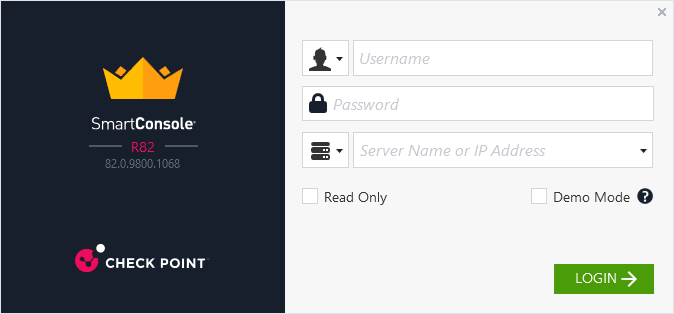
When SmartConsole opens the login window, the version and the SmartConsole full package number appear in the left panel - below the SmartConsole logo. The last four digits are the Build number used in the documentation.
Example: If the full package number is 82.0.9500.1068, then 1068 is the Build number.
Viewing the Build number in the SmartConsole "About" window
After you log in to SmartConsole, click in the top left corner and click About Check Point SmartConsole.
Example: If the full package number is 82.0.9500.1068, then 1068 is the Build number.

Viewing the Build number in the SmartConsole installation folder
By default, SmartConsole installs in this folder:
C:\Program Files (x86)\CheckPoint\SmartConsole\<VERSION>\
In this installation folder, subfolders appear with the full package number as their names. The last four digits are the SmartConsole Build number. Refer to the greatest number.
Example for two consecutive updates:
C:\Program Files (x86)\CheckPoint\SmartConsole\R82\82.0.9800.1068
C:\Program Files (x86)\CheckPoint\SmartConsole\R82\82.0.9800.1065