
Configuring UEM to Deploy the Harmony Mobile Protect App
Prerequisite
Perform the procedure in Integration with Applivery UEM.
Enabling Mobile Security Integration
-
Log in to your Applivery dashboard.
-
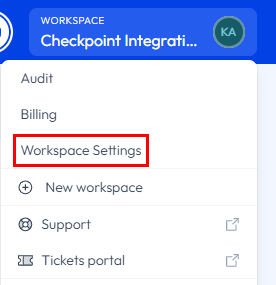
Click your workspace and select Workspace Settings.
-
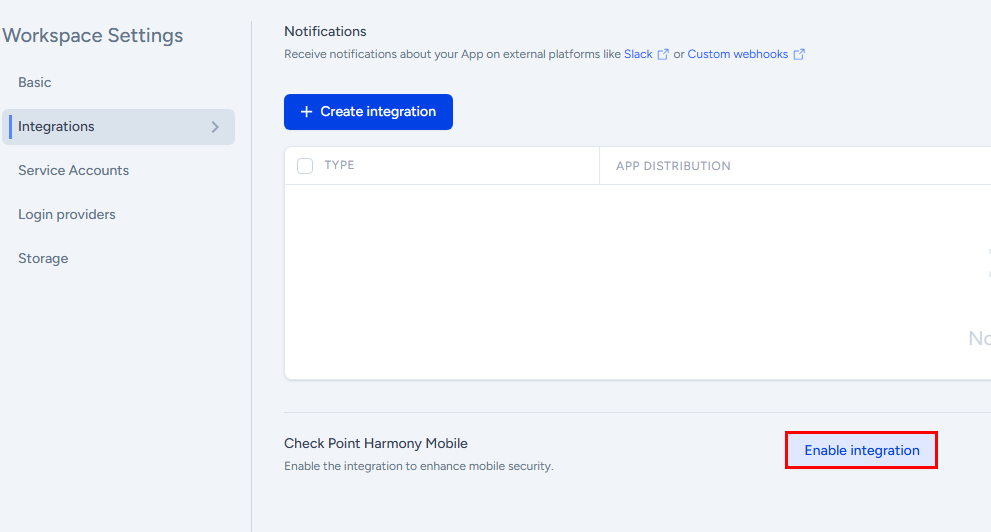
On the left menu, click Integrations.
-
Click Enable integration for Check Point Harmony Mobile.
-
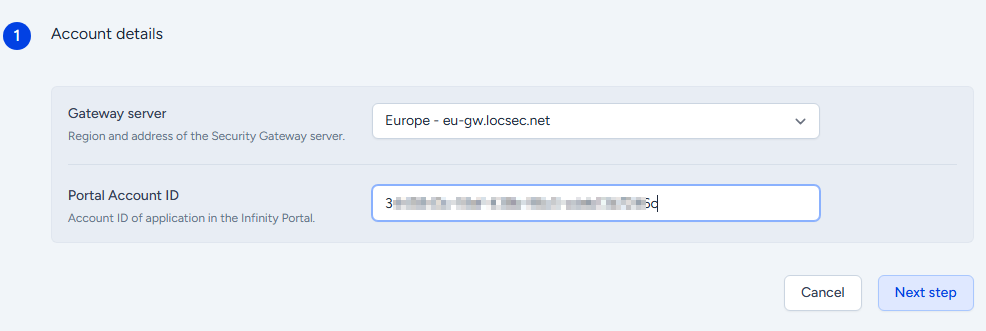
In the Account details section, enter these details:
-
From the Gateway server list, select the region and address of your Security Gateway
 Dedicated Check Point server that runs Check Point software to inspect traffic and enforce Security Policies for connected network resources. server.
 -
In the Portal Account ID field, enter the Account ID of the application in the Check Point Portal.
-
Click Next step.
The system displays the Server details, required to create Applivery integration in Mobile Security Administrator Portal. Note these values.

-
-
Access the Mobile Security Administrator Portal in Check Point Portal and complete the integration procedure as described in Configuring UEM Integration in Mobile Security Administrator Portal.
-
Click Next step.
-
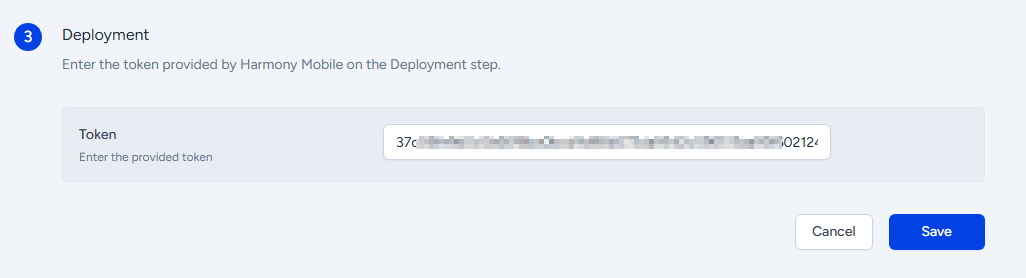
In the Deployment section, enter the token copied from the Deployment section in the Mobile Security Administrator Portal.
-
Click Save.
The system enables the Applivery integration with Mobile Security.

Creating a Policy
-
Log in to your Applivery dashboard.
-
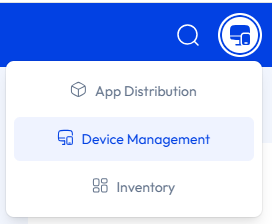
Go to Device Management.
-
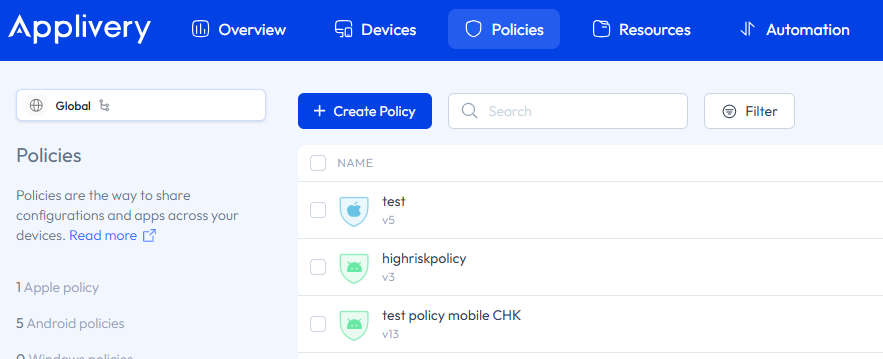
Go to Policies and click Create Policy.
-
Select the platform and create the policy.
For more information, see Creating a new device policy in Applivery.
Setting Up App Configurations
App Configurations - Android
-
Go to Device Management > Policies.
-
Select the Android policy you created.
-
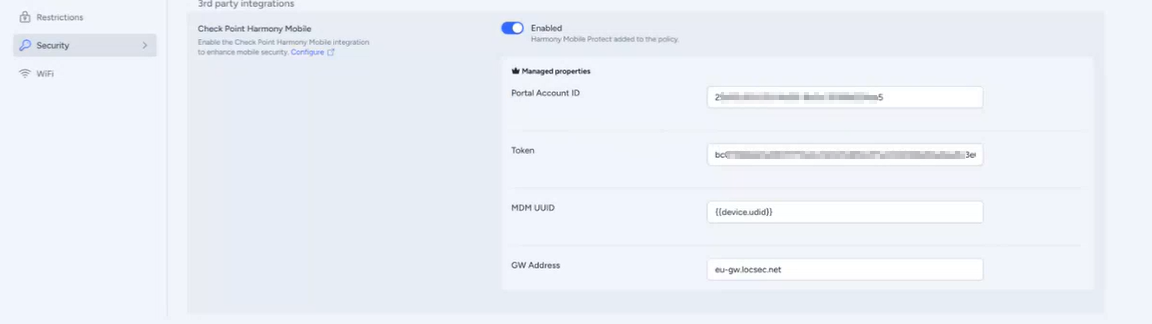
On the side menu, go to Security and in the 3rd party integrations section, enter these details:
Configuration Key
Value Type
Configuration Value
Portal Account ID
String
Account ID of the application in the Check Point Portal.
Token
String
The SHA-256 value of the Dashboard Management ID. Enter the token configured in the Deployment section in the Mobile Security dashboard.
MDM
Mobile Device Manager. A security software that enable organizations to implement policies that secure, monitor, and manage end-user mobile devices. UUID Universal Unique Identifier. A UUID is a 128-bit value used to uniquely identify an object or entity on the internet.String
%DEVICEIdentifier%
GW Address
String
Enter the Security Gateway server for your region:
Region
Server
US
gw.locsec.net
Ireland (EU region)
eu-gw.locsec.net
Australia (Asia region)
au-gw.locsec.net
Canada (Canada)
ca-gw.locsec.net
UK region (UK)
uk-gw.locsec.net
India
in-gw.locsec.net
-
Save the policy changes.
App Configurations - iOS
-
Go to Device Management > Policies.
-
Select the Apple policy you created.
-
Go to Apps and click Harmony Mobile Protect.
-
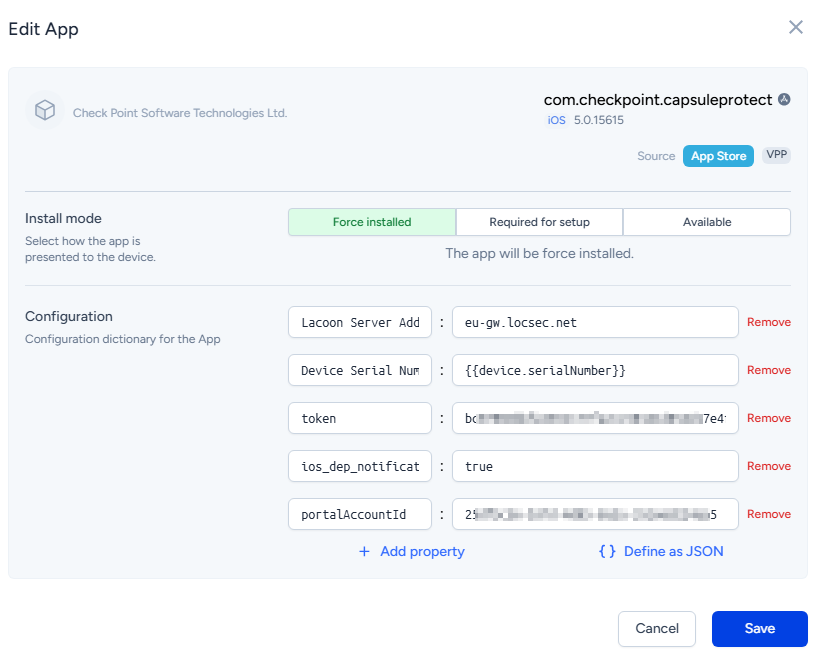
In the Edit App window, enter these details:
Configuration Key
Value Type
Configuration Value
Lacoon Server Address
String
Enter the Security Gateway server for your region:
Region
Server
US
gw.locsec.net
Ireland (EU region)
eu-gw.locsec.net
Australia (Asia region)
au-gw.locsec.net
Canada (Canada)
ca-gw.locsec.net
UK region (UK)
uk-gw.locsec.net
India
in-gw.locsec.net
Device Serial Number
String
{{device.serialNumber}}
token
String
The SHA-256 value of the Dashboard Management ID. Enter the token configured in the Deployment section in the Mobile Security dashboard.
ios_dep_notification_permission
String
true
portalAccountId
String
Account ID of the application in the Check Point Portal.
-
Click Save.
-
Save the policy changes.