Integrations
In the Integrations tab, you can manage your UEM Unified Endpoint Management. An architecture and approach that controls different types of devices such as computers, smartphones and IoT devices from a centralized command point. integrations, other security posture systems such as Microsoft Defender ATP or Syslog, and SMTP servers. Mobile Security supports multiple integrations simultaneously. You can integrate Mobile Security to several UEMs in parallel, and to external security posture system such as Microsoft Defender ATP.
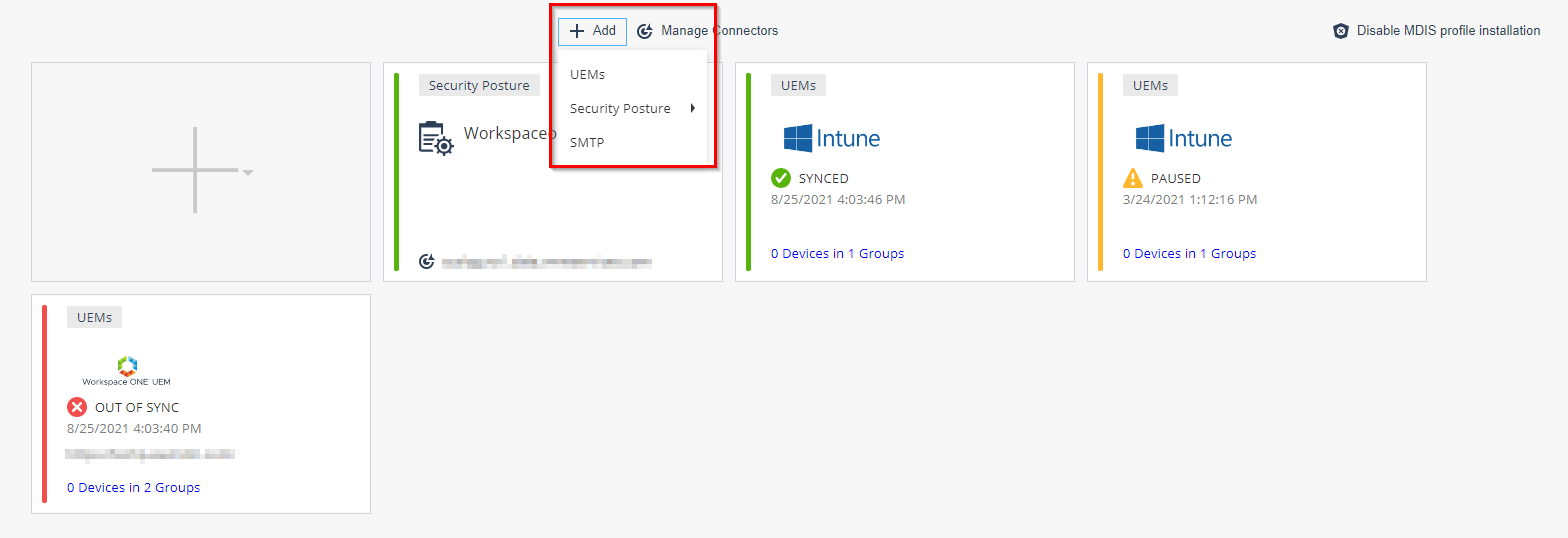
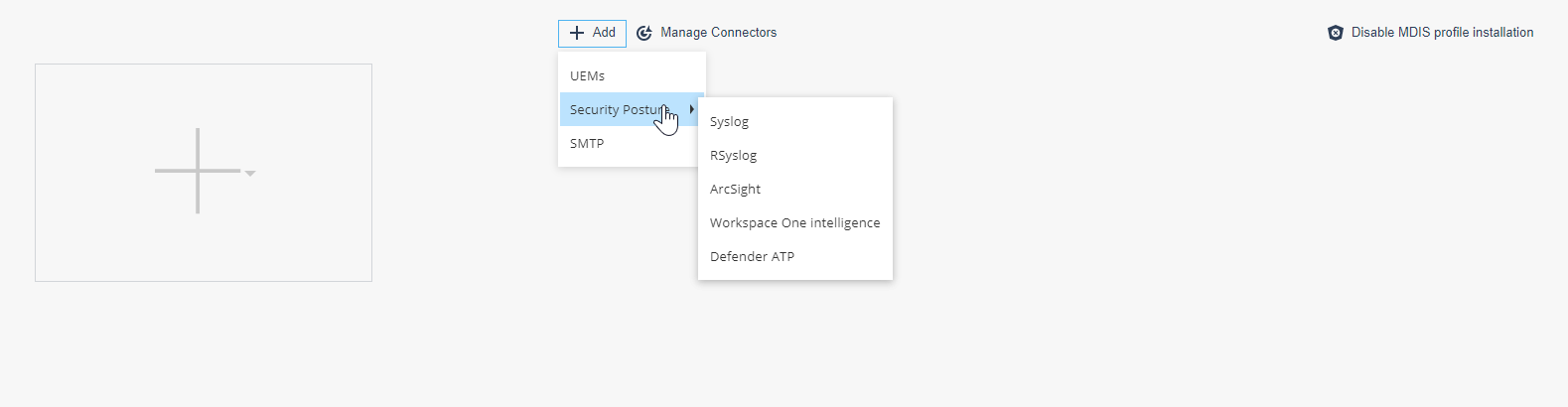
Click the +Add icon and choose to integrate Mobile Security with UEMs, with a Security Posture system, or with a SMTP server.
UEM Integration
|
|
Note - For more information on the integration procedure for different UEMs, see Harmony Mobile UEM Integration Guide. |

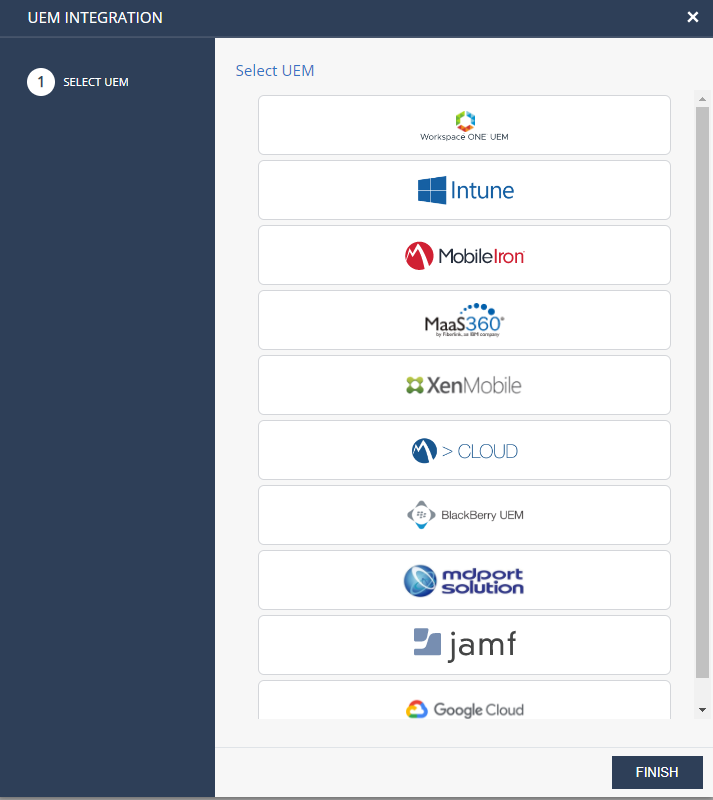
Select the UEMs option to integrate Mobile Security to any of the below supported UEMs or partner supported UEMs.
-
Workspace ONE (Formerly AirWatch UEM)
-
Microsoft Intune
-
MobileIron Core
-
IBM MaaS360
-
Citrix Endpoint Management (Formerly XenMobile)
-
MobileIron Cloud
-
BlackBerry UEM On-Premises
-
Jamf Pro
-
Google Cloud
-
Samsung Knox Manage / Samsung SDS EMM
Enterprise Mobility Management. A set of tools and processes to secure and manage company-owned or employee-owned (BYOD) devices irrespective of their locations. -
SOTI MobiControl
-
Applivery
Integration with Partner Supported UEMs
Partner supported UEMs are the UEMs that support integration with Mobile Security and tested by the partner.
The partner supported UEMs are:
-
mdport solution
-
SevenPrinciples (7P)
-
Essentials MDM
Mobile Device Manager. A security software that enable organizations to implement policies that secure, monitor, and manage end-user mobile devices. (Techstep/FAMOC) -
Hexnode
-
Scalefusion
-
Codeproof
For more information, see Integration with Partner Supported UEMs.
UEM Managed and Unmanaged Devices Management
Mobile Security supports managing UEM managed devices and unmanaged devices on the same dashboard. You can synchronize users and devices with an UEM and simultaneously manage the manually registered users and devices on the same Mobile Security dashboard.
-
Different device groups must be created for the ‘Non-UEM managed Devices’ and for the ‘UEM Managed’ devices.
-
Manually registered devices must be labeled as ‘Non-UEM managed Devices’. The UEM managed devices are synchronized to their relevant groups.
Mobile Device Integration Service (MDIS) Profile
Mobile Security's MDIS profile communicates with iOS devices that are not managed by a third-party UEM to retrieve the list of apps installed, certificates, profiles and so on. It is installed on the device with the Mobile SecurityHarmony Mobile Protect.
|
|
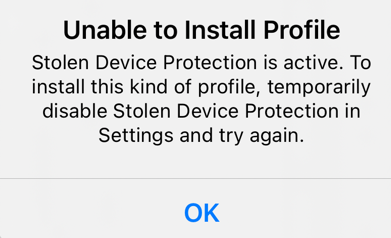
Note - For iOS 17.3 and higher, make sure to turn off Stolen Device Protection on the device before you install the Mobile SecurityHarmony Mobile Protect. You can turn it on after you install the app. Otherwise, Unable to Install Profile error appears.
|
Security Posture Integration
The Security Posture option allows you to integrate Mobile Security to an external security posture and management system.
|
|
Note - The Workspace One Intelligence Hub integration requires configuring both Syslog to Intelligence Hub and Workspace One UEM. |
Syslog Integration
The administrator can set the dashboard to send Syslog events to a Syslog server. The Mobile Security dashboard must communicate to your Syslog server through your firewall.
To view the source IP addresses, see Appendix A - Mobile Security Communication Information.
To configure Syslog:
-
Go to Settings > Integrations and click +Add.
-
Click Security Posture > Syslog.
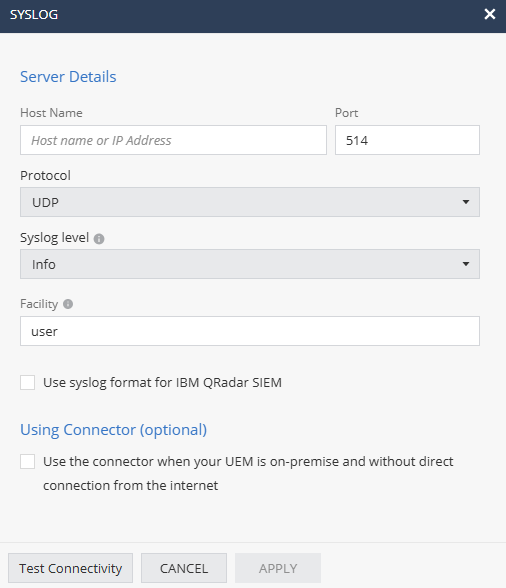
The Syslog window appears.
-
Enter these:
Setting
Description
Host Name
Host name or IP Address of Syslog server
Protocol
UDP or TCP
Port
Port that the Syslog server is listening on.
Syslog level
Severity level of events to be sent to the server. Events with the selected severity level or higher will be sent.
Supported values:
-
Info
-
Warn
-
Error
-
Debug
Facility
Type of program generating the log message. Messages from different facilities may be processed differently. Default value is user.
-
-
If you are using IBM QRadar SIEM, select the Use syslog format for IBM QRadar SIEM checkbox to format log messages according to QRadar's syslog requirements.
-
Click Apply.
For more information on the structure of the Syslog event sent by Mobile Security, see Appendix B - Mobile Security Syslogs.
Rsyslog Integration
Rsyslog is an open-source software utility used on UNIX and Unix-like computer systems for forwarding log messages in an IP network. It implements the basic syslog protocol, extends it with content-based filtering, rich filtering capabilities, flexible configuration options and adds features such as using TCP for transport and SSL Secure Sockets Layer. The standard security technology for establishing an encrypted link between a web server and a browser.\TLS Transport Layer Security. A security protocol designed to facilitate privacy and data security for communications over the Internet. for encryption.
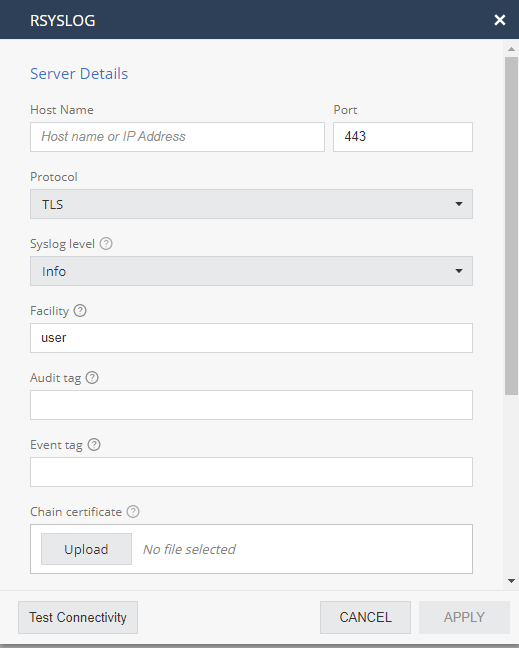
To configure Rsyslog:
-
In the pop-up window, enter these values:
Setting
Description
Host Name
Host name or IP Address of rsyslog server
Protocol
TLS
Port
Port that the rsyslog server is listening on.
Default SSL port: 443.
Syslog level
Severity level of events to send to the server.
Acceptable Values are:
-
Info
-
Warn
-
Error
-
Debug
Facility
Facility is used to specify the type of program that is logging the message. Messages with different facilities may be handled differently. Defaults to "user".
Audit TAG
Because Mobile Security can send 2 formats of logs, Event logs and Audit logs, the receiving rsyslog system publishes 2 parsers for these types.
When Mobile Security sends an Event type it will add the Event Tag to the message.
When Mobile Security sends an Audit type it will add the Audit Tag to the message.
Event TAG
Because Mobile Security can send 2 formats of logs, Event logs and Audit logs, the receiving rsyslog system publishes 2 parsers for these types.
When Mobile Security sends an Event type it will add the Event Tag to the message.
When Mobile Security sends an Audit type it will add the Audit Tag to the message.
Chain certificate
The rsyslog server needs to publish unique certificates to establish the secure connection from Mobile Security.
The chain certificate is the X.509 certificate used to secure the rsyslog server. The root CA of the rsyslog system to which we are going to send logs.
Certificate
The rsyslog server needs to publish unique certificates to establish the secure connection from Mobile Security.
This is the certificate used for the TLS handshake. It is obtained from the rsyslog system that was generated specifically for the integration with Mobile Security.
Key certificate
The rsyslog server needs to publish unique certificates to establish the secure connection from Mobile Security.
This the Private Key certificate used for the TLS handshake. It is obtained from the rsyslog system that was generated specifically for the integration with Mobile Security.
-
-
Click Apply.
ArcSight Integration
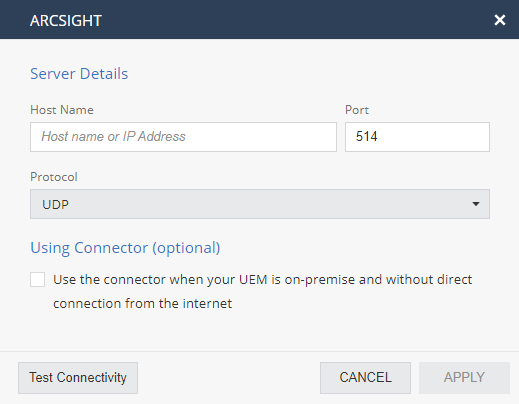
To configure ArcSight:
-
In the pop-up window, enter these values:
Setting
Description
Host Name
Host name or IP Address of ArcSight server
Protocol
UDP or TCP
Port
Port that the ArcSight server is listening on.
-
Click Apply.
For more information on the structure of the ArcSight event sent by Mobile Security, see Appendix C - Mobile Security ArcSight.
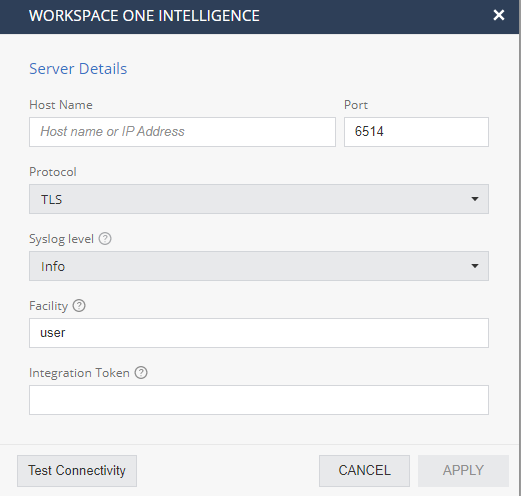
WorkSpace One Intelligence Integration
Mobile Security supports integration with VMWARE Workspace ONE Intelligence. When connected to Workspace ONE Intelligence, the Mobile Security sends the security event logs (syslog) messages. It allows security/SOC administrators to use other services that run over the Workspace ONE Intelligence. These additional services can use the advanced security indicators from the Mobile Security that come from the organization’s mobile devices and create additional reports and insights.
For more information on Workspace ONE Intelligence refer to VMWARE Workspace ONE Intelligence WEB site.
-
Before starting to integrate Workspace ONE Intelligence, Mobile Security must be first integrated with Workspace ONE UEM.
-
For more information on Mobile Security integration with Workspace ONE Intelligence, see Integration with Workspace ONE UEM.
-
On the Mobile Security Dashboard, go to ‘Settings/Syslog Settings’ and select the ‘Workspace ONE Intelligence’ option.
-
Mobile Security sends Syslog messages to the Workspace ONE Intelligence service. You must configure the Workspace ONE Intelligence service details and verify the two systems are connected
-
When the connection is established, you can view the Mobile Security threats insights on the Workspace ONE Intelligence dashboards and use the powerful Intelligence platform to automate the threats handling. For example, you can create a response to a new detected malware by sending a Slack message to the group of security analysts, or use a callback to any remote service that offers a web hook API.
Microsoft Defender ATP Integration
Choosing to integrate with Microsoft Defender ATP, you will need to decide the minimum events severity to be sent to Microsoft Defender ATP and to log-in to your organization’s account of Microsoft Defender ATP. Once connected – Mobile Security sends all events to Microsoft Defender ATP, both security events and device activation events.
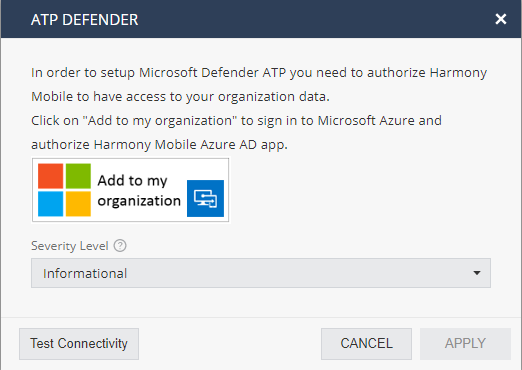
To learn more about integration with each of the 3rd party systems – please read the relevant integration guide.
To adjust the default settings implemented for their UEM, see the integration guides dedicated for each UEM.
SMTP Integration
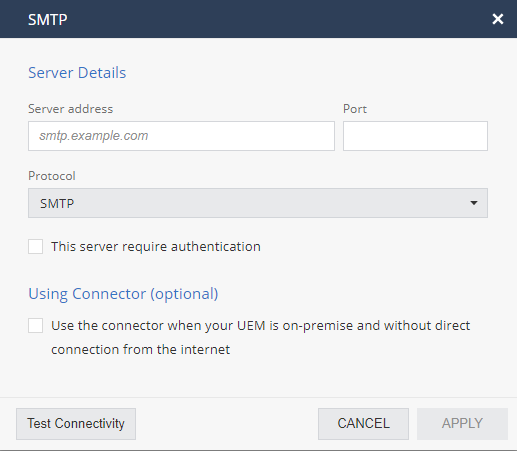
Go to Settings > Integrations > + > SMTP to configure the dashboard to send emails from the customer’s local domain instead of using the Mobile Security email server.
There are two transport settings: SMTP and SMTPS.
To configure SMTP Settings:
-
Click Add.
The SMTP Settings pop-up window appears.
 =
=
-
Select SMTP or SMTPS.
-
Enter the required information and click Save.
|
|
Note - You must configure the Firewall settings on the Enterprise’s firewall to allow SMTP or SMTPS from Mobile Security to the enterprise’s SMTP server. The allowed IP addresses are listed in Mobile Security Communication Information. |
SMS Sender Name
You cannot configure the SMS sender name. If you previously configured a sender name, the SMS card may still appear in your dashboard; however, it can no longer be edited. To reset it to a default value based on your local regulation, contact Check Point Support.