
Policy
In the Policy tab, you can configure granular policies for different device groups. Granular policies let you apply stronger security controls to specific groups, for example, enable more security controls for your VIPs.
To create device groups, see Adding a Device Group. You can also apply policies to individual devices, but using groups allows better scalability.
To enforce the policy on the end-user device, the end-user or the UEM Unified Endpoint Management. An architecture and approach that controls different types of devices such as computers, smartphones and IoT devices from a centralized command point. must grant the permissions listed in Permissions and Features Dependencies.

|
|
Note - To verify whether the latest policy is enforced on the mobile device, check the time stamp of the last policy update on the Harmony Mobile Protect app:
|


Rulebase
When you open the Policy tab, the Rulebase displays a rulebase list with the Global policy profile as default.
When you add new policy profiles, they are added to the rulebase to apply them on the appropriate device groups.
The rules are processed in order from top to bottom (aka first-match). Once a match for the device is made, that policy is applied to the device. For example, if a device matches two policies, the highest-ranked matching policy is applied to the device.
|
|
Best Practices :
|

To activate a policy and apply it to a device group:
-
Click
 or
or  .
.A new line is added to the rulebase list.

-
Enter these:
-
Rule Name
-
Select the devices or device groups from the list.
-
Select the policy profile from the list.
For more information, see Policy Profiles.
-
(Optional) Enter a comment.
-
-
Click Save.
-
To move a rule, click the rule # up or down, drag and drop as required.
-
To view all changes before you save them, click
 and then click View Changes.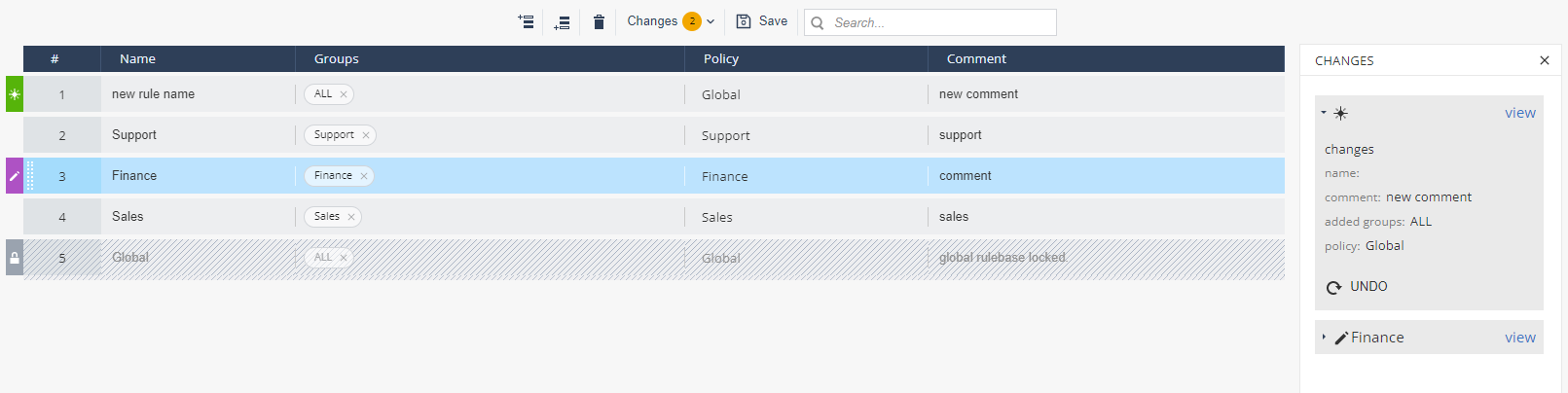
-
Click Save.
Policy Configuration
You can set one of these risk levels to a device for a security event:
-
Risk level (Default) - For example, No Risk (Default).
-
High (Device Alert)
-
Medium (Device Alert)
-
Medium (No Device Alert)
-
Medium (Dismissive Device Alert)
-
Low (No Device alert)
-
No Risk
|
|
Notes:
|