
Account Dashboard
The Account dashboard allows you to create personalized dashboards for the MSSP account.
Blank dashboard allows you to create a new dashboard with available widgets.
-
Unified template allows you to customize the Unified Dashboard. For more information, see Unified Dashboard in Viewing Operational Overview, Security Overview and Reports..
-
Go to Overview > MSSP View, click
 next to Custom Dashboard and click Account dashboard.

-
To create a new custom dashboard from scratch:
-
Click Add Your First Widget.
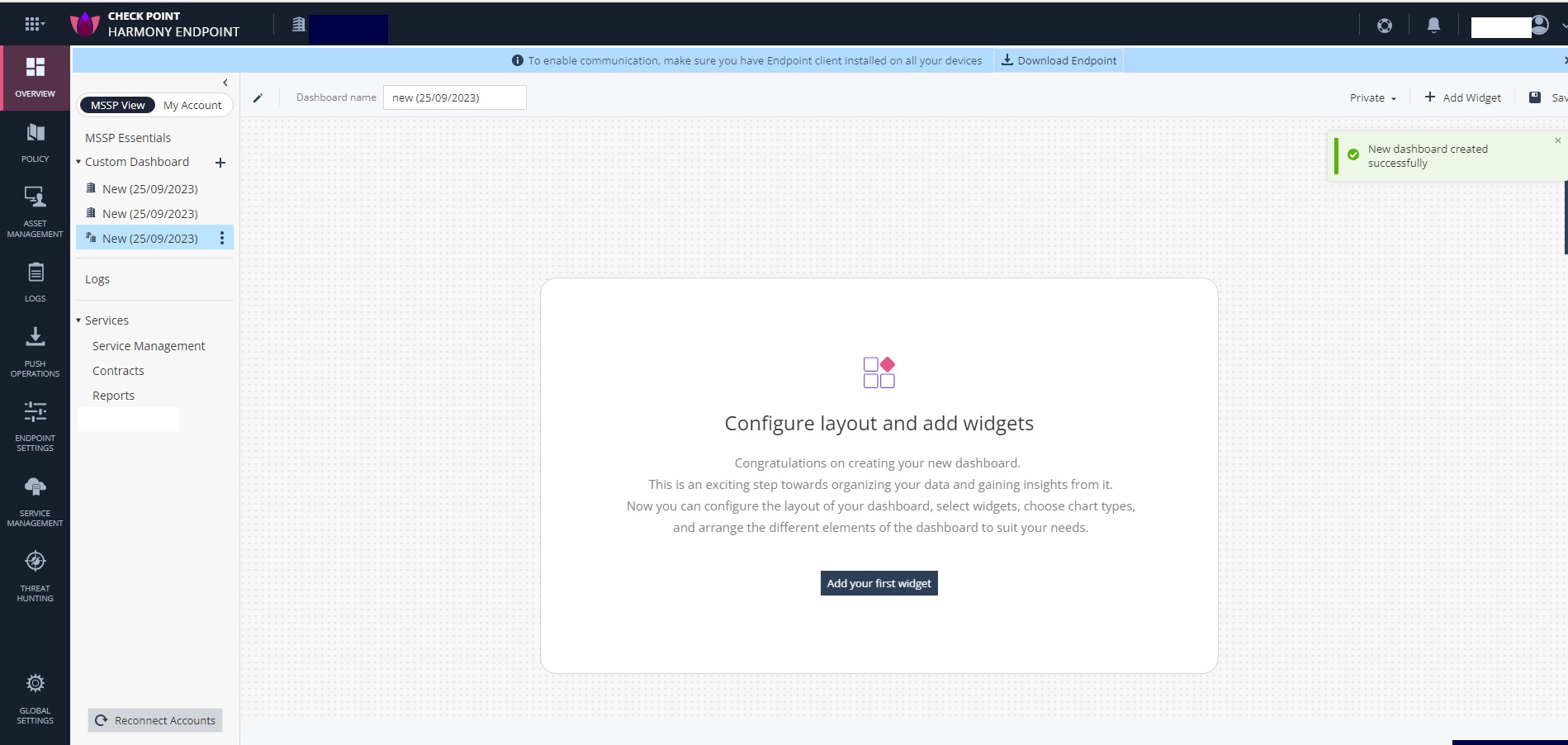
The Add Widget window appears.
-
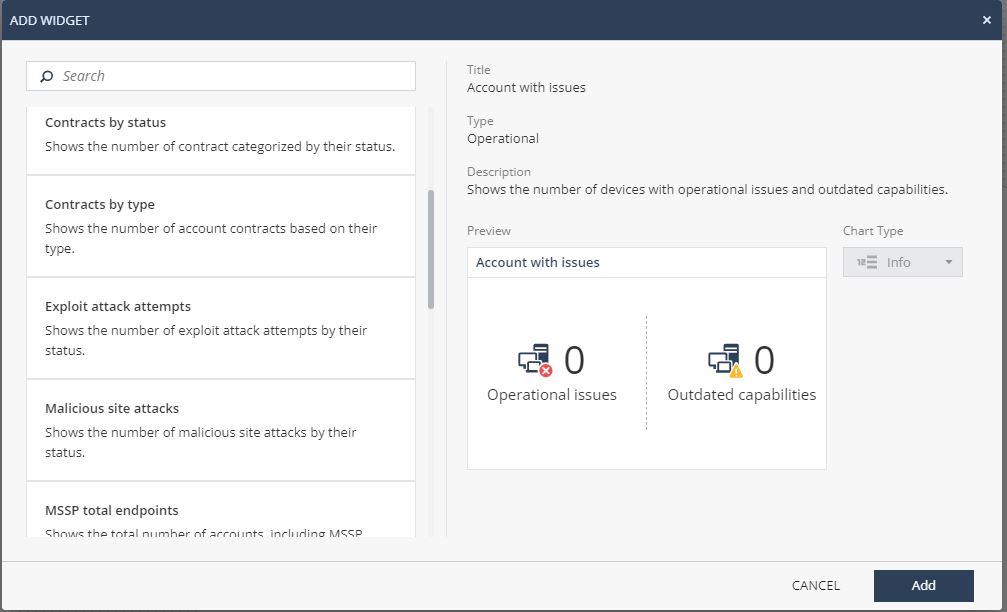
From the left pane, select the widget and click Add.
 Note:
Note:The Add button is disabled if the widget is already added to the dashboard.
-
Click Add Your First Widget.
-
To delete a widget, on the widget, click
 and click Delete.
-
To share the Account dashboard with other child accounts, on the right pane, click Share With Accounts, select the account and click Share.

The dashboard appears in the Public Dashboard of the child account.