
Generating Reports On Demand
-
Go to Reports and select the report template in the Reports section.
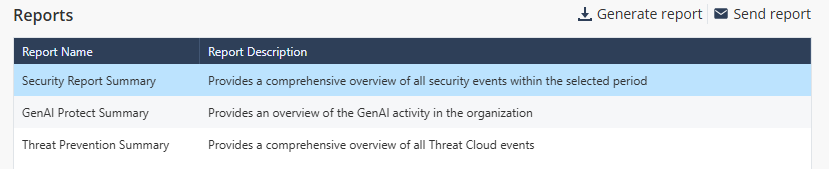
The system displays the sample report on the right side.

-
To generate the report, click Generate report.
The Generate Report window appears.

-
Click Generate.
The Recent activities window appears and shows the report generation status.
 Note:
Note:The Recent activities window shows the download activities from the past seven days.
When the report is ready, the system downloads it automatically. If you selected multiple accounts, it downloads each report separately.
-
To download the report later:
-
Click the
 icon at the top-right corner.
The Recent activities window appears.
-
Click the Download link.

-
Click the