
End-User Portal (Email Security Portal)
Email Security offers an Email Security Portal for end users to access all quarantined emails. In this portal, end users can preview the quarantined emails, restore them, or submit a restore request for them - all in accordance with the defined organization's policies.
|
|
Notes:
|
To enable the Email Security portal for end users:
-
Go to Security Settings > User Interaction > Quarantine.
-
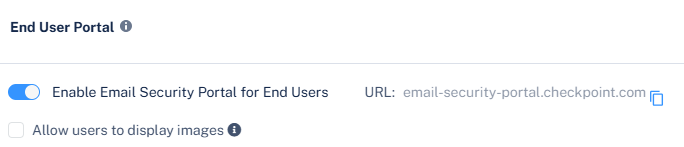
In the End User Portal section, select the Enable Email Security Portal for End Users toggle button.
-
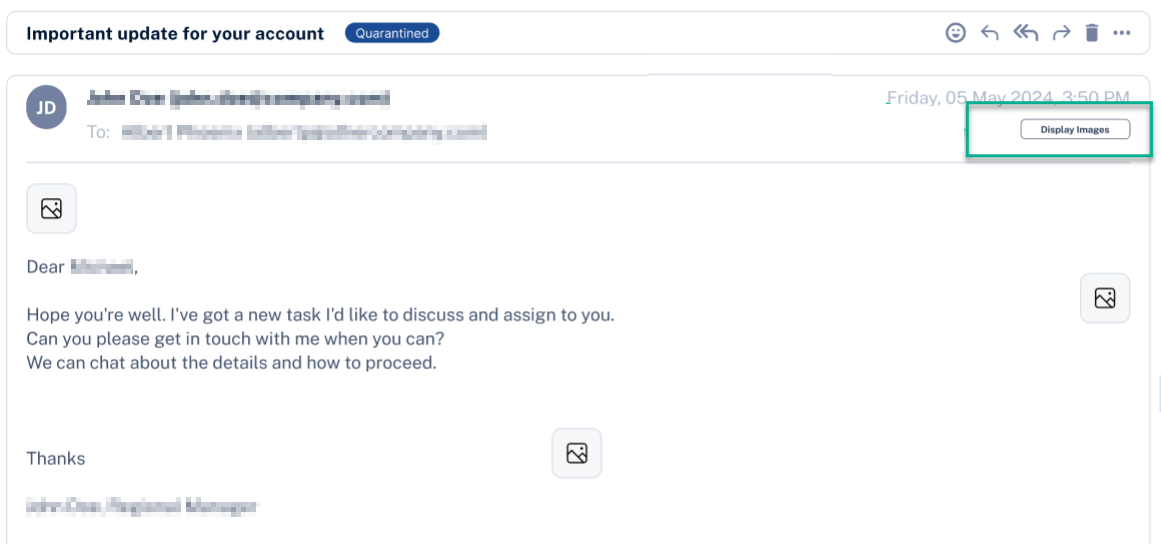
To allow end users to view images in the quarantined emails in the End User Portal, select the Allow users to display images checkbox.
End users can now see the Display Images button when they preview quarantined emails in the End User Portal.
-
Click Save and Apply.
After enabling the Email Security Portal, all the end users can access it from this link: https://email-security-portal.checkpoint.com.
To limit access to specific users, see Limiting End User Portal Access to Specific Users.
Accessing the Email Security Portal
Administrators can enable end users to log in to the Email Security Portal using these authentication methods:
-
Microsoft login
-
Google login
-
One-time password login
In addition,administrators can allow end users to access the Email Security Portal to manage quarantined emails and submit restore requests directly from their Outlook inbox using the Outlook Add-in, without re-authentication. See Accessing the Email Security Portal from Outlook.
To enable or disable an authentication method, do these:
-
Access the Email Security Administrator Portal and click Security Settings.
-
Go to User Interactions > Quarantine > End User Portal.
-
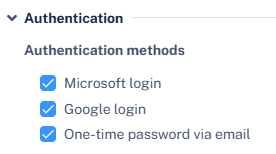
In the Authentication section, select or deselect the required authentication methods:
-
Microsoft login
-
Google login
-
One-time password via email
-
-
Click Save and Apply.

Note - After enabling the authorizing method (google/microsoft), an administrator must authorize the login for the entire organization by granting the necessary permission. For more information, see Authorizing Login Access for the Organization.
Authorizing Login Access for the Organization
Email Security allows users to log in to the End User Portal (Email Security Portal) with Microsoft/Google credentials. To enable this option, the administrator must authorize the login for the entire organization by granting the necessary permissions.
To authorize Microsoft/Google login permissions:
-
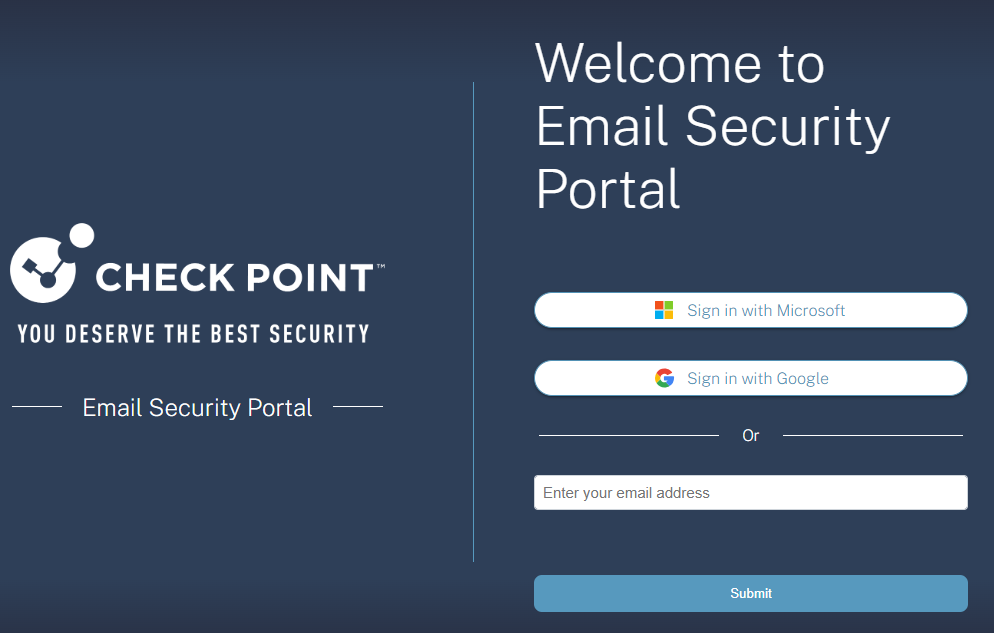
Access the Email Security Portal using https://email-security-portal.checkpoint.com.
-
To allow end users to sign in using Microsoft credentials, select Sign in with Microsoft.
-
To allow end users to sign in using Google credentials, select Sign in with Google.
-
Enter the admin credentials.
The Permissions requested pop-up appears for End User Portal HEC - prod application and requests for the necessary permissions. See Required Permissions for Microsoft/Google Login Authorization.
-
To allow end users to sign in using Microsoft/Google credentials, select the Consent on behalf of your organization checkbox.
-
Click Accept.
End users can now sign in to the Email Security Portal using the organization's Microsoft/Google credentials.
Accessing the Email Security Portal from Outlook
If an administrator enables the Email Security Portal checkbox in the Outlook Add-In Configuration, the system adds an Email Security Portal button to Outlook, which provides:
-
Secure access to the Email Security Portal without re-authentication.
-
Real-time badge indicators for:
-
Newly quarantined emails since the last visit.
-
Updates on restore requests.
Note - This capability uses the same Outlook Add-In deployment and does not require a separate installation.
-
To view the supported devices for the Outlook Add-In, see Outlook Add-In - Supported Outlook Types and Platform.
Accessing the Email Security Portal from Outlook - End-User Experience
If an administrator has enabled the Email Security Portal option in the Outlook Add-In, the Outlook application displays the add-in name (as configured by the administrator), allowing secure access without re-authentication. For more information about the permissions requested during Outlook Add-In sign-in, see Outlook Add-In Permissions.
To access the Email Security Portal from Outlook:
-
Access the Outlook application.
-
Go to the Add-Ins section.
-
Click the Email Security Portal option to access the portal without re-authentication.
Required Permissions for Microsoft/Google Login Authorization
|
Permissions required from Microsoft / Google |
Functions performed by Email Security |
|---|---|
| Sign you in and read your profile | Allows users to sign in to the app and allows the app to read the profile of signed-in users. It also allows the app to read basic company information of signed-in users. |
| Maintain access to data you have given it access to | Allows the app to view and update the signed-in user data even when you are not currently using the app. |
Limiting End User Portal Access to Specific Users
By default, Email Security provides all users with access to the End User Portal.
To limit access to specific users or groups:
-
Access the Email Security Administrator Portal.
-
Go to Security Settings > User Interactions > Quarantine.
-
In the Allowed Users section, select the users you want to allow access to the End User Portal.
-
To allow access to all users in your organization, select All Users.
-
To allow access to specific users or groups, select Select Users.
-
In the Specific Users and Groups section, select the required users or groups.
-
Click Add to Selected.
-
-
-
Scroll-down and click Save and Apply.
|
|
Note - If Microsoft or Google login is configured in the authentication methods (see Authentication Methods for Accessing the Email Security Portal), administrators can also restrict end users access through Microsoft or Google.
|
Including Blocklisted Emails in the End User Portal
Administrators can control the visibility of blocklisted emails in the End User Portal.
To include blocklisted emails in the End User Portal:
-
Access the Email Security Administrator Portal.
-
Go to Security Settings > User Interactions > Quarantine > End User Permissions.
-
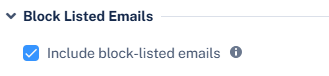
In the Block Listed Emails section, select the Include block-listed emails checkbox.
-
Scroll-down and click Save and Apply.
|
|
Note - Emails quarantined due to a blocklist appear in the End User Portal, where users can take action on them like non-blocklisted emails. |
Read and Unread Status of Emails in the End User Portal
The Read and Unread status in the End User Portal helps you efficiently track and manage emails that require your attention. This feature provides clear visibility into which emails you have already reviewed and which are still pending.
By default, the system marks all newly received emails as Unread. When you open an email, the system automatically marks it as read. This distinction allows you to quickly identify new items, avoid rechecking previously reviewed emails, and prioritize your workflow more effectively.
Limitations
-
The system supports marking emails as Read only.
-
Once an email is marked as Read, the action cannot be reversed.
-
This functionality is not available in the mobile version of the End User Portal.
Filtering Emails by their State
You can filter emails in the End User Portal based on their state to quickly locate relevant items.
To filter emails by state:
-
Access the End User Portal.
-
From the left navigation panel, click Quarantine.
-
Click the State filter, and choose the required options.
-
All – Displays all emails regardless of their status.
-
Read – Displays only emails that you already opened or marked as read.
-
Unread – Displays only new or unreviewed emails that may require your attention.
-
Acting on Emails
Automatically Marking an Email as Read
When you open an email, the system automatically marks it as read. This ensures that any email you view is immediately recognized as reviewed, without requiring any additional steps.
Manually Marking an Email as Read
In addition to automatic updates, you can manually mark one or more emails as read.
To manually mark emails as read:
-
Access the End User Portal.
-
From the left navigation panel, click Quarantine.
-
Select one or more emails from the list.
-
Click Mark as Read.
The system immediately marks the selected emails as read.