Phishing Simulation Solutions
Many organizations use phishing simulation solutions to educate their employees on how to detect and report phishing attacks. These solutions send fake phishing emails to employees to try and trick them into performing actions, opening attachments or clicking on phishing URLs.
Email Security automatically detects such emails from commonly-used phishing simulation solutions. Phishing reports from users regarding these emails will be automatically declined.
Email Security detects phishing simulation solutions from the following:
| Phishing Simulation Solutions |
|
ActiveTrail
|
|
Attack simulation training
|
|
BenchMark
|
|
CybeReady
|
|
Hook Security
|
|
Hoxhunt
|
|
HubSpot
|
|
Infosec IQ
|
|
KnowBe4
|
|
MailChimp
|
|
MailGun
|
|
MailJet
|
|
MimeCast
|
|
Phished
|
|
PhishMe
|
|
ProofPoint
|
|
SendGrid
|
|
SendInBlue
|
|
Sophos Phish Threat V2
|
|
TargetHero
|
|
TerraNova
|
|
ZoHo
|
If you use a different phishing simulation solution:
-
To avoid detection of phishing simulation emails, add an Anti-Phishing Allow-List rule based on the solution’s IP address.
For information about adding an Allow-List, see Anti-Phishing Exceptions.
-
The phishing reports of known phishing simulation tools are automatically rejected.
-
To request for supporting a new phishing simulation solution, contact Check Point Support.
-
To automatically decline end-users' phishing reports regarding phishing simulation emails, contact Check Point Support.
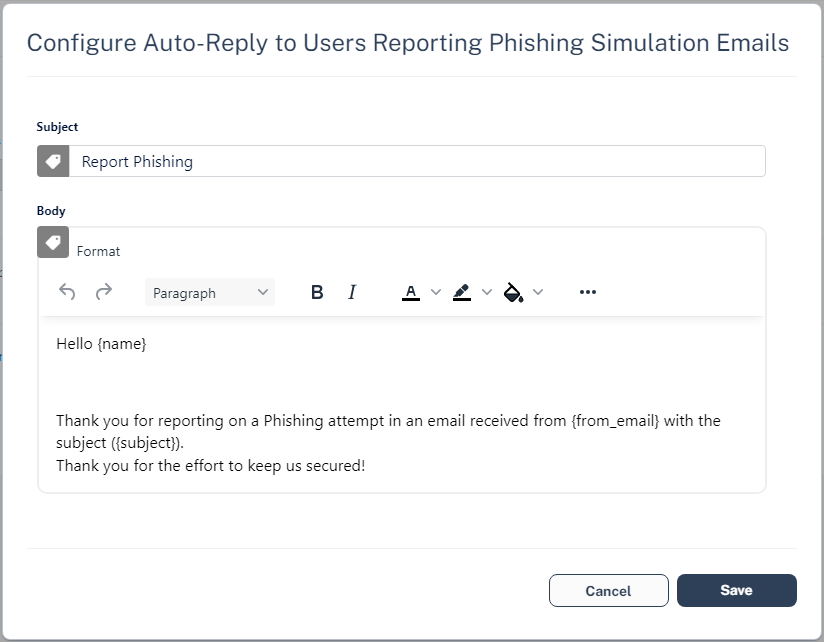
To configure the Email Security Administrator Portal to automatically send feedback to users who reported phishing training emails as phishing:
-
Access the Email Security Administrator Portal.
-
Click > > .
-
In the section, select the checkbox.
-
(Optional) To change the default text in the feedback:
-
Click the  icon next to checkbox.
The pop-up appears.
-
Make the necessary changes and click .
-
Click .
|

|
Note - When a user reports a phishing simulation email, Email Security automatically declines the associated phishing report.
|
For Office 365, to see user reported phishing reports from phishing simulation solutions, see Automatic Ingestion of End User Reports.
Upstream Message Transfer Agents (MTAs)
During Learning Mode, to improve the accuracy of the Anti-Phishing engine, Email Security automatically detects MTAs that process emails before they reach Microsoft/Google.
If there are other MTAs that are not detected by Email Security, you can add them manually.
To add MTAs manually:
-
Access the Email Security Administrator Portal.
-
Click > .
-
Click for Anti-Phishing.
-
Scroll-down to and enter the full DNS names or IP addresses of MTAs separated by comma.
-
Click .
Blocking Emails that Fail DMARC
Some organizations configure their DMARC (Domain-based Message Authentication, Reporting and Conformance) record to quarantine or reject emails that fail DMARC checks. Most organizations choose to enforce this rejection for incoming emails with Microsoft/Google.
If you wish to enforce it with Email Security, you may configure to trigger the Suspected Phishing or Phishing workflow for emails that fail DMARC checks.
By default, is selected for DMARC failed emails in the Anti-Phishing security engine.
To configure the workflow for DMARC failed emails with Quarantine or Reject action:
-
Access the Email Security Administrator Portal.
-
Go to .
-
Click for Anti-Phishing.
-
Scroll-down to section and select one of these.
-
Click .
|

|
Warning - If incoming emails go through a secure email gateway (SEG) before reaching Microsoft/Google, then Microsoft/Google might flag these emails as DMARC violation because the email comes in from the SEG, whose IP might not be authorized in the SPF/DMARC records.
In such cases, selecting to trigger Suspected Phishing or Phishing workflow might result in a high number of false positives and might impact email delivery.
Make sure the DMARC record is configured properly before selecting these workflows.
|
Configuring the Workflows for Newly Registered Domains
To configure the workflow for newly registered domains:
-
Access the Email Security Administrator Portal.
-
Go to > .
-
Click for .
-
In the pop-up, scroll-down to the section and select one of these workflows:
-
In the field, enter the required number of days
Emails sent from domains newer than the specified minimum age will follow the workflows defined above.
-
Click .
Impersonation of your Partners
Email Security lists all your partners in the Partner Risk Assessment (Compromised Partners) dashboard.
When a sender from a newly registered domain sends an email to your organization, the Anti-Phishing engine checks if the sender domain resembles your partner domain(s). By default, if such a domain similarity is detected, it is considered an indicator in the AI-based Anti-Phishing security engine. It might or might not yield a Phishing verdict.
Partner Impersonation Attacks - Workflow
Administrators can select to override the AI-based verdict of the Anti-Phishing security engine and trigger a specific workflow when such a similarity is detected.
To configure a specific workflow for emails from domains that resemble a partner domain:
-
Access the Email Security Administrator Portal.
-
Click > .
-
Click for Anti-Phishing.
-
Scroll-down to section and select one of these workflows.
-
Consider as an indicator in the standard Anti-Phishing inspection (Default)
-
Trigger Suspected Phishing workflow
-
Trigger Phishing workflow
-
Click .
Handling Secured (Encrypted) Emails
Administrators can select how to manage incoming encrypted emails for end users, including Microsoft RPMSG and Microsoft 365 Message Encryption and so on.
To view the content of the encrypted emails, the end users must click the link provided in the email and authenticate.
To configure workflow for secured (encrypted) emails:
-
Access the Email Security Administrator Portal.
-
Click > Security Engines.
-
Click for Anti-Phishing.
-
Scroll down to the section and select a workflow.
-
Do not trigger any phishing workflow
-
Trigger Suspected Phishing workflow for recurring first time senders
-
Trigger Suspected Phishing workflow for first time senders
-
Trigger Suspected Phishing workflow
-
Trigger Phishing workflow for recurring first time senders
-
Trigger Phishing workflow for first time senders
-
Trigger Phishing workflow
|
|
Note - Recurring first-time senders are senders identified as sending multiple emails where they are considered first-time senders, across all the Check Point customers.
|
-
Click .
Preventing Email Bomb Attacks
An Email Bomb is a social engineering attack that overwhelms inboxes with unwanted emails. Usually, subscription confirmations to newsletters the users never signed up for.
Users targeted by these attacks lose access to their business emails, and the attackers may even use this as a distraction while performing malicious activities on the user's behalf.
To prevent such attacks, administrators must configure these in Email Security:
Identifying an Email Bomb Attack
Email Security identifies an Email Bomb attack when the number of emails from new senders exceeds a defined threshold in a common attack timeframe.
|
|
Note - The attack timeframe is dynamic and changes depending on the Check Point security analyst's judgement. It is usually a couple of hours.
|
To configure the Email Bomb attack threshold:
-
Access the Email Security Administrator Portal.
-
Click > .
-
Click for Anti-Phishing.
-
Scroll down to and enter the threshold value.
-
Click .
Once the number of emails from new senders in the common attack timeframe exceeds the threshold, Email Security treats all subsequent emails from any new sender as part of the attack. This continues until the attack timeframe passes without the number of emails from new senders going over the threshold.
For example, if an administrator configured the Email Bomb threshold as 50, Email Security counts emails 51 and above as part of the attack.
Handling Emails of an Email Bomb Attack
By default, when Email Security detects an Email Bomb attack, it individually evaluates every email part of the attack for Spam and Phishing. Administrators can configure a dedicated workflow for these emails.
To configure the workflow for Email Bomb attack:
-
Access the Email Security Administrator Portal.
-
Click > .
-
Click for Anti-Phishing.
-
Scroll down to and select the required workflow.
-
Evaluate each email separately for spam/phishing
-
Trigger Spam workflow
-
Trigger Suspected Phishing workflow
-
Trigger Phishing workflow
-
Click .
Spam Protection Settings
Spam Confidence Level
Any email categorized as spam with a confidence level equal to or greater than the spam confidence level (threshold) generates a event and triggers the relevant workflow.
To configure the spam confidence level (threshold):
-
Access the Email Security Administrator Portal.
-
Click > .
-
Click for Anti-Phishing.
-
Scroll down to the section and select the required threshold.
-
Lowest
-
Low
-
Medium
-
High
-
Highest
|
|
Note - Low confidence levels could result in a high number of false positives.
|
-
Click .
Trusted Senders - End-User Spam Allow-List
See Trusted Senders - End-User Allow-List.
Detecting Malicious QR Codes
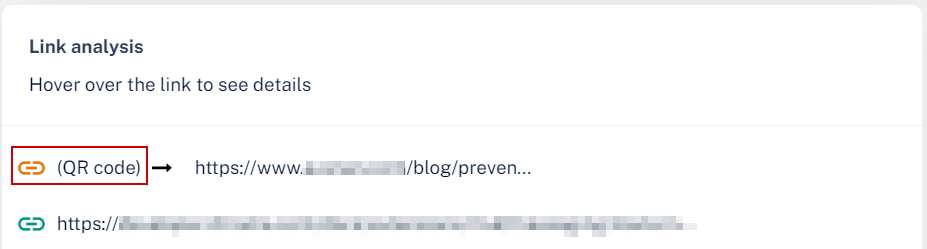
The Anti-Phishing security engine analyzes the links behind the QR codes and reports the malicious links, if any.
To view the links behind QR codes, open the page and scroll down to the section.
Filtering Emails Containing QR Codes
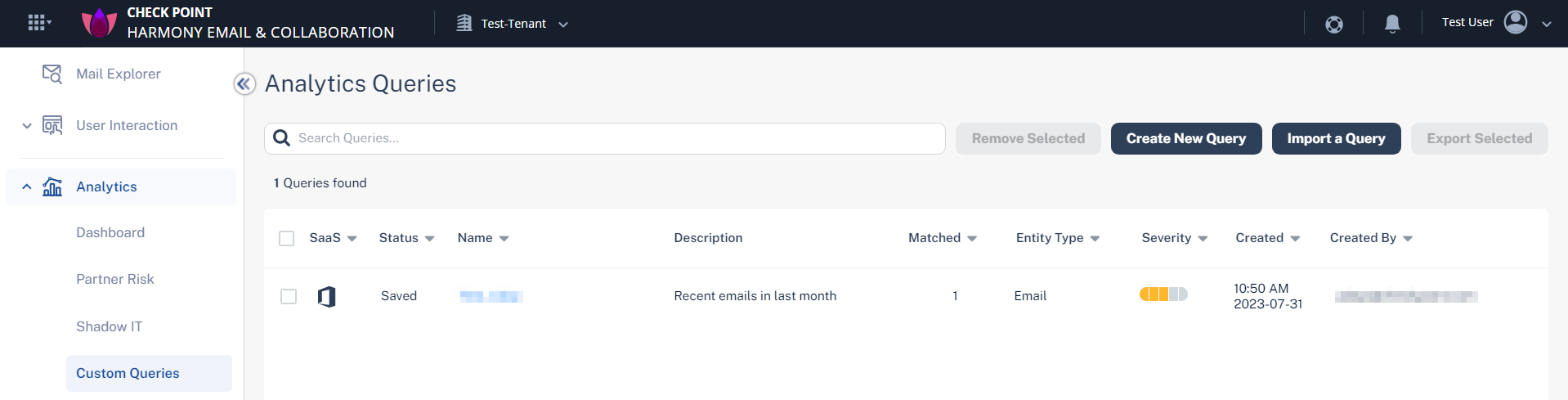
Using the as QR in , the administrators can filter emails with malicious QR code. For more information, see Custom Queries.
Overriding Microsoft False Detections as Spam (Send to Junk)
Administrators can configure Email Security to manage the phishing emails that Microsoft / Google flags as spam and intend to send them to the user's Junk folder, while Check Point classifies the emails as clean. To do this:
-
Go to > .
-
Click for .
-
Scroll down to the section and select one of these.
-
- The system treats the phishing email that Microsoft detected as clean, applies the workflow, and delivers the email to the user's mailbox.
-
- The system treats the phishing email that Microsoft detected as spam and sends it to the user's Junk folder. However, the email profile page in Email Security shows that Check Point classifies the email as clean.
-
Click .
|
|
Note - This workflow is applicable only to the emails inspected and enforced by a policy.
|
Anti-Phishing Exceptions
See Anti-Phishing Exceptions.