
Manually Controlling IP Exceptions in Microsoft 365 Mail Flow Rules
During onboarding, Email Security automatically creates several Mail Flow rules (see Automatic Mode Onboarding - Microsoft 365 Footprint). To prevent email delivery issues such as mail loops, the system automatically adds the Check Point IP addresses, along with all IP addresses from inbound connectors in the Microsoft 365 account at the time of onboarding, as exceptions in the Check Point Mail Flow rules.
In some cases, you may prefer to manage the list of IP exceptions in the Check Point Mail Flow rules manually.
Modifying IP exceptions in Check Point Mail Flow rules must be done carefully, as it may cause email delivery issues. This approach is not recommended. If you choose to modify IP exceptions manually, contact Check Point Support before making any changes.
-
Create a new Threat Detection Policy for Incoming Emails (Prevent (Inline)) or open an existing one.
-
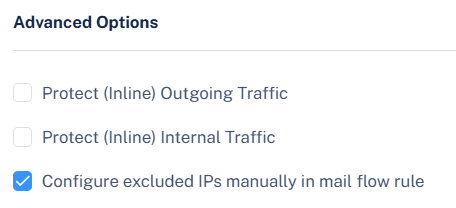
Scroll down to the Advanced section.
-
Select Configure excluded IPs manually in mail flow rule checkbox.
-
Click Save and Apply.
When are my changes overridden
Changes made to IP addresses in Check Point Mail Flow rule exceptions are not overridden immediately, regardless of whether the checkbox is selected.
However, changes may be overridden in the following situations:
-
Inline Protection for Internal Emails
When the Protect (Inline) Internal Traffic option is enabled or disabled in a Prevent (Inline) policy, Check Point automatically updates the Check Point - Protect Internal Mail Flow rule.
-
If Configure excluded IPs manually in mail flow rule is not selected, your changes to this rule are overridden.
-
If Configure excluded IPs manually in mail flow rule is selected, your changes to this rule are not overridden.
-
-
Occasional Support Intervention
In some cases, Check Point Support may need to recreate or update Mail Flow rules while handling a support ticket.
-
If Configure excluded IPs manually in mail flow rule is not selected, the rules are recreated, and your changes are overridden.
-
If Configure excluded IPs manually in mail flow rule is selected, the rules are updated, but your changes are not overridden.
-