
Office 365 OneDrive Security Settings
Administrators can customize the Quarantine and Vault folders (folder names, quarantine/vault messages and more).
Quarantine Folder
The Quarantine folder stores quarantine malware-infected or sensitive files from OneDrive. It quarantines files from all users and places them in a single predefined quarantine folder for the entire organization.
You can configure the Threat Detection policy and DLP policy to quarantine only malware while sending sensitive files to the end user's Vault.
-
The Quarantine folder can be stored in your organization's OneDrive or in the Check Point cloud in the region associated with your organization's Check Point Portal account.
-
End users do not have access to this folder.
To customize the Quarantine folder:
-
Go to Security Settings > SaaS Applications.
-
Click Configure for Office 365 OneDrive.
-
Go to Quarantined Files section.
-
In the Store quarantined files in section, select where you want to store the quarantined files.
-
Check Point - Stores the quarantined files in the Check Point cloud in the region associated with your organization's Check Point Portal account.
-
Company's OneDrive - Stores the quarantined files in a Quarantine folder located in your organization's OneDrive account.

-
-
If you selected Company's OneDrive in the previous step, enter the required details for the quarantine folder.
-
In the Quarantine folder owner email address field, enter the required email address.
Note:Ensure that the OneDrive account exists for the provided email address.
-
In the Quarantine folder name field, enter the required folder name.
Note:The system creates a Quarantine folder with the specified name in the root directory of the given email address.
-
-
(Optional) To customize the content of the file that replaces the quarantined malicious file in its original folder, enter the text in the Text in placeholder file (Malware) field.
-
(Optional) To customize the content of the file that replaces the quarantined sensitive file in its original folder, enter the text in the Text in placeholder file (DLP) field.
-
Click Save.
Vault Folder
The Vault folder remediates DLP detections related to OneDrive files. The system creates a non-shared Vault folder for each OneDrive user.
If a file contains sensitive information that does not comply with your organization's data-sharing policies, the system removes it and places it in the user's Vault folder.
-
The system creates the Vault folder with the specified name in the root directory of each user.
-
Users can access the files in the Vault folder but cannot share them with others.
To customize the Vault folder:
-
Go to Security Settings > SaaS Applications.
-
Click Configure for Office 365 OneDrive.
-
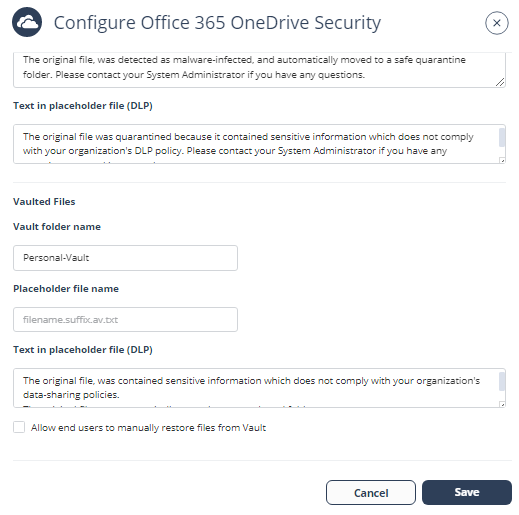
Go to Vaulted Files section.
-
In the Vault folder name field, enter the required vault folder name.
Note:The system creates the Vault folder with the specified name in the root directory of each user.
-
If you want to allow end users to manually restore files from the Vault, enable the Allow end users to manually restore files from Vault checkbox.
-
(Optional) To customize the content of the file that replaces the vaulted sensitive file in its original folder, enter the text in the Text in placeholder file (DLP) field.
-
Click Save.