
Activating and Deactivating Gmail
Activating Gmail
For details about the procedure to activate Gmail, see Activating Gmail.
Deactivating Gmail
-
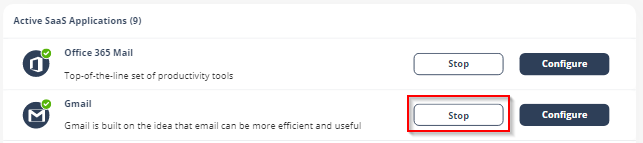
Navigate to Security Settings > SaaS Applications.
-
Click Stop for Gmail.
-
In the confirmation pop-up, click Stop.
Upon deactivation, Check Point will no longer protect your organization's Gmail mailboxes.
To complete the deactivation process:
-
If you receive Google Workspace protection was successfully uninstalled message, remove the Check Point apps.
For the procedure to remove the Marketplace app, see Uninstall a Google Workspace Marketplace app.
-
If you receive Check Point was unable to be uninstalled automatically from Google Workspace message, follow these steps.
-
Delete Check Point settings on Google Workspace:
-
Inbound gateway
-
SMTP relay service
-
Hosts
-
Groups
-
Service Admin User
-
-
Remove the Check Point apps.
For the procedure to remove the Marketplace app, see Uninstall a Google Workspace Marketplace app.
-
After a certain period of time your tenant-related data will be deleted. If you want the data to be deleted immediately, contact Check Point Support.