Configuring Malware Policy

  1. Click Policy on the left panel of the Avanan Administrator Portal.
  2. Click Add a New Policy Rule.
  3. From the Choose SaaS drop-down list, select Slack.
  4. From the Choose Security drop-down list, select Malware and click Next.
  5. Select the desired protection mode (Detect and Remediate or Detect).

    If required, you can change the Rule Name.

  6. Under Blades, select the threat detection blades required for the policy.
    Note:

    To select all the blades available for malware detection, enable the All running threat detection blades checkbox.

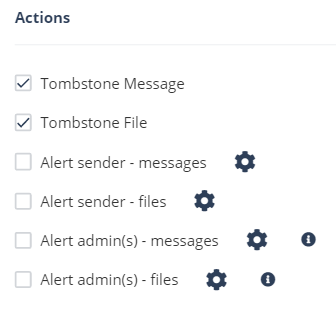
  7. Configure Actions required from the policy.
    1. To tombstone messages, enable the Tombstone Message checkbox.

      Note - This option will be available only in Detect and Remediate protection mode and when URL Reputation threat detection blade is enabled.

    2. To tombstone files, enable the Tombstone File checkbox.
      Note:

      This option is available only in Detect and Remediate protection mode and when the Anti-Malware threat detection blade is enabled.

    3. To send email alerts to the sender about malware in messages and files, enable the Alert sender - messages and Alert sender - files checkbox.
    4. To send email alerts to admins about malware in messages and files, enable the Alert admin(s) - messages and Alert admin(s) - files checkbox.
    Note:
    • To customize email alert templates, click the gear icon to the right of the alert.

  8. Click Save and Apply.