DLP Policy

By default, the DLP policy scans the uploaded files to Google Drive for potentially leaked information, such as credit card number and Social Security Number (SSN).

Supported Actions

Google Drive DLP policy supports these actions:

  • Quarantine potentially leaked information files.

  • Alert owner: Sends an email notification to the user who uploaded a file that contains sensitive information.

  • Alert admin(s): Sends an email notification to the admin(s) about the files that contain sensitive information.

Configuring DLP Policy for Google Drive

To configure DLP policy:

  1. Click Policy on the left panel of the Avanan Administrator Portal.
  2. Click Add a New Policy Rule.
  3. From the Choose SaaS drop-down list, select Google Drive.
  4. From the Choose Security drop-down list, select DLP and click Next.
  5. Select the desired protection mode (Detect and Remediate or Detect).

    If required, you can change the Rule Name.

  6. Choose Scope for the policy.
    • To apply the policy to specific users or groups, select the users and groups and click Add to Selected.

    • To apply the policy to all users and groups in your organization, enable All Users and Groups checkbox.

    • To exclude specific users or groups from the policy, select the users/groups and click Add to Excluded.

  7. Under DLP Criteria, select the DLP categories required for the policy.

    For more information about the DLP Data Types and categories, see Appendix E: DLP Built-in Data Types and Categories.

  8. Select the sensitivity level required for the policy.
    • Very high (hit count > 0)

    • High (hit count > 2)

    • Medium (hit count > 5)

    • Low (hit count > 10)

    • Very Low (hit count > 20)

  9. To exclude DLP policy for the messages and files shared only with the internal users, enable the Skip Internal items checkbox.
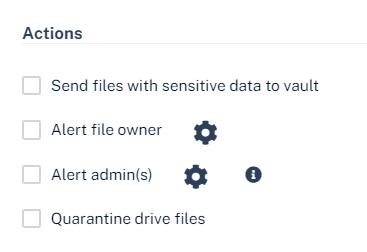
  10. Configure the Actions required for the policy.
    1. To send files with sensitive data to vault, select the Send files with sensitive data to vault checkbox.
    2. To send email alerts to admins about DLP, select the Alert admin(s) checkbox.
    3. To send email alerts to the file owner about DLP, select the Alert file owner(s) checkbox.
    4. To send a detected file with sensitive data to quarantine (no access for the file owner), select the Quarantine drive files checkbox.
    Note:
    • To customize the email alert templates, click on the gear icon to the right of the alert.

  11. Click Save and Apply.