Customize End User Browser Pages Language

Avanan allows you to customize the language of browser pages presented to end users.

  1. Go to System Settings > Customization.
  2. In the General section, go to Language section.
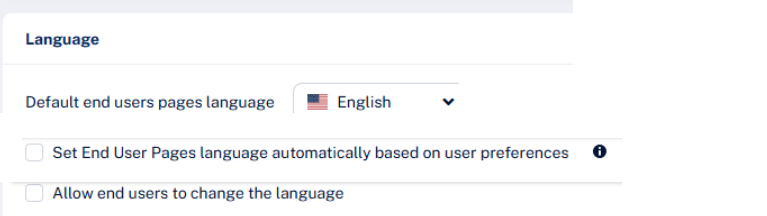
  3. From the dropdown, select the desired language.
    Note:

    By default, English is selected.

  4. To automatically align the language used in browser-based end-user interactions with each user's Microsoft 365 or Google language settings, select the Set End User Pages language automatically based on user preferences checkbox.
  5. (Optional) To allow end users to select their preferred language, enable Allow end users to change language checkbox.
    Note:

    If Allow end users to change language is enabled, a language selector appears at the top-right corner of browser pages displayed to end users.

  6. Click Save and Apply.